How to Connect a Second Monitor to a Mac
Check that your Mac model supports the intended external display, connect a compatible HDMI, Thunderbolt or video-capable USB-C cable, turn the monitor on and open Apple menu > System Settings > Displays.
Quick answer: Check that your Mac model supports the intended external display, connect a compatible HDMI, Thunderbolt or video-capable USB-C cable, turn the monitor on and open Apple menu > System Settings > Displays. Choose to extend or mirror the desktop and arrange screen positions.
Mac display support varies by chip, model, lid position, number of attached displays and resolution/refresh rate. Do not assume that because one MacBook supports two external monitors, another can do the same. Apple publishes model-specific display support information; check it before choosing a dock, daisy-chain setup or high-refresh monitor.
Check your Mac’s display capabilities
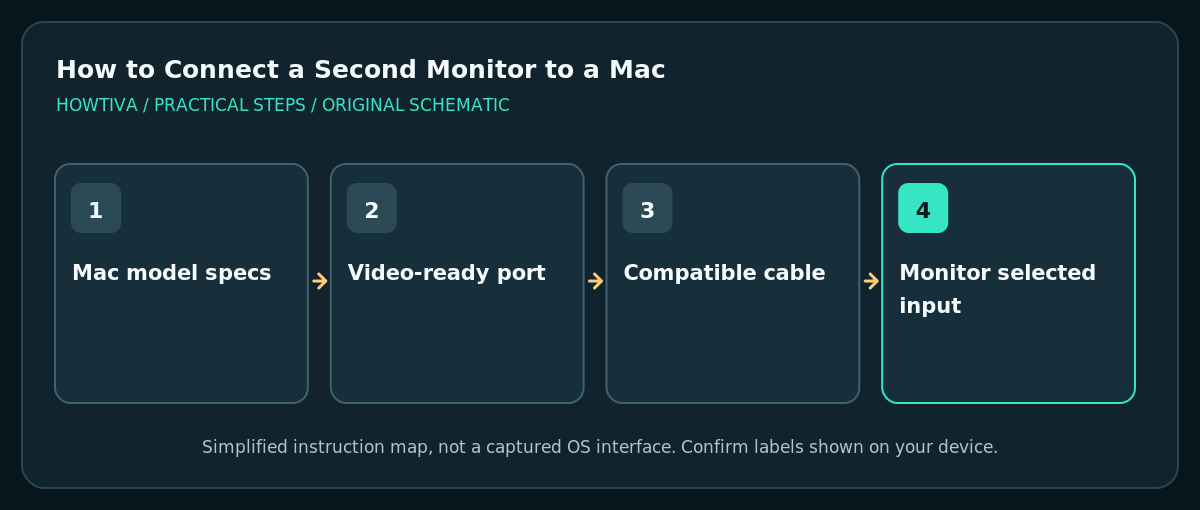
- Choose Apple menu > About This Mac to identify the model and chip. If you do not know its capabilities, look up the official technical specifications and the section headed Display Support or Video Support.
- Count the total displays you plan to use, including the built-in display where applicable. Some combinations are supported only at particular resolutions, refresh rates or lid states; do not generalize across Apple silicon generations or Intel Macs.
- Identify an appropriate output: HDMI on models that have it, or a Thunderbolt/USB-C connection that explicitly supports video. A USB-C connector by itself does not prove video capability; hubs and adapters also impose limits.
- Connect the monitor to its power supply, select the correct physical input, and connect the Mac with a cable meeting the required resolution and refresh rate. If multiple displays are supported, follow Apple’s current model-specific guidance on connection order.
Arrange and configure the screen
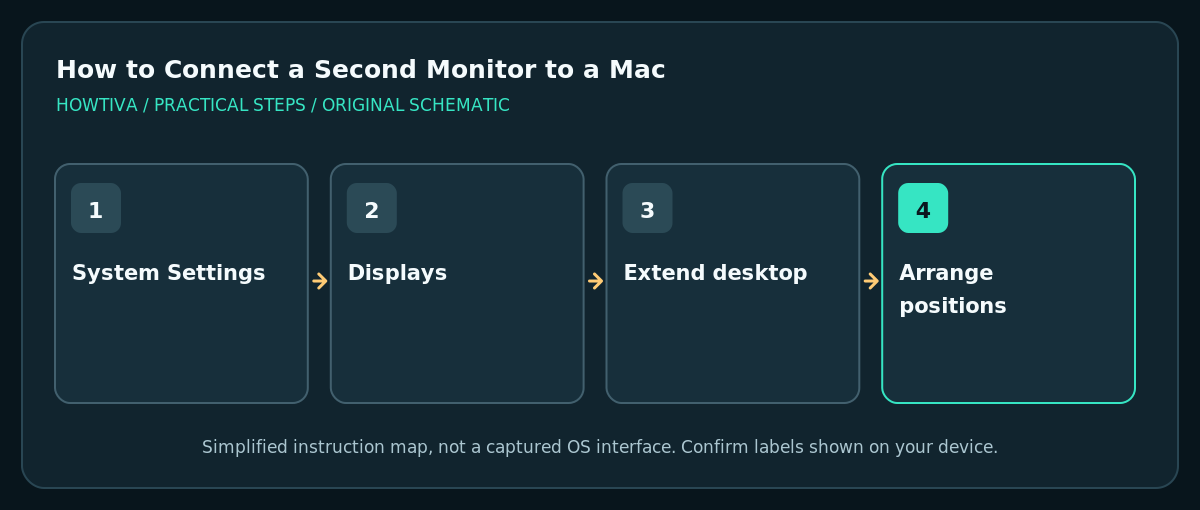
- Open Apple menu > System Settings > Displays. In older macOS versions this can be System Preferences > Displays.
- Select the relevant screen and review the control for Use as or display arrangement, depending on macOS. Choose an extended desktop if you want different windows on each display; use mirroring if both should show the same picture.
- In the arrangement controls, drag the screens to match their physical positions and choose which screen should hold the main menu bar or primary workspace if that setting is available.
- Check display resolution, refresh rate and rotation as supported by the panel. For a third-party monitor, some brightness or color options may be available only through its own hardware controls.
- Move a Finder window between displays to confirm that extension is working and that the pointer crosses at the intended edge. Keep private windows off the screen that will be shared in a presentation.
What to do if the display is not detected
In System Settings > Displays, press and hold Option if necessary to reveal Detect Displays and select it. Recheck power, cable seating and monitor input. Apple also recommends putting the Mac to sleep and waking it; a restart can help when appropriate. Some Apple silicon Mac laptops ask you to allow the accessory when first connected. If you deny the prompt, the display may remain dark until you grant access.
Troubleshooting
Display remains black even though the Mac can see it
Inspect the monitor’s brightness and input selector. Try an appropriate direct video cable, avoiding a dock if possible. Check whether the screen needs power from its own adapter and whether the cable supports the selected mode.
Second external screen does not appear
Verify the exact Mac model’s documented number of supported external displays and resolution limits. A splitter generally mirrors one signal rather than creating a new independent desktop. Do not buy an adapter based solely on its number of ports.
Resolution or refresh rate is unexpectedly low
Check the monitor specification, HDMI/Thunderbolt capability, cable rating, hub limits and selected Display settings. High resolution and high refresh rate require suitable support throughout the connection chain.
Windows open off-screen after unplugging the monitor
Reconnect the screen temporarily or use available window-management controls to bring the app back to the built-in display. Save work before changing arrangement settings or disconnecting during a presentation.
External display works only with laptop lid open
Check model-specific display support and requirements for closed-display operation, including power, external keyboard or mouse when required. Do not assume closing the lid enables an additional independent display on every model.
Frequently asked questions
Does every MacBook support two external monitors?
No. Maximum supported displays depend on the exact Mac model, chip and display configuration. Consult Apple’s specifications rather than an unrelated MacBook tutorial.
Does a USB-C charging cable necessarily support video?
No. Some USB-C cables and ports only handle charging/data or support limited modes. Match both Mac/adapter and cable specifications to the display.
Can I use an iPad instead of a monitor?
Compatible Macs and iPads can use Sidecar as a separate Apple feature. Requirements and setup differ from connecting a standard HDMI monitor; follow Apple’s Sidecar guide if that’s your intended workflow.
Sources & Further Reading
- Apple — Connect displays to your Mac — Supported number of displays varies by model and resolution; display settings.
- Apple — Connect one or more external displays with your Mac — Video-capable ports, arranging, extend/mirror and Detect Displays.
- Apple — If your external display is dark or low resolution — Option Detect Displays and external accessory permissions.
Use the checklists as you go, and confirm the result before moving on to a more involved repair.