How to Create a Separate Network for Smart Home Devices
Build a dedicated IoT Wi-Fi name, test real client isolation and preserve smart home discovery without exposing household devices.
Quick answer: If your router supports a dedicated IoT network, create a separate Wi-Fi name for smart cameras, plugs and sensors, apply a unique password and test whether those clients can reach your main computers. A second SSID alone is not proof of network isolation. For stronger separation, use the router’s documented guest-isolation or VLAN/subnet controls, then deliberately allow only necessary smart-home discovery or control traffic.
Decide what separation you actually need
Write down the equipment to move: plugs, lamps, cameras, thermostats and speakers. Identify what must communicate locally with a phone, smart-home hub, printer, TV or voice assistant. A camera you access only via its cloud may tolerate stricter isolation than a Matter, Chromecast or AirPlay product that requires local discovery. Also note if your router is an ISP gateway in front of a mesh system; the firewall and DHCP functions may be on different devices.
Step 1: Check router capabilities
Open the verified management app or local router page and look for IoT Network, Guest Network, Network, VLAN or Client Isolation. The terminology varies, and some router firmware provides only another SSID without a separate IP network. On supported ASUS Guest Network Pro models, for example, a dedicated IoT feature exists, but the setting Use same subnet as main network may be enabled by default. ASUS specifically explains that turning it off is needed for a separate subnet on those models. Do not apply ASUS labels to other brands.
Step 2: Create the IoT wireless network
Choose a distinct SSID such as Home-Devices and a unique passphrase. Where supported, choose 2.4 GHz compatibility for devices that require it; do not assume every IoT device can join WPA3-only or 5 GHz networks. Use WPA2-AES or another vendor-documented supported encryption choice, rather than insecure legacy WEP. Save settings and verify a phone can at least see the SSID before moving equipment.
Step 3: Select an isolation policy you can verify
A common topology has main computers on one trusted network and IoT devices on another. If supported, block unsolicited IoT-to-main connections, allow ordinary internet access for devices that need it, and allow exceptions only for a controller or hub that genuinely requires them. Router terminology such as same subnet, AP isolation, block intranet access, allow access to local network, or VLAN firewall rules is not interchangeable. An SSID may be separate while devices still share the main LAN.
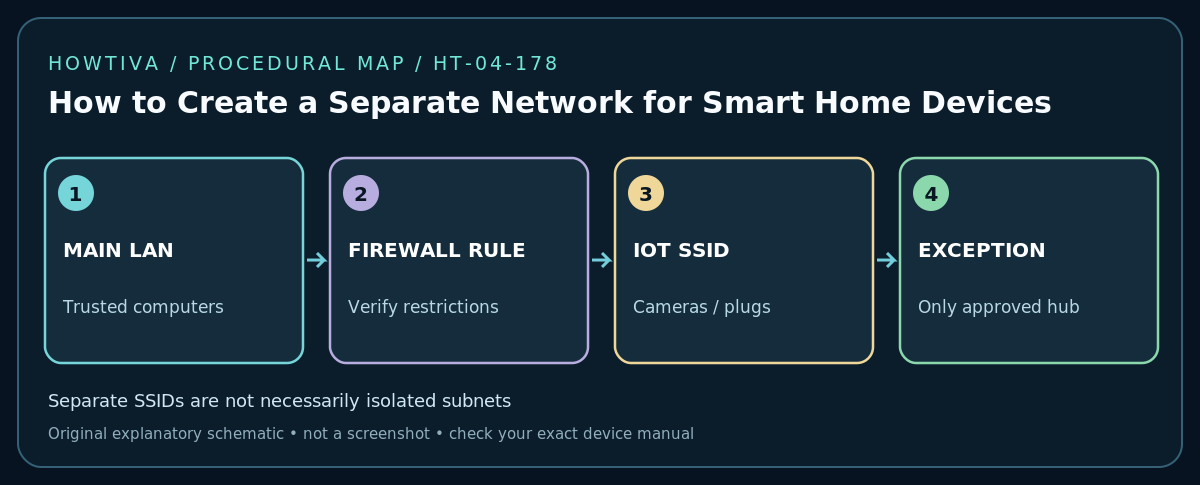
Step 4: Migrate devices one at a time
Start with a low-risk smart plug, not a safety-critical lock or alarm. In the device’s own manufacturer app, find its approved change-Wi-Fi or setup method. Some devices require a network reconfiguration; others require re-pairing. Keep an inventory of device name, approved network and critical automations. Confirm cloud control and any necessary local app control after each move. Do not delete the entire existing smart-home household or account merely because a network transfer fails.
Step 5: Verify separation and daily operation
From a device on the IoT network, attempt to open the main network’s private printer or a test service that you own. Access should fail when full client-to-LAN isolation is intended, but internet access may still work. From your permitted control device, verify you can manage the IoT product through its supported mechanism. Confirm your camera feed, doorbell notification, voice-assistant routine and casting feature still function where required. Record any exceptions, not just the network names.
When device discovery breaks
- Phone cannot find Chromecast, smart speaker or Matter device: Discovery may rely on local multicast or mDNS, which isolation blocks. Consult your router and platform for approved cross-network discovery features. Avoid indiscriminately opening the entire IoT network to the main LAN.
- Device connects to Wi-Fi but says offline: Verify internet, DNS and manufacturer service access. Connection to an SSID does not guarantee cloud reachability.
- Device supports only 2.4 GHz: Set an appropriate IoT band, use compatible security, and during onboarding make sure the setup phone is on a reachable network if the app requires it.
- Guest network blocks all devices from each other: That may prevent a hub from finding its accessories. Check whether guest isolation can be scoped without exposing unrelated household systems.
- Mesh and ISP router disagree: Confirm which device hosts the real DHCP, firewall and VLAN routing; operating two independent NAT networks can complicate discovery.
Alternative when your router lacks IoT isolation
Use an approved guest network for less-trusted Wi-Fi accessories only after confirming its behavior. Otherwise, keep firmware current, use per-device unique accounts and cloud MFA, block obsolete or abandoned devices, and consider a router upgrade when true subnet separation is important. Do not tell readers that merely renaming a network makes it isolated.
Frequently asked questions
Is a guest Wi-Fi the same as an IoT network?
Not necessarily. Guest networking may block clients from the LAN or from each other, while an IoT feature might prioritize compatibility and intentionally allow local communications. Read the router documentation.
Can I use a different wireless password with the same IP subnet?
Yes, on some routers. It separates credentials, but may not isolate devices at the network layer. Test the actual behavior rather than relying on the network name.
Sources & Further Reading
- ASUS — How to set up IoT Network? (checked 2026-10-27).
- ASUS — What is Guest Network Pro? (checked 2026-10-27).
- TP-Link — Deco Smart Home Dropping? 3 Settings to Fix It (checked 2026-10-27).
Use the checklists as you go, and confirm the result before moving on to a more involved repair.