How to Convert HEIC Images to JPG
On a Mac, open a.heic photo in Preview, choose File → Export, select JPEG from the Format menu, set the quality if shown, and save under a new name.
Quick answer: On a Mac, open a .heic photo in Preview, choose File → Export, select JPEG from the Format menu, set the quality if shown, and save under a new name. On an iPhone, when sharing from Photos, you can open the share sheet’s Options and choose Most Compatible where available; Apple says this may convert shared pictures to JPEG. Converting makes a new image—renaming .heic to .jpg does not convert its contents.
HEIC is a file extension often used for HEIF still images. It can store a photograph efficiently and is normal on many iPhones. JPEG remains widely compatible with older applications and websites. A conversion solves a compatibility problem, but it may change file size, discard some format-specific information, or reduce quality. Preserve the original in case you need to edit or export again.
Method 1: Convert HEIC to JPG in Preview on Mac
- Transfer or locate the HEIC file in Finder. Duplicate the file before starting if it is the only copy.
- Open the picture with Preview. If another app opens by default, use Open With → Preview in Finder.
- Select File → Export from Preview’s menu bar. This is Apple’s documented file-type conversion workflow.
- In the Format menu, choose JPEG. If you need further options, Apple’s support notes that holding Option while opening the Format menu can reveal additional formats.
- Use the JPEG quality setting to balance detail with file size. Choose a destination folder, type a filename ending
.jpgor.jpeg, and save the converted copy. - Open the newly saved file and check text, color, portrait orientation and pixel dimensions. Check its file type in Finder rather than trusting the extension alone.
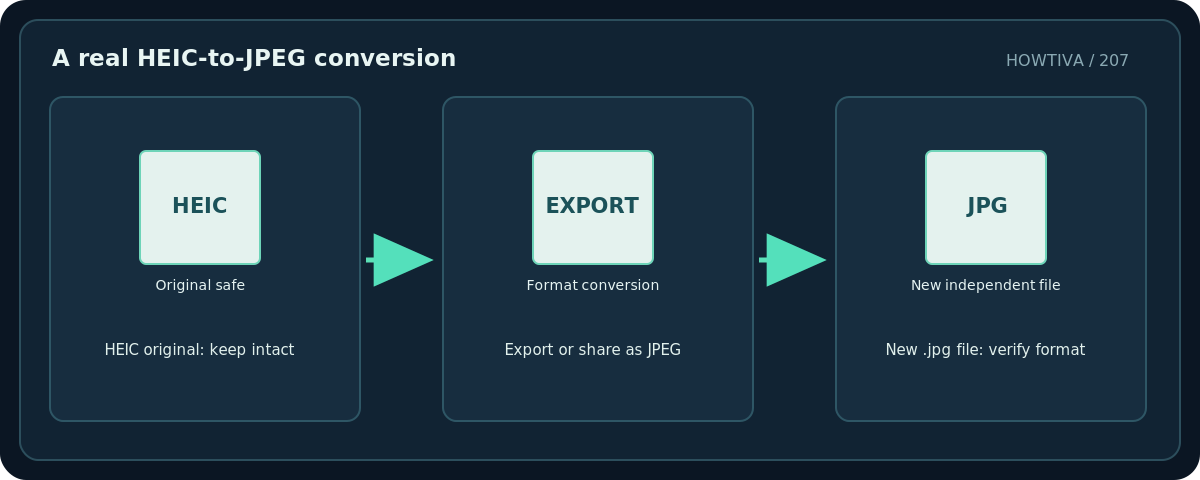
For several images, Preview can also open files in one window, select them in the sidebar and perform a format export. Work with a small sample first, because naming, destination prompts and mixed image sizes need checking. Apple documents multi-image exports but does not guarantee all metadata or edits survive every conversion path.
Method 2: Share a more compatible image from iPhone
- Open Photos on the iPhone and select the photograph.
- Tap Share, then Options in the share interface if your iOS version exposes it.
- Choose Most Compatible for the shared file format. Apple states that shared files may convert to JPEG (or MOV for video), depending on the situation.
- Complete the share to the receiving app or destination, then inspect the received file to confirm its extension and actual format.
- If that sharing path keeps HEIC, use an app with an explicit Export as JPEG capability, or move the file to a Mac and use Preview.
Important: Selecting Most Compatible for a share is not the same as changing the format of every photo already in your library. It is a sharing preference. Do not delete the HEIC master until you have checked the converted copy.
Method 3: Handle HEIC on Windows without risky online uploads
Windows workflows depend on the installed image decoders and editing apps. If a Windows photo viewer cannot open HEIC, you may need an officially supported codec or an updated application. Once your editor can read HEIC, look for Save as or Export and choose JPEG explicitly. If the application does not offer that export, use the Apple methods above or a documented trusted offline converter.
For confidential photos, prefer an approved local tool. Uploading passports, contracts or family pictures to an unknown web converter creates an unnecessary privacy risk. Do not suggest that changing an extension in File Explorer changes the underlying bytes.
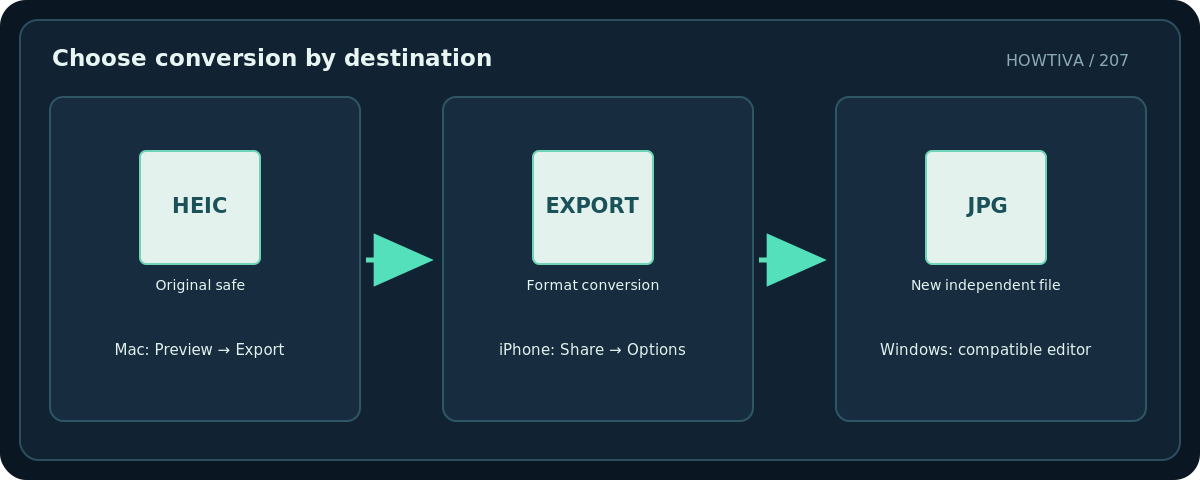
Future iPhone photos: an optional camera setting
Apple documents Settings → Camera → Formats → Most Compatible on supported iPhone models. This causes new pictures to use JPEG rather than HEIF, but it does not retroactively convert older pictures. High Efficiency may use less storage for a similar level of visual quality, so changing the camera default has a trade-off. If you share only occasionally with an older service, exporting individual JPEG copies may be better.
Troubleshooting
A .jpg file still will not open. Check whether the file was truly converted. A renamed HEIC is still HEIC internally. Export it with a format-aware app.
The output looks flatter or has a different color. Compare the original and the conversion on a color-managed display. Some image characteristics and metadata do not transfer identically between formats.
The converted file is larger. That is possible: format overhead, chosen JPEG quality and image content all matter. A format change does not guarantee compression.
Windows asks for an extension. Follow the current app or operating-system guidance and avoid installing unknown codecs from ads or pop-ups. If you cannot verify a compatible offline converter, keep the item on HOLD until an authorized method is available.
The photo includes location information. Sharing options can preserve or omit metadata depending on app and settings. Review the share sheet’s location-data option and confirm the output metadata if privacy matters.
Frequently asked questions
Does converting a HEIC to JPG damage the original?
No, if you explicitly export a new file and keep the source. JPEG re-encoding can change the resulting image, so preserve the original.
Is HEIC the same as HEIF?
HEIF is the image-file-format family; .heic is a common filename extension for images using it.
Can I just rename the extension?
No. The pixels remain encoded in the original file format, and apps may reject the mislabeled image.
Sources & Further Reading
- Apple — Convert image file types using Preview on Mac — Preview File > Export and JPEG quality selection.
- Apple — Using HEIF or HEVC media on Apple devices — HEIF/HEIC compatibility, Most Compatible camera setting, manual export.
- Apple — Share photos and videos on iPhone — Share sheet Options Most Compatible may convert shared files to JPEG.
Use the checklists as you go, and confirm the result before moving on to a more involved repair.