How to Convert PNG to JPG
Open a PNG in Preview on Mac, choose File → Export, select JPEG, set a suitable quality, and save it under a new filename.
Quick answer: Open a PNG in Preview on Mac, choose File → Export, select JPEG, set a suitable quality, and save it under a new filename. On Windows, open the PNG in a local image editor that provides Save as → JPEG (for example Paint, when that format is offered). If the PNG has a transparent background, choose how to flatten that area before exporting; JPEG does not support transparency.
Both PNG and JPEG are common image formats, but they are optimized for different content. PNG is generally lossless and can preserve crisp screenshots, logos and transparent pixels. JPEG uses lossy compression, which is helpful for natural photographs but can create visible ringing and fuzz around thin letters. A format conversion should solve a real compatibility or size issue; it should not be used reflexively for every image.
Before converting: look for transparency and tiny text
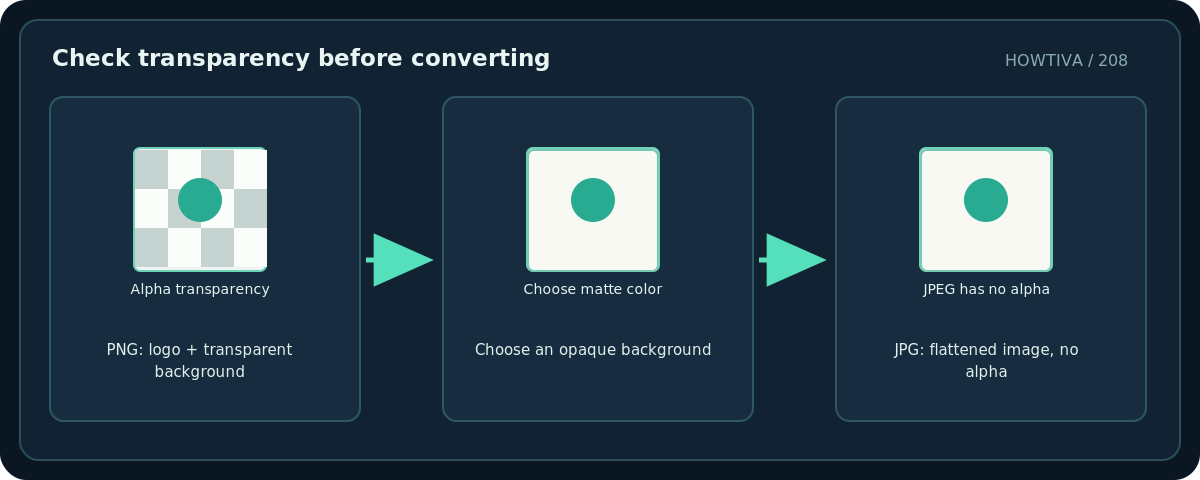
- Open the original PNG at its actual pixel size and check whether the background is transparent. Many editors display transparency as a gray-and-white checkerboard.
- Decide which solid color should replace transparent regions in the JPG, such as white for a logo destined for a white document. Black or white can make parts of a logo disappear if chosen carelessly.
- Look for text, barcodes and fine grid lines. These often suffer more from JPEG compression than photographs.
- Duplicate the file. Keep the original PNG for future edits, especially when its alpha channel is important.
- Choose a descriptive new name such as
diagram-white-background.jpg, rather than using the old filename with a different extension.
Method 1: Export PNG as JPEG using Preview on Mac
- Open your PNG in Preview. Apple’s format converter is reached from File → Export.
- In the Format pop-up, select JPEG. If there are optional export settings, inspect the JPEG quality adjustment.
- If the file has transparent regions, prepare an opaque background in an editor before conversion, so you can control exactly how transparent pixels are replaced. Do not assume every converter uses the same background color.
- Save a new copy with a
.jpgor.jpegextension in a separate folder. - Reopen the JPEG and verify that its background, colors, edges and small characters look acceptable. Check file size separately; conversion does not guarantee that it is smaller.
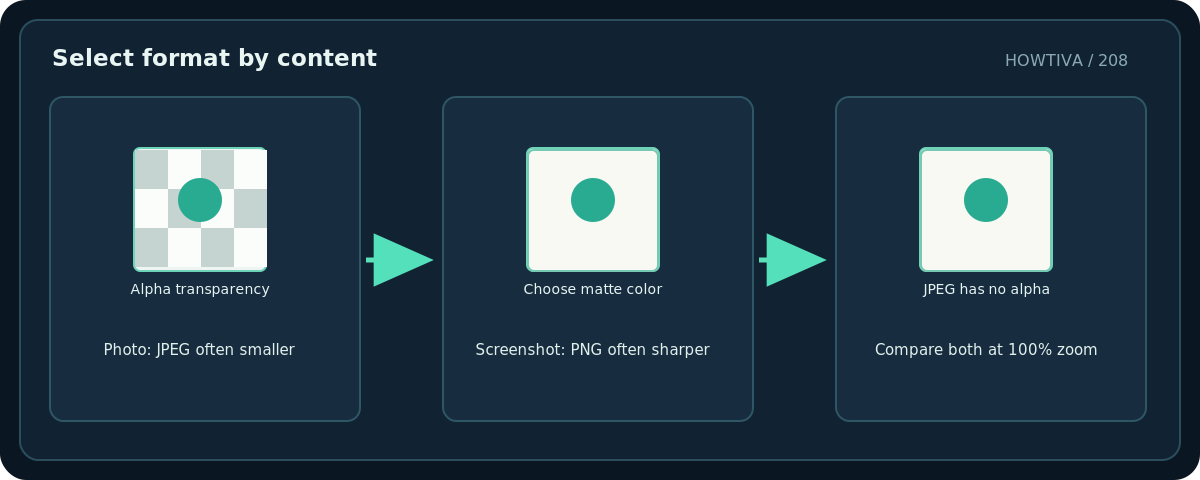
For a photo that was stored as PNG, JPEG can be dramatically smaller. For a screenshot with hard-edged type and a few colors, the output may become blurrier even at fairly high quality. If the target service accepts PNG, keeping PNG can be the clearer choice.
Method 2: Use a local image editor on Windows
- Open the PNG in a trusted local editor with JPEG export. Paint is a common option on Windows; its layout and file menu may differ across Windows versions.
- If needed, create or apply an opaque background layer before export. Check the image corners and internal cutouts, not just the main background.
- Use the editor’s Save as command and select JPEG picture or an equivalent JPEG format explicitly, rather than only renaming the file.
- Save the JPG to a new location. If prompted about quality or transparency changes, read the notice carefully.
- Open the saved JPG in a second viewer to check that it is a genuine JPEG and that no important information disappeared.
No precise Paint button locations are asserted beyond the Save as intent because Microsoft periodically revises Paint’s interface. If you cannot find an explicit JPEG export in your installed application, use another documented offline image editor instead of guessing at hidden settings.
Why conversion can make text look worse
PNG compresses image data without discarding individual detail. JPEG approximates image information and can introduce noise around contrasting edges—exactly where a screenshot’s small text relies on sharpness. JPEG quality settings may help, but once detail is lost, resaving the JPEG again cannot reconstruct the PNG’s exact pixels. Start from the PNG each time you test new settings.
Troubleshooting
The transparent area became black. The editor flattened alpha against a dark background. Reopen the original PNG, explicitly add the intended solid-color background, and re-export.
The new .jpg is still a PNG. Renaming extensions is not conversion. Use the program’s format selector; inspect format details after saving.
A logo has white halos. Semi-transparent edge pixels can appear different when placed against a new background. Composite the logo over its final intended background before saving the JPEG.
My JPEG is bigger than the PNG. Simple diagrams compress efficiently as PNG. Keep the PNG unless a receiving system requires JPEG. File format is not a reliable predictor of size in isolation.
Colors seem different. Image color profiles and app export settings can affect rendering. For brand-color-critical images, use the requested workflow and compare the output on the destination device.
Final verification
Open the JPG, inspect its edges at 100%, confirm its dimensions and transparency outcome, and attach/upload the actual new file. If the destination accepts both formats, test both on that destination rather than selecting the format based only on its name.
Frequently asked questions
Can a JPG keep transparency?
No. JPEG has no alpha channel. Use PNG, WebP or another supported format when transparency must remain.
Can I convert PNG to JPG without losing any quality?
JPEG encoding is lossy. You may not notice a difference at high quality, but it is not a pixel-for-pixel lossless conversion.
Is .jpeg different from .jpg?
Both are extensions used for JPEG images. Check the actual encoded format when troubleshooting.
Sources & Further Reading
- Apple — Convert image file types using Preview on Mac — Convert PNG to JPEG using File > Export and JPEG quality control.
- Apple — Preview user guide for Mac — Supported Preview conversion formats and application scope.
- Microsoft — Edit photos and videos in Windows — Windows Photos editing and output controls vary by supported app version.
Use the checklists as you go, and confirm the result before moving on to a more involved repair.