How to Compress Images for Email
To email large photos, make copies and reduce their pixel dimensions before attaching them. On a Mac, open each image in Preview, use File → Export, select JPEG, and adjust the quality control before saving.
Quick answer: To email large photos, make copies and reduce their pixel dimensions before attaching them. On a Mac, open each image in Preview, use File → Export, select JPEG, and adjust the quality control before saving. In classic Outlook for Windows, you can also attach large pictures, select File → Info, and use Resize large images when I send this message. Always inspect the actual exported file and the message size; email services impose different limits.
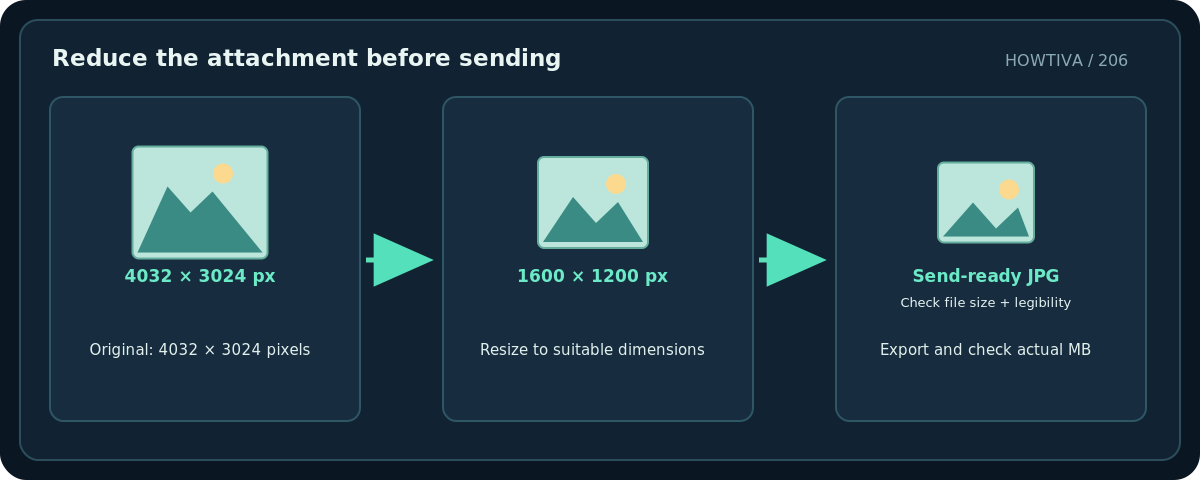
A picture can be large for two reasons: it has too many pixels for the recipient’s use, or its image encoding stores more information than necessary. Resizing reduces pixel count, while JPEG compression changes how image detail is represented. These are different tools. If the image contains a tiny product code, receipt, map or a screenshot with fine text, aggressive compression may make the information unreadable even when the file looks fine as a thumbnail.
Choose a sensible target first
- Check the actual delivery requirement. A client needing print-quality artwork may require the original. A colleague only reviewing a photo on screen usually does not.
- Measure the current file. In File Explorer or Finder, inspect its size in MB. Check the email provider’s attachment limit; do not assume one global limit applies.
- Keep the original. Copy it into a clearly named folder such as
Email-copiesand edit only those duplicates. - Work with the smallest change that succeeds. Start by reducing unnecessary dimensions or exporting JPEG at moderate quality. Do not repeatedly save an already compressed JPEG.
- Consider a link instead of compression. For many originals, a permission-controlled cloud folder may preserve more quality. Verify the recipient can open it and that link sharing is appropriate for the contents.
Method 1: Export a smaller JPEG using Preview on Mac
- Open the picture in Preview and choose File → Export. Apple’s supported Format menu includes JPEG and PNG.
- For a normal photograph without required transparency, choose JPEG. Choose a new output name and location rather than overwriting the master.
- Adjust the available Quality control toward a smaller size, keeping it high enough for faces, signs and fine texture. Save the file.
- Compare the output’s file size with the original using Get Info, and open both images at roughly the same displayed size.
- If the photo is still too large, use a photo editor’s proportional resize feature to reduce its pixel dimensions, then export a new copy. Avoid stretching one side of the image independently.
- Attach the exported file and confirm that the recipient-facing message contains the correct copy—not the original you meant to protect.
Why not convert everything to JPEG? JPEG is usually efficient for natural photos, but sharp text, diagrams and transparent graphics may be better kept as PNG. Converting a transparency-bearing PNG to JPEG requires replacing transparent pixels with a solid background. Check light text over transparency before sending.
Method 2: Use Outlook’s picture attachment resizing
- In classic Outlook for Windows, create a new message and attach the large image files.
- Choose File → Info for the draft and find the image-attachment resize setting.
- Select Resize large images when I send this message, return to the message, and send only after checking recipients and attachments.
- If your Outlook interface does not show that command, do not hunt for it in unrelated apps: classic Outlook, new Outlook and mobile Outlook can have different features. Compress the image locally as in Method 1, or send an appropriately permissioned link.
Microsoft also describes an Outlook resizing prompt for attachments above a threshold in some versions; a resize choice can apply to all image attachments in the message. Avoid using an automatic tool if one photo must remain at full resolution.
Method 3: Reduce the number of attachments
Even a well-compressed image can be too large when you attach dozens of copies. Remove duplicates, pick the specific photographs that communicate the point and combine descriptive context in the email text. Zipping already-compressed JPEG photographs often saves little space; a ZIP can still be useful to keep a collection together, but do not promise significant compression.
Troubleshooting
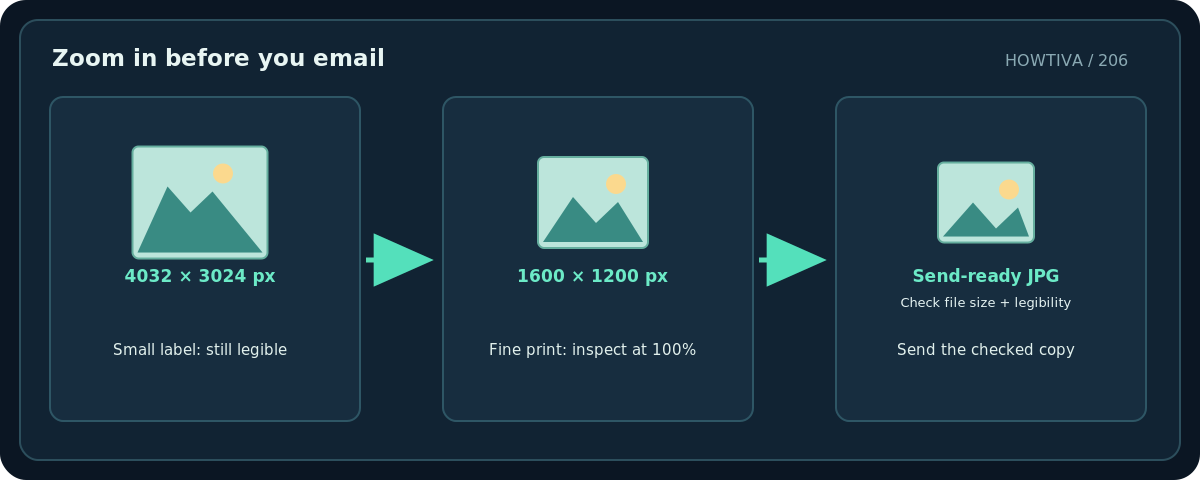
The file is small but the text looks fuzzy. Re-export from the original, choose higher JPEG quality or a larger resolution, or keep a text-heavy screenshot in PNG. Zoom to 100% and inspect the smallest essential characters.
The email still says the attachment is too large. Check total message size, not only each photo. Account/provider attachment policies, encoding and recipient limits vary. Use an approved secure file-sharing method for large batches.
The recipient sees the wrong orientation. Open the saved attachment itself before emailing. A viewer may honor orientation metadata differently, so verify the exported copy rather than the untouched original.
The compressed photo changed color. Different color profiles and export paths can affect appearance. For color-critical jobs, use the recipient’s requested file specification instead of choosing a generic small JPEG.
The picture contains private data. Compression is not privacy removal. Review visible addresses, IDs, barcodes, reflections and location metadata. Use an appropriate editing/privacy workflow before attaching.
Send-ready checklist
Check the exported copy’s name, readable details, MB size, orientation and attachment count. Open the file from your message draft or saved folder at 100% zoom. Confirm that the recipient is correct and that a link, if used, has the intended access permissions. Retain the high-resolution original offline until you know the recipient has what they need.
Frequently asked questions
Is reducing resolution the same as reducing file size?
Not exactly. Fewer pixels often reduces bytes; compression format and quality also affect bytes. Two images with identical dimensions may have very different file sizes.
Does Outlook always resize photos automatically?
No. Features differ by Outlook product and account type. Classic Outlook has a documented image-resize option; check your installed interface.
Should I send JPEG or PNG?
Use JPEG for typical photos when size matters, and consider PNG for screenshots, line art and images needing transparent backgrounds. Inspect the result before sending.
Sources & Further Reading
- Microsoft — Reduce attachment size in Outlook — Classic Outlook Image Attachments > Resize large images and attachment options.
- Microsoft — How resizing and attaching images works — Outlook resize may affect all attached images and is version-dependent.
- Apple — Convert image file types using Preview on Mac — File > Export and JPEG quality choices in Preview.
Use the checklists as you go, and confirm the result before moving on to a more involved repair.