How to Create Email Filters in Gmail
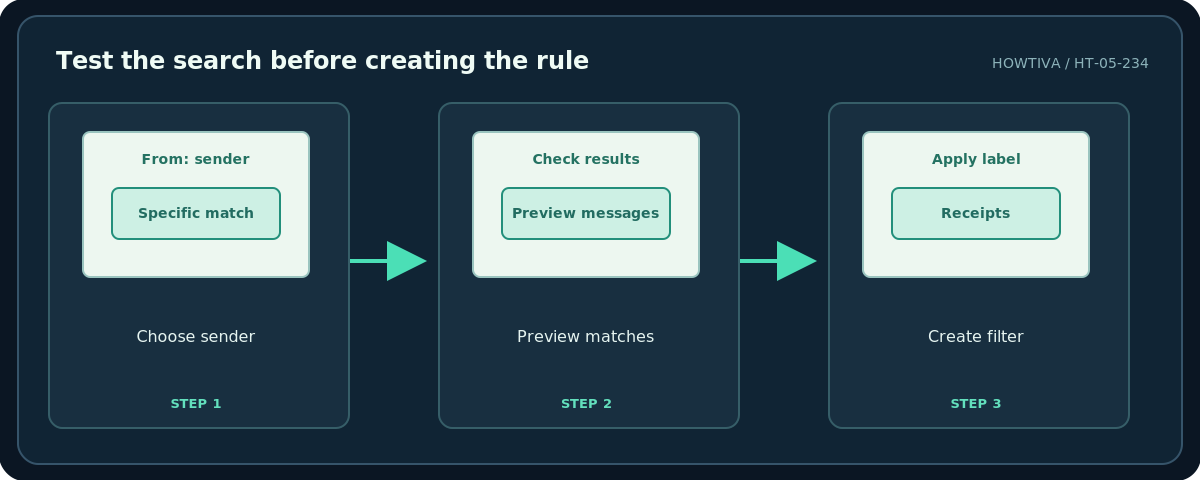
In Gmail on a computer, select Show search options beside the search bar, enter your conditions and test them with Search.
Quick answer: In Gmail on a computer, select Show search options beside the search bar, enter your conditions and test them with Search. Return to the options and click Create filter, choose actions such as Apply the label, Star it, or Skip the Inbox, then click Create filter again. Test narrowly before enabling destructive actions.
Filters can automate routine organization, but a broad filter can hide or delete important mail. Start with one sender or a specific subject pattern, and avoid actions like Delete it or automatic forwarding until you understand the match set.
Method 1: Create a filter from search conditions
- Sign in to gmail.com on a computer. Click Show search options at the right of the search box.
- Enter a specific condition, such as an approved sender’s address in From, or a distinctive phrase in Subject. Combine conditions only when you mean to narrow the results.
- Click Search first. Review several matching messages and look for legitimate mail that should not be caught by the rule.
- Reopen the search options and choose Create filter at the bottom of the dialog.
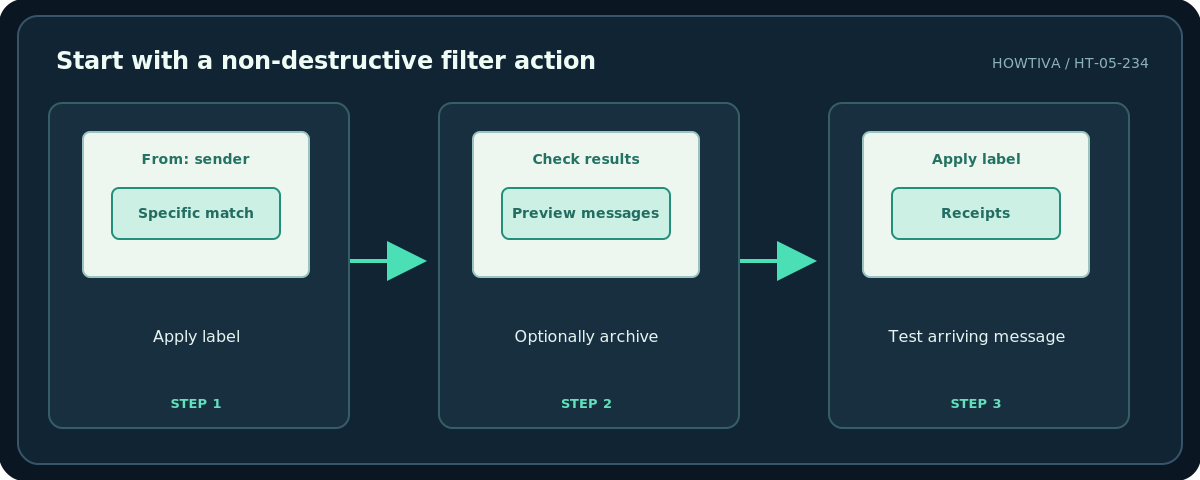
- Select a non-destructive action, such as Apply the label → Receipts. You may also Star matching mail or mark it important, depending on your intent.
- Click Create filter to save. Send or receive a permitted test message that matches the rule and confirm the action in Gmail.
Method 2: Create a filter from an existing message
- In the Gmail message list, check the box beside a representative email.
- Open the More menu and choose Filter messages like these.
- Inspect the suggested criteria instead of accepting them blindly. A sender domain may be broader than a single address.
- Edit the search rules, preview the matches, then choose Create filter and select the action.
- Recheck whether the resulting rule catches only the intended mail.
Choose actions carefully
Apply a label organizes without removing the message from Inbox. Skip the Inbox (Archive it) keeps the message in your account but hides it from the Inbox view; you can retrieve it from All Mail or a label. Delete it moves matching messages toward Trash and can be inappropriate for bank alerts, invoices or security notices. Forward it may require setting up and verifying a forwarding address, and Google specifies that a forward filter affects newly arriving messages, not historical mail. Never auto-forward private correspondence without permission.
When someone replies to a conversation, the reply is not automatically guaranteed to satisfy the old filter criteria. Gmail applies the filter to that reply only if it independently matches the rule. This matters when a filter uses a particular sender or subject.
Apply a filter to existing messages
Some Gmail filter creation flows offer Also apply filter to matching conversations. Check the preview before selecting it, because it can change the state of existing mail. If you do not see this option, leave historic messages unchanged and manage them separately through search results. Do not assume creating a new rule automatically cleans up the entire archive.
Edit, disable or delete a filter
Open Settings → See all settings → Filters and Blocked Addresses. Find the rule and choose Edit or Delete. If editing, update its conditions and actions, then save with Update filter. Removing a rule stops future filtering but does not automatically restore labels, Inbox status or deleted messages previously affected.
Troubleshooting
No messages match: Check spelling, sender aliases, quoted phrases and whether the filter conditions are overly narrow. Too many messages match: Add a more specific From or subject condition and test again. Archived mail seems lost: Open All Mail or search for the sender. A reply was not filtered: It may not meet the original criteria. Mobile app lacks filter creation: Google’s official creation instructions are for Gmail on a computer; use the desktop browser.
Frequently asked questions
Can a filter move a message to a folder?
Gmail uses labels, not ordinary mailbox folders. You can apply labels and optionally archive the message.
Can I create one rule for several senders?
Yes, but test its actual Gmail search expression before using it for important mail.
Are filters a substitute for spam protection?
No. Gmail handles spam separately and rules that override spam behavior deserve particular caution.
Sources & Further Reading
- Gmail Help — Create rules to filter your emails — Search criteria, filter actions, replies, new-only forwarding and editing filters.
- Gmail Help — Organize & archive email — Labels, archive and Inbox relationships.
Use the checklists as you go, and confirm the result before moving on to a more involved repair.