How to Create a Resume in Google Docs
On a computer, open Google Docs, choose Template Gallery and select an available resume template. The template opens as a new editable document.
Quick answer: On a computer, open Google Docs, choose Template Gallery and select an available resume template. The template opens as a new editable document. Replace all sample text with your own accurate experience, check the page layout in File → Page setup, and export a PDF using the available File → Download options when the employer requests PDF. If templates are unavailable, start with a blank document and use a simple single-column layout.
This guide is about writing and producing a readable document, not inventing credentials. Use a resume tailored to the actual position and keep a separate master that you can revise. Google Docs can be used in a desktop browser without installing Word; available templates may vary by language and account type.
Method 1: Start from Google’s resume templates
- Visit docs.google.com and sign in to the Google Account where you want to save the file.
- Open Template Gallery. Browse for a resume template. If your school or employer manages the account, it may show an organization-specific gallery.
- Choose a template that uses plain headings and readable body text. A decorative side column can be difficult to adapt to automated application systems, so a simple layout is often safer.
- Rename the new document meaningfully, such as
Resume_Firstname_Lastname_Master. - Replace the contact section: name, professional email, city or region if relevant, and a working portfolio/profile link. A full street address is seldom needed.
- Edit Experience, Education and Skills to reflect verified achievements and dates. Delete sections you do not need instead of leaving placeholder text.
- Use concise action-oriented bullets. A strong bullet says what you did, its scope, and a genuine measurable outcome if one exists.
- Proofread names, links, phone numbers and all dates. Share a review copy only with people you trust.
Method 2: Build a one-column resume from a blank document
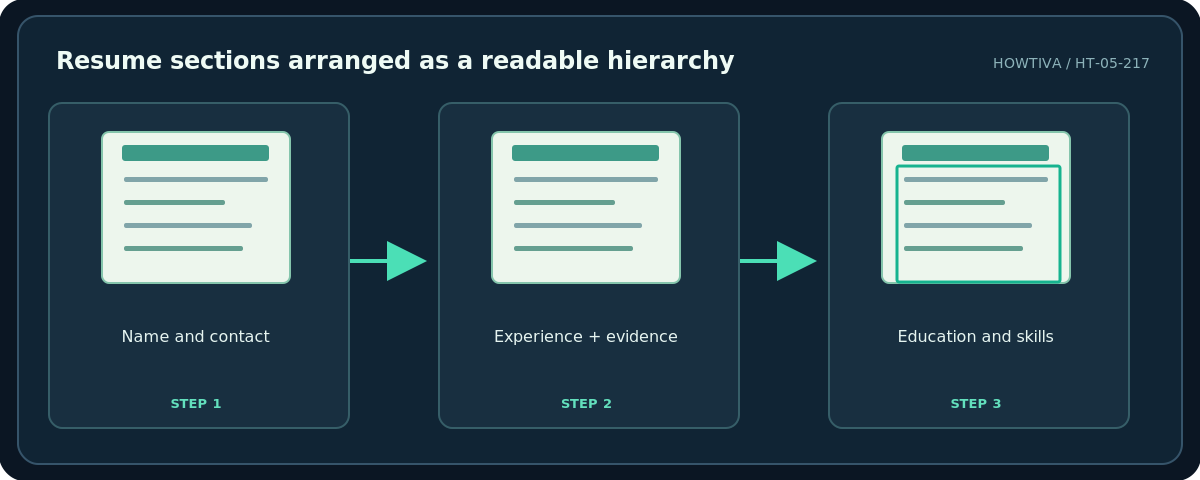
- Select Blank document in Docs. Add your name as the first line and contact details on the next line.
- Use bold section headings, for example Experience, Education, Skills, and perhaps Projects. Keep heading naming consistent.
- For each job or project, write organization, role, dates, and two to four clear bullets. Include responsibilities only when they help explain the result.
- Place your most relevant recent experience first unless the employer or region expects a different order. A student might put Education higher.
- Avoid creating alignment by adding long strings of spaces. Use tab stops sparingly, or choose simpler left-aligned dates if complex alignment misbehaves.
- Select File → Page setup → Pages to check paper size, margins and orientation. Pageless documents lack conventional page-layout controls; switch to Pages first.
Make the resume easy to skim
Aim for consistent type, margins, section spacing and date style. Ordinary fonts and a sensible 10–12-point range are common starting points. Use actual words, not icons to represent phone or email; some recruiting platforms extract text imperfectly from decorative layouts. Strong hierarchy matters more than extra colors. An employment gap does not require fabrication: dates and explanations should be accurate, and a relevant career break can be described plainly if useful.
Review job requirements, then adjust ordering and bullet emphasis without claiming skills you lack. If an employer provides a resume-specific form or file-type instruction, follow that instead of automatically submitting a PDF.
Download and share safely
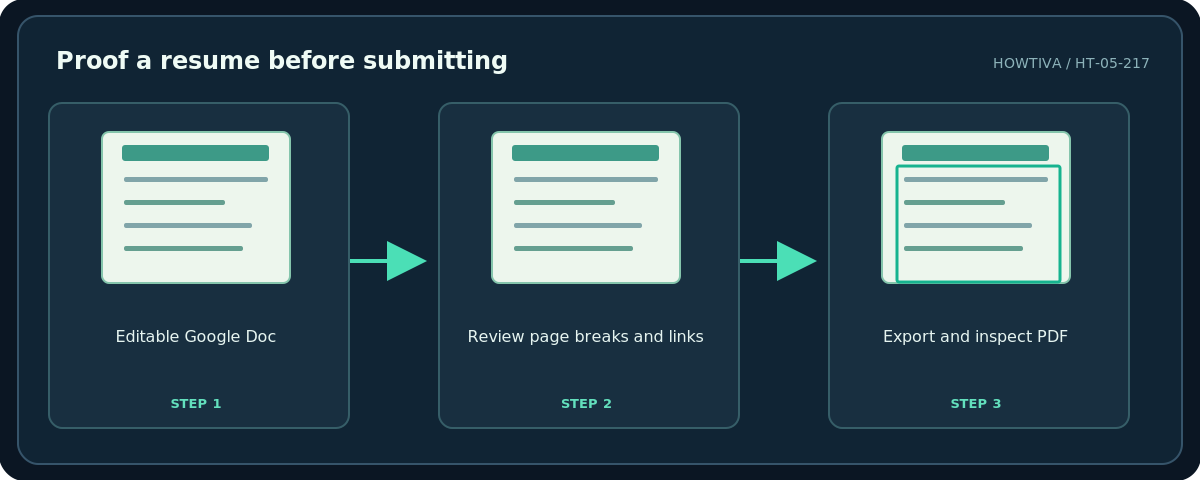
Rename a separate submission copy and choose the file format requested by the employer. Inspect the exported file at 100% zoom and search for your name and key skills to confirm that text remains selectable. Check that there is no empty second page. Do not make the master publicly editable through a broad sharing link; use controlled permissions for feedback.
Troubleshooting
No Template Gallery appears. Try Docs on a computer and check account restrictions; create a blank one-column resume as a dependable alternative.
A section jumps to a second page. Reduce unnecessary blank lines, remove oversized graphics, and inspect File → Page setup rather than shrinking text until unreadable.
The exported PDF looks different. Compare the original and export, including links, bullets and line breaks. Fix the Docs version, then export again.
The resume has too many skills. Use only demonstrable, job-relevant skills, and place more weight on experience and evidence.
Frequently asked questions
Does a resume have to be one page?
Not universally. Many early-career resumes are one page; more extensive experience can justify additional pages. Read the job and regional requirements.
Is a template required?
No. Google’s templates accelerate layout, but a well-organized blank document is equally workable.
Should I include a photo?
Follow local norms and explicit application instructions; a photo is not universally expected and may be discouraged.
Sources & Further Reading
- Google — Use templates — Template gallery opens a copy and varies by account.
- Google — Change page settings on Google Docs — Page setup and pages vs pageless limitation.
- University of Pennsylvania Career Services — Write a Resume/CV — Clear simple fonts and text-friendly layout guidance.
Use the checklists as you go, and confirm the result before moving on to a more involved repair.