How to Create a Pivot Table in Excel
Arrange your data in a clean table with one unique header per column and no blank separator rows. Click within the source, choose Insert → PivotTable, place it on a New Worksheet, and select OK.
Quick answer: Arrange your data in a clean table with one unique header per column and no blank separator rows. Click within the source, choose Insert → PivotTable, place it on a New Worksheet, and select OK. In the PivotTable Fields pane, drag a category such as Region into Rows and a numeric field such as Sales into Values. Confirm that Excel uses Sum rather than Count if you want totals.
A PivotTable summarizes the source; it generally does not modify each original record. This makes it useful for seeing sales by region, tasks by status or quantities by product without sorting the original sheet repeatedly. The crucial skills are preparing source data, choosing the correct aggregation and refreshing when it changes.
Step 1: Prepare tabular source data
Use a table shaped like the example below. The numbers are fictional.
| Region | Product | Sales |
|---|---|---|
| North | Books | 100 |
| South | Books | 60 |
| North | Games | 40 |
| South | Games | 20 |
- Put Region, Product and Sales in row 1 as unique headers.
- Keep each record on one row. Do not merge headings or insert a “Total” row into the source.
- Make sure numeric fields really contain numbers. Text such as
USD 100in a cell may be treated as text; enter 100 and apply Currency formatting instead. - Consider selecting the range and choosing Insert → Table first. Excel tables expand more predictably as new records are appended.
- Save a source-data copy if your workbook matters for reporting or compliance.
Step 2: Insert and configure a PivotTable
- Click inside the data table and select Insert → PivotTable.
- Check that the Table/Range includes all intended rows and fields, with no stray empty columns.
- Select New Worksheet to avoid replacing nearby content and confirm.
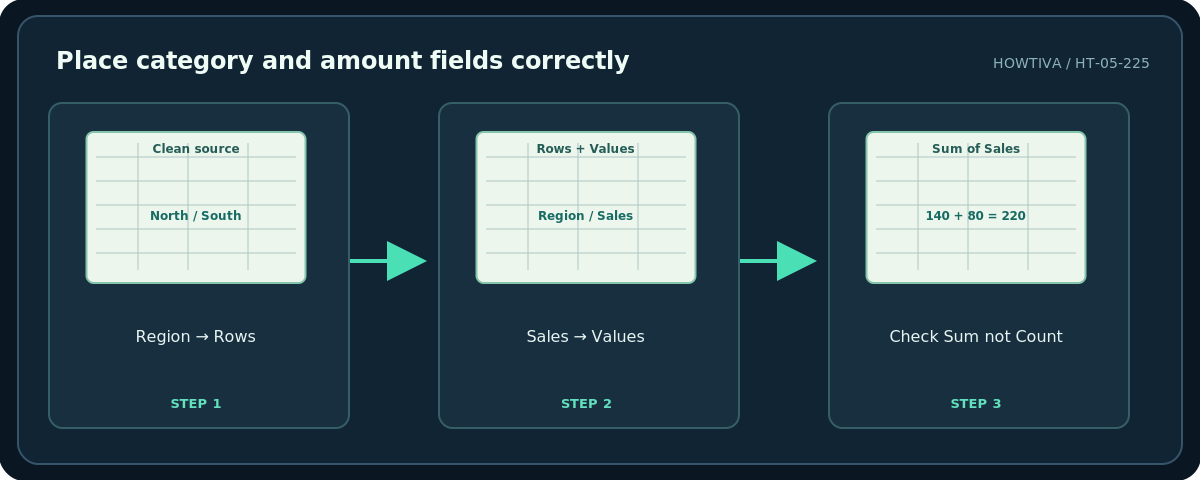
- In PivotTable Fields, drag Region to Rows.
- Drag Sales to Values and verify Excel shows Sum of Sales. With the sample data you should see North = 140, South = 80, and Grand Total = 220.
- Drag Product to Columns if you want a region-by-product breakdown. Inspect the grid for a meaningful comparison rather than adding fields simply because they are available.
Step 3: Correct sums, counts and formatting
If Values displays Count of Sales instead of Sum of Sales, check that Sales contains numeric values consistently. Open Value Field Settings and choose Sum when appropriate. Then select Number Format in the same field settings, if supported, to show currency/decimal places consistently. Be cautious with averages: they answer a different question from total revenue.

Step 4: Refresh after source data changes
A PivotTable is not necessarily live-updating. Add a new source record, then select a cell in the PivotTable and choose Refresh or PivotTable Analyze → Refresh. If your source is an Excel Table, appended records are easier to include when refreshed. For a fixed range, you may need Change Data Source so the new rows belong to the analysis. Check grand totals after refresh instead of assuming every new entry was included.
Alternatives and version limits
Excel for the web also supports PivotTables, although some commands appear in a side pane and certain recommended features depend on Microsoft 365. Microsoft also documents an iPad PivotTable feature with minimum app version requirements. Do not assume older mobile builds have the same interface as desktop Excel. If you only need the sum of one category, SUMIF can be quicker; a PivotTable becomes especially useful when the summary needs rearranging.
Troubleshooting
All totals show Count, not Sum. Review mixed data types in the numeric column, remove non-numeric text and then use Value Field Settings as appropriate.
A new record is missing. Check whether the source is a fixed range and refresh or change the source range.
The Fields pane disappeared. Select a cell within the PivotTable and find the field-list command on your application’s PivotTable tab.
Grand totals seem wrong. Compare a few source rows and verify whether filters, blanks, duplicate source records or value calculations explain the difference.
Frequently asked questions
Can a PivotTable change my raw data?
Normal summarization does not rewrite original records, though editing or deleting the source worksheet is a separate action.
Why does it need refreshing?
PivotTables work from a summarized view/cache of the data; new source records may not appear until refresh.
Can I make charts from the result?
Yes, in supported versions you can create PivotCharts or conventional charts, but audit the table totals first.
Sources & Further Reading
- Microsoft — Create a PivotTable to analyze worksheet data — Source structure, insert PivotTable, fields pane, refresh and counts vs sums.
- Microsoft — SUMIF function — Alternative for simple one-condition totals.
Use the checklists as you go, and confirm the result before moving on to a more involved repair.