How to Create a Table of Contents in Word
Format your chapter titles with Word's built-in Heading 1, Heading 2 and other heading styles. Put the cursor where the contents should appear, select References → Table of Contents, and choose an Automatic Table style.
Quick answer: Format your chapter titles with Word’s built-in Heading 1, Heading 2 and other heading styles. Put the cursor where the contents should appear, select References → Table of Contents, and choose an Automatic Table style. If chapters move or titles change, use References → Update Table and select Update entire table. A manually typed contents list does not update automatically.
An automatic table of contents (TOC) is more than dotted lines and page numbers: it is generated from your document’s structure. If you merely make a heading bold or increase its font size, Word may not recognize it as a heading, and the contents may be incomplete. Start by applying real styles consistently. Microsoft documents this behavior in desktop Word and in the supported web experience, though command placement can differ.
Step 1: Mark real headings in your document
- Open your document and work on a saved copy if it has complex formatting or section breaks.
- Select the first major chapter title. On the Home tab, find Styles and apply Heading 1.
- Select a subsection heading and apply Heading 2; use Heading 3 only for a genuine level beneath Heading 2.
- Continue through the document. Make sure ordinary paragraphs do not receive heading styles simply because you want their text to look large.
- Check the Navigation pane, if available in your Word version, to see whether headings form a logical outline. A missing heading here is a warning that it may also be missing from the TOC.
- Format heading appearance by modifying the style definition where appropriate rather than applying inconsistent one-off font changes to each heading.
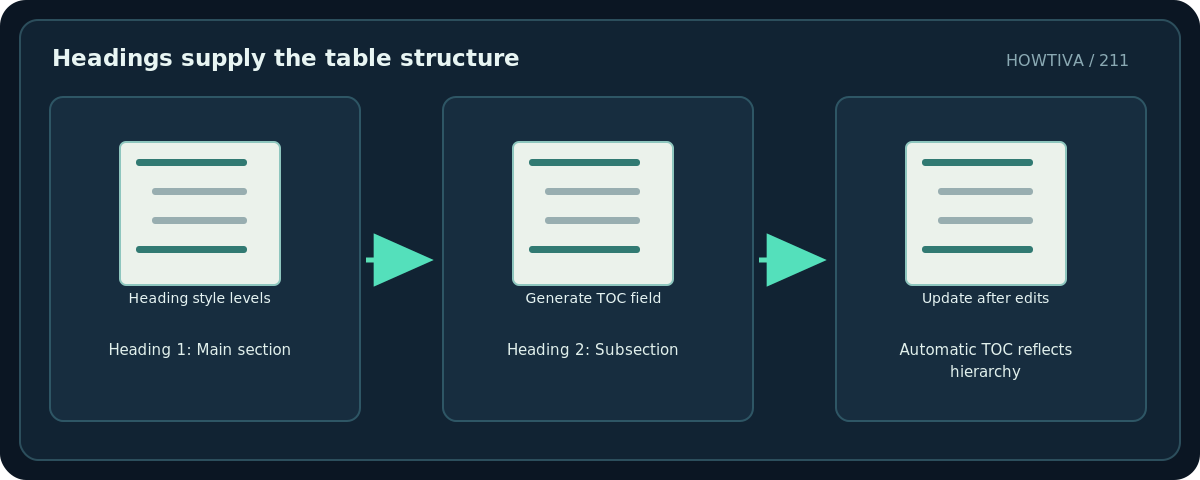
Think of headings as a hierarchy. A Heading 1 chapter can contain multiple Heading 2 sections; Heading 3 belongs inside the relevant Heading 2 section. Skipping arbitrarily from Heading 1 to Heading 3 may make the TOC confusing and can reduce accessibility. The TOC should reflect the reading structure, not just the visual typography.
Step 2: Insert the automatic table of contents
- Click at the intended position, often after a cover page or executive summary. If appropriate, create a new page first rather than pushing the table into an unrelated paragraph.
- Open the References tab and choose Table of Contents.
- Select one of the Automatic Table styles. Microsoft distinguishes these from Manual Table, which uses placeholder content and does not build entries from headings.
- Review indentation, heading titles and page numbers. Check that longer titles do not wrap awkwardly or run into the numbers.
- Save the document and, for a long report, export a PDF copy to verify final pagination.
Word can often generate a simple automatic contents list in its web interface, but advanced field, style and page-layout options are more predictable in the supported desktop app. The presence of a feature or control depends on the product version and platform.
Step 3: Update the TOC after revisions
- Change a heading title, insert material above it or rearrange a chapter.
- Click the TOC and choose Update Table, or right-click and choose the field update command where your version offers it.
- Choose Update page numbers only if just pagination moved and the heading text is unchanged.
- Choose Update entire table if heading wording, order or levels changed. Microsoft explicitly documents the difference.
- Examine the beginning, middle and end of the contents after updating. Page numbers are generated from Word’s layout, so verify them after the final print/PDF export.
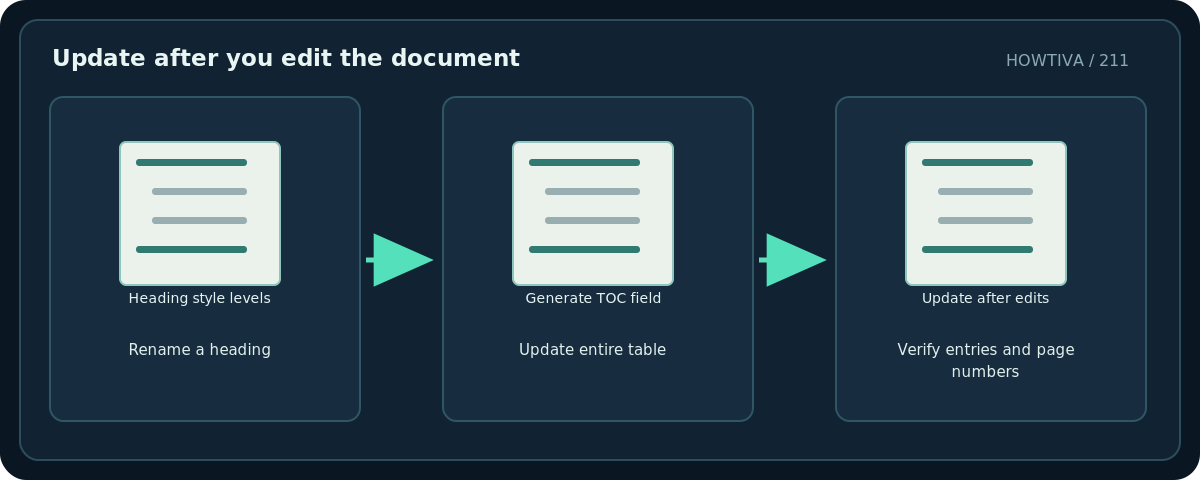
Avoid editing entries directly inside an automatic TOC. Word may overwrite those manual edits on the next update. Correct the source heading in the document, then update the field. If only one entry’s formatting looks wrong, check whether the original heading style or TOC style needs adjustment.
Troubleshooting
A heading does not appear. Select that paragraph and use a true built-in heading style rather than just bold text. Then update the entire table.
The table contains too many lines. Body paragraphs may be formatted as headings, or the table may include more heading levels than needed. Correct the styles or customize the included levels.
Page numbers are outdated. Update the TOC after final editing and before exporting. If pagination shifts again, update one more time from the final layout.
The contents seems manually editable but never refreshes. You may have inserted the Manual Table template. Replace it with an automatic style and check heading formatting.
Some entries have strange capitalization. Verify the exact text in the original headings. The table normally mirrors it; a direct TOC edit is not a durable fix.
Accessibility and quality check
Use heading styles in logical order so assistive technologies can navigate the report. Verify title spellings, hierarchy and page numbers. For a large report, view the navigation outline to spot unexpectedly skipped levels. When the document is ready to publish, export to PDF and ensure the contents still corresponds to the visible pages. A clickable PDF TOC can depend on export settings; do not assume every exported PDF includes bookmarks.
Frequently asked questions
Can Word create a TOC without headings?
It can create a manual list, but Microsoft recommends heading styles for an automatically generated and updateable TOC.
Should I use Heading 1 for the document title?
Usually the document title is a separate Title style and Heading 1 marks the first main section, but use the structure required by your document’s template.
Why does Update page numbers only not show my renamed chapter?
That option does not refresh heading text. Choose Update entire table.
Sources & Further Reading
- Microsoft — Insert a table of contents — References > Table of Contents; automatic styles use heading styles.
- Microsoft — Update a table of contents — Update page numbers only versus update entire table.
Use the checklists as you go, and confirm the result before moving on to a more involved repair.