How to Make Text Bigger on an iPhone
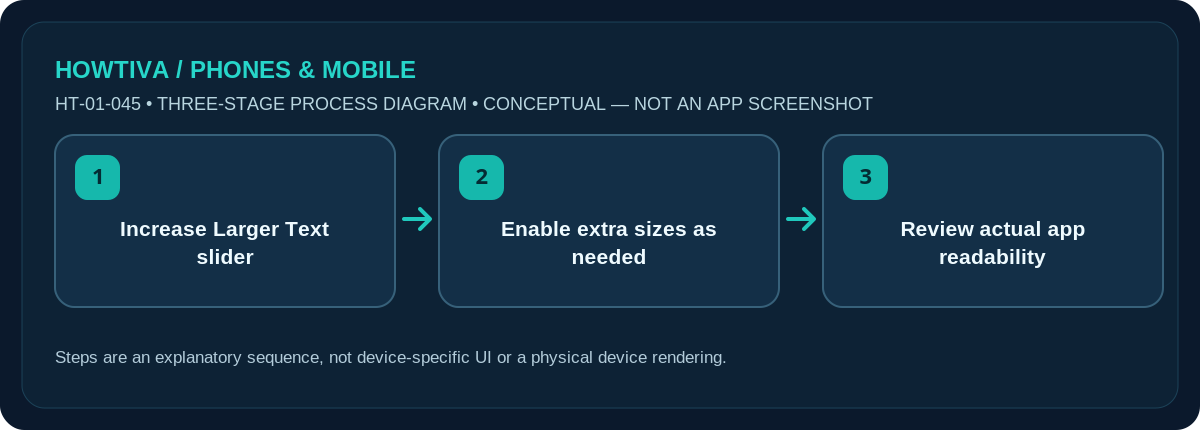
Open Settings > Accessibility > Display & Text Size > Larger Text and drag the slider right. If necessary, enable Larger Accessibility Sizes for a wider range. The change affects supported apps rather than every piece of text in every app.
Quick answer: Open Settings > Accessibility > Display & Text Size > Larger Text and drag the slider right. If necessary, enable Larger Accessibility Sizes for a wider range. The change affects supported apps rather than every piece of text in every app.
Apple documents these accessibility controls for modern iPhone software including iOS 27. Some apps use their own text controls; enlarging the entire interface is a separate Display Zoom feature.
Increase readable text size
- Open Settings > Accessibility. Choose Display & Text Size, then tap Larger Text. This is different from the separate screen zoom and Magnifier tools.
- Move the text-size slider right. Pause to examine the sample text. Increase gradually so that labels still fit and important controls remain visible.
- Enable Larger Accessibility Sizes only if needed. This unlocks larger sizes in supported apps. Return to an app you use often, such as Notes or Messages, and check actual readability.
- Add Bold Text if useful. Return to Display & Text Size and enable Bold Text for stronger letter weight. This helps some people more than a very large font.
- Check a few apps. Settings, Mail and Messages commonly respond; a third-party app, website or image containing text may not follow the system size.
Make the text bigger only in one app
Apple also offers a Text Size control in Control Center on supported iOS versions. Open Control Center, add the Text Size control if it is absent, then use the available scope options to adjust the active app or broader settings. The availability and exact presentation can vary, so confirm the result inside the app rather than relying on the slider alone.
Text size versus Display Zoom
Changing text size targets supported text. Display Zoom enlarges interface elements, including some icons and controls, which may help if text alone is not the main problem. Apple’s current guides place Display Zoom among appearance/display settings; follow Settings search for Display Zoom if the category name differs. You may need to approve a display change. Try text size first because it is easier to adjust incrementally.
When the app still looks too small
A webpage can have its own zoom controls; Safari page zoom is not the same as system-wide text size. In e-books, the reader app may provide its own font controls. Text baked into a photo cannot be resized by the system preference. For that, zoom the image or use other accessibility reading tools. If controls overlap after increasing text, lower the size slightly or rotate the device if the app supports landscape.
Maintain an accessible setup
Consider contrast, glare and lighting as well as font size. Avoid recommending one universal font size: an appropriate size depends on eyesight, device and task. After changing a setting, check a real message, an app form and a browser page. If a crucial button disappears, return to Settings and reduce the slider until the interface works for you.
Troubleshooting and alternatives
- Slider has no effect in one app: That app may not follow Dynamic Type; inspect its own reading controls.
- Menus look crowded: Reduce the slider slightly or consider Display Zoom instead.
- Text embedded in an image: Use image zoom or a reading/magnification tool.
- Control Center tile absent: Add Text Size from Control Center controls on supported iOS.
Frequently asked questions
Does Larger Text change every app?
No. It mainly affects apps that adopt supported iOS text sizing. Some websites, games and images are unaffected.
Will bigger text change the size of my photos?
No. It does not enlarge image content; Display Zoom and image zoom are separate tools.
Can I undo it?
Yes. Return to Larger Text and move the slider left, or disable Larger Accessibility Sizes.
Sources & Further Reading
- Apple iPhone User Guide: Make text easier to read on iPhone (checked 2026-10-27)
- Apple iPhone User Guide: Adjust iPhone display and text settings (checked 2026-10-27)
Use the checklists as you go, and confirm the result before moving on to a more involved repair.