How to Pair Bluetooth Headphones with a Smart TV
Pair headphones through a TV’s supported Bluetooth sound output, verify sound and troubleshoot unsupported TVs.
Quick answer: Put your headphones into Bluetooth pairing mode, open the TV’s Sound Output or Bluetooth Speaker List settings, select the headphones and confirm audio plays through them. For LG smart TVs that support Bluetooth audio, LG documents choosing Bluetooth under Sound Out. For compatible Samsung TVs, select the Bluetooth audio device from the TV’s sound-output options. Menu labels depend on model and software.
Before pairing, confirm the hardware actually supports it
Not every TV with a Bluetooth remote supports Bluetooth audio output. Read the exact TV model’s audio specifications. Bluetooth support for keyboard or remote control is not automatically headphone support. Some compatible models permit only one active Bluetooth audio output, and certain hearing aids or mobile-only headsets may not pair. Ensure the headphones are charged and not already connected to a phone across the room.
Step 1: Put headphones into pairing mode
Follow the headphone maker’s guide to start pairing—often holding a Bluetooth/power button until an indicator flashes, but durations and patterns differ. If the headset keeps auto-connecting to another device, temporarily turn off that device’s Bluetooth or disconnect the headphones from it. Do not reset headphones until you’ve checked ordinary pairing instructions, since a reset can erase all saved devices.
Step 2: Open the correct TV sound-output list
On a Bluetooth-audio-capable LG TV, official support directs users to Settings → All Settings → Sound → Sound Out, then a Bluetooth-device connection list whose submenus differ by webOS version. On supported Samsung TVs, use the TV’s Sound Output/Bluetooth audio device list as documented for your model. Do not search merely for a generic Bluetooth setting under network tools; audio pairing can live inside sound preferences.
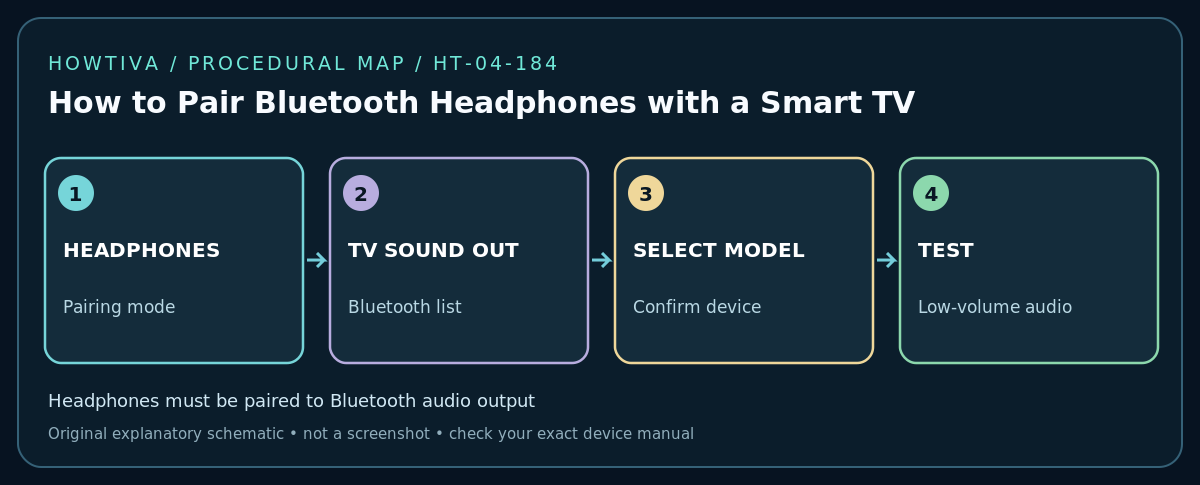
Step 3: Select and confirm the correct headset
Wait for a scan, then choose the headphone’s exact model name. Approve a pairing prompt if your TV displays one. On devices with similar default names, check the physical headphone model before confirming. Play a non-sensitive test clip at low volume. Some TVs automatically mute internal speakers when Bluetooth output is active; other models provide optional dual-audio modes. Confirm desired household volume behavior.
Step 4: Test stability and lip sync
Walk only within the manufacturer-recommended range and check for dropouts without bringing the TV or headphone too close to strong interference sources. Notice whether mouth movements align with spoken audio. Bluetooth wireless transmission can introduce latency, especially with certain codecs, sources or crowded radio conditions. If delay is significant, follow the companion guide for audio sync and confirm whether TV audio adjustments even apply to Bluetooth on your model.
Troubleshooting
- Headphones not listed: Restart the TV’s search, re-enter pairing mode, disconnect headphones from the phone and verify TV audio-output support.
- Connected but no sound: Select Bluetooth as active Sound Out, raise volume gradually, and check the app/source isn’t muted.
- Headphones connect to phone instead: Remove the competing connection or choose TV from supported multipoint device controls.
- Pairing fails repeatedly: Remove the saved TV entry from both devices following official instructions, then pair once more; do not assume every headset accepts TV profiles.
- Sound interrupts: Reduce radio interference, stay in range and try a short test with other Bluetooth accessories off.
- TV has no Bluetooth audio: Use a compatible wired headphone socket, optical/HDMI receiver or properly matched external Bluetooth transmitter if the TV supports that output. Verify latency and audio format compatibility before buying.
Accessibility and privacy considerations
Headphones can help keep volume comfortable for another person, but check whether this TV supports simultaneous speaker and headset output before promising it. Use a safe starting volume. Avoid broadcasting private voice-chat audio to a shared television. If using hearing aids, consult the maker’s compatibility documentation; not all hearing devices use standard Bluetooth headphone profiles.
Frequently asked questions
Can two people use Bluetooth headphones at once?
Only on particular TVs with dual-audio or multi-connect support; many models support one active Bluetooth audio device. Verify the model manual.
Does Bluetooth headphone pairing require home Wi-Fi?
Usually not for the Bluetooth radio connection itself. Some smart-TV menus and firmware features may still require setup or software updates.
Sources & Further Reading
- LG — How to Connect a Bluetooth Device to Your LG TV (checked 2026-10-27).
- Samsung — Pair Bluetooth headphones to your Samsung TV (checked 2026-10-27).
Use the checklists as you go, and confirm the result before moving on to a more involved repair.