How to Fix an iPhone That Won’t Charge: Safe Checks
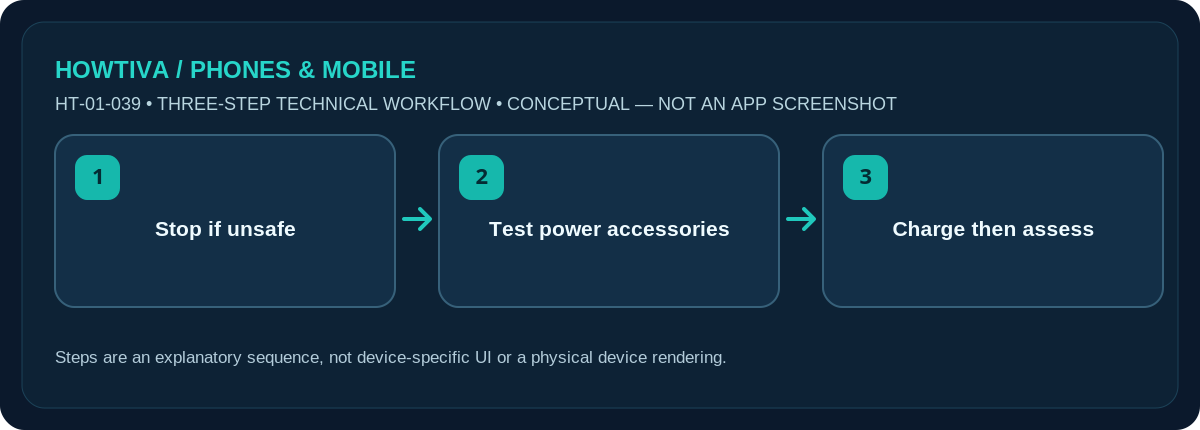
If the iPhone will not charge, stop if it is wet, damaged, swollen or unusually hot. Otherwise check the outlet, cable, charger and connections; restart the phone and let it charge for about 30 minutes.
Quick answer: If the iPhone will not charge, stop if it is wet, damaged, swollen or unusually hot. Otherwise check the outlet, cable, charger and connections; restart the phone and let it charge for about 30 minutes. If it still will not start, follow Apple’s model-specific force-restart procedure before seeking service.
Use only compatible, undamaged chargers and cables. Liquid-detection alerts require a different response from an ordinary low-battery screen. These are safe external checks, not instructions to repair the charging port or battery.
First decide whether charging is safe
- Disconnect immediately if the cable or charging connector is wet, the device smells odd, shows swelling, has visible damage, or becomes abnormally hot. Do not continue testing an obviously damaged battery or power adapter.
- If the phone shows a liquid detected warning, unplug it and let it dry naturally with the connector facing downward in a place with airflow. Apple warns against heat, compressed air, cotton swabs, paper towels and rice inside or around the connector.
- If everything is dry and undamaged, try a known-good compatible cable and power adapter plugged into a working wall outlet. Avoid loose extension sockets while isolating the problem.
- Check that the cable seats normally. Look for obvious lint or damage from outside the port only. Do not scrape inside with metal objects or force a plug into a tight connector.
- Wait approximately 30 minutes, then check for a battery symbol or charging indication. A deeply discharged device may take time before responding.
Restart safely after basic checks
If the phone responds to touch and buttons, restart normally and reconnect the charger. If it remains unresponsive after charging, Apple documents these force-restart combinations:
- iPhone 8 or newer, and iPhone SE (2nd/3rd generation): press and quickly release Volume Up, then Volume Down; hold the Side button until the Apple logo appears.
- iPhone 7/7 Plus: hold Side (or Top) and Volume Down together until the Apple logo.
- iPhone 6s or earlier, including original iPhone SE: hold Home and Side/Top until the Apple logo.
These are model-dependent; do not randomly hold buttons on an unknown model. Apple recommends further charging after the force restart, and service if the device still does not charge or power on.
Charging stops at 80% or feels unusually slow
An iPhone stopping around 80% is not automatically broken. Optimized Battery Charging, user-configured Charge Limit on supported iPhone 15+ models, and temperature protection can deliberately delay or stop further charging. Check Settings > Battery for model-specific controls. Move the device away from excessive heat and out of direct sunlight while it charges. Charging speeds also depend on a charger’s supported power level and whether the phone is being heavily used.
For a compatible iPhone with wireless charging, a known-good wireless charger can sometimes help isolate a cable or port problem—provided the phone is dry, cool and undamaged. Wireless charging is not a reason to keep testing a swollen or overheated phone.
How to narrow down the failing component
If a charger works for another device and a different compatible cable charges your iPhone, the evidence points toward the original cable rather than the battery. If several safe cable-and-adapter combinations fail only on this iPhone, service may be appropriate; it does not prove which internal component is damaged. Keep a note of which accessories you tried so a technician does not need to repeat unsafe experiments.
Avoid treating the warning screen as an obstacle to bypass. Liquid-detection protection is there because current flowing through a wet connector can corrode contacts or cause further damage. If the phone supports wireless charging and the exterior is dry, consult Apple’s safe guidance before choosing it as a temporary alternative. Never leave an unusually hot device charging unattended in order to test whether the problem disappears.
Troubleshooting and when to stop
- No charge icon: try a working outlet and known-good adapter/cable, then allow charging time before concluding the phone is dead.
- Accessory not supported: disconnect intermediary adapters, check compatibility and inspect for damage; do not bypass safety prompts.
- Liquid warning repeats: stop wired charging; Apple notes drying may take as long as 24 hours. Do not force emergency override for routine use.
- Cable feels loose: avoid bending or pushing it to make contact; seek professional connector inspection.
- Battery expanded or phone too hot to handle: stop and arrange qualified service urgently.
- Phone turns on only when plugged in: back up important data as soon as practical and arrange battery/charging assessment.
Frequently asked questions
Should I clean the port with a needle or metal pin?
No. You risk shorting contacts or causing damage. For stubborn debris, use a qualified repair provider instead of probing inside.
Is a 30-minute charge a guarantee it will turn on?
No. It is an Apple troubleshooting interval, not a promise; severe depletion or damage may require service.
Will a software reset fix a damaged cable?
No. Isolate physical power accessories first, and avoid a factory reset that could erase data without solving the charging fault.
Sources & Further Reading
- Apple Support: If your iPhone or iPod touch won’t charge (checked 2026-10-27)
- Apple Support: If you see a liquid-detection alert on your iPhone (checked 2026-10-27)
Use the checklists as you go, and confirm the result before moving on to a more involved repair.