How to Fix a Phone That Won’t Connect to Wi-Fi
Open Settings > Wi-Fi (iPhone) or Settings > Network & internet > Internet/Wi-Fi (Android), enable Wi-Fi, choose the correct network and enter its password.
Quick answer: Open Settings > Wi-Fi (iPhone) or Settings > Network & internet > Internet/Wi-Fi (Android), enable Wi-Fi, choose the correct network and enter its password. If the connection fails, restart the phone and router, then test a second network before changing advanced settings.
This guide covers iPhone and Android, including Pixel and Samsung variants. Menus change with iOS/Android version, device maker, carrier and managed-workplace policies. A Wi-Fi connection and actual internet access are two different tests.
Run the safe connection checks in order
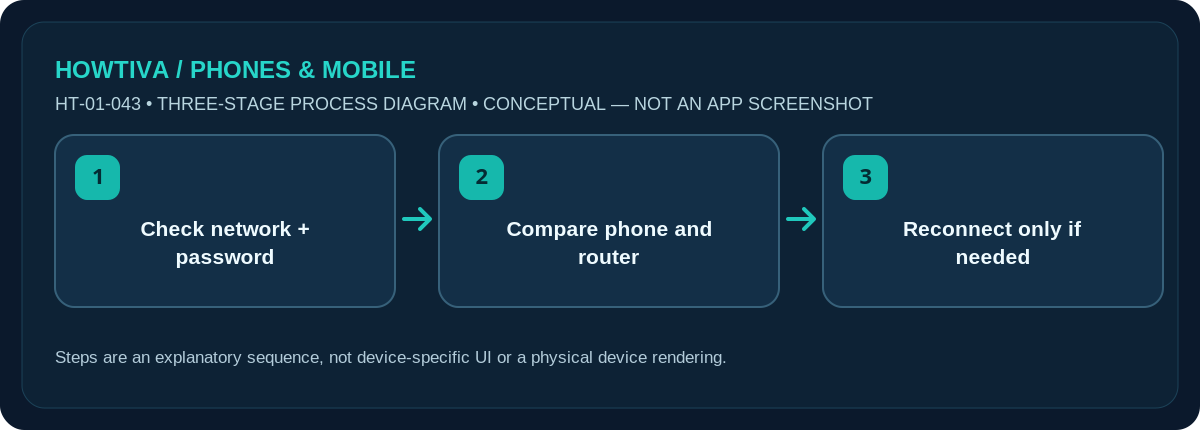
- Check the network name and signal. Open Wi-Fi settings and choose the correct SSID. Confirm Wi-Fi is enabled and Airplane Mode is off. Move closer to the router; a very weak signal can fail before authentication.
- Enter the password carefully. Check upper/lowercase, numbers and punctuation, and confirm the router password with its owner. A network password is not necessarily your ISP account or router administrator password.
- Restart, without erasing anything. Turn your phone off and on. If it is your router, follow its manual to power-cycle it, allowing time for the lights to return. Do not factory-reset the router or delete its configuration.
- Compare another device and network. Try the same Wi-Fi with a second device, and try your phone on a known trusted Wi-Fi connection. The combination tells you whether the problem likely follows the phone, the router or the internet service.
- Reconnect to a known network only if needed. On iPhone, use the network information button and Forget This Network; on Android, open network details and choose Forget. You must know the password again before reconnecting.
Distinguish authentication from internet failure
If the phone says Incorrect Password or Authentication problem, focus first on the network name, credentials and router security configuration. If it shows connected Wi-Fi with No Internet, the wireless link may be working while DNS, the ISP, captive-portal sign-in or the router’s upstream connection is not. Test a browser and check for an expected hotel/airport sign-in page. Never enter personal credentials into an unfamiliar portal until you confirm it belongs to the network operator.
iPhone, Pixel and Galaxy menu differences
On iPhone, Apple documents Settings > Wi-Fi with a check mark beside the joined network. On many Pixel devices, use Settings > Network & internet > Internet; on Samsung you may see Settings > Connections > Wi-Fi. The control to forget a network usually lives in its details page. Rather than following an unrelated screenshot, use Settings search for Wi-Fi on your exact phone.
Check your router and managed networks
If no device can connect, check whether the router is powered, whether the network is broadcasting, and whether the ISP reports an outage. Your router may have separate 2.4 GHz and 5 GHz names; use a band supported by your phone and the router’s recommended security settings. Do not weaken security to WEP or disable encryption merely to make an older device connect. A hotel, school or office may require approval or a sign-in portal; contact its administrator.
Only then consider deeper repairs
A VPN or security product can interfere with routing or name resolution. Temporarily pause it only if permitted by your organisation, test, then restore protection. Check for an available OS update over a trusted alternative connection. Resetting network settings is a late-stage option: it can remove saved Wi-Fi networks, VPN configurations and other network preferences. Record needed passwords and ask an administrator before resetting a managed device.
Troubleshooting and alternatives
- Password rejected: Confirm the correct SSID and case-sensitive password; ask the network owner.
- Connected but offline: Check the router, ISP or network sign-in page rather than repeatedly entering credentials.
- Works on another network: Inspect the original access point and network restrictions.
- Work-managed phone: Ask IT before altering VPN, DNS or network profiles.
Frequently asked questions
My phone says connected but websites do not load. Is Wi-Fi broken?
Not necessarily. Check the router internet connection, network sign-in page, VPN and DNS first. Try another trusted website and another device.
Can I use public Wi-Fi for banking while testing?
Prefer a trusted network or cellular service; do not submit sensitive credentials to an unverified captive portal.
Will forgetting a network erase photos?
No. It removes that network’s saved connection information. You will generally need its password to reconnect.
Sources & Further Reading
- Apple Support: If you can’t connect to Wi-Fi on your iPhone or iPad (checked 2026-10-27)
- Android Help: Fix internet connection problems on Android devices (checked 2026-10-27)
- Android Help: Manage advanced network settings on your Android phone (checked 2026-10-27)
Use the checklists as you go, and confirm the result before moving on to a more involved repair.