How to Fix Bluetooth Not Connecting on Android
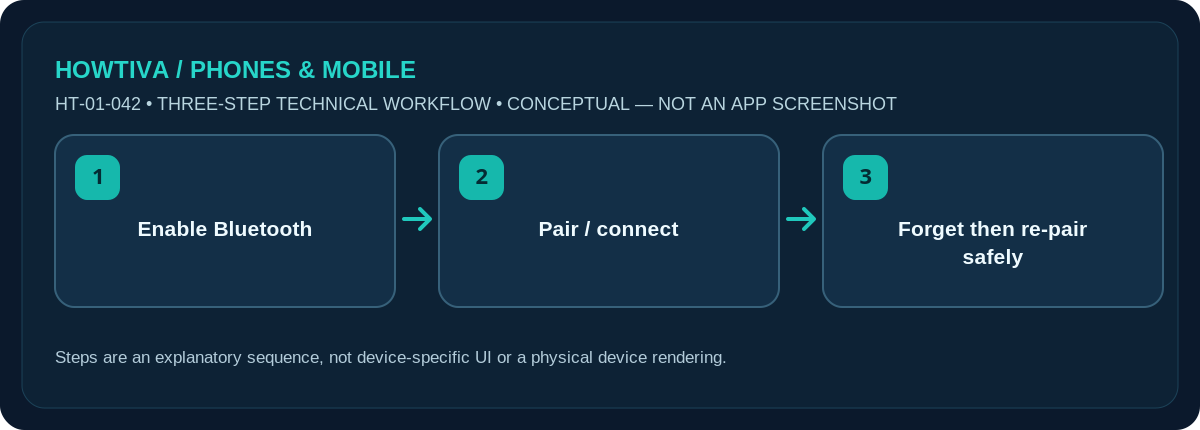
Open Settings > Connected devices or Bluetooth, enable Bluetooth and put your accessory into pairing mode. If it was connected before, restart both devices; then remove the saved pairing and pair again using your phone maker’s Bluetooth menu.
Quick answer: Open Settings > Connected devices or Bluetooth, enable Bluetooth and put your accessory into pairing mode. If it was connected before, restart both devices; then remove the saved pairing and pair again using your phone maker’s Bluetooth menu.
Android 8+ Google troubleshooting covers many common accessories, but Bluetooth navigation differs across Pixel, Samsung Galaxy and other manufacturer interfaces. Cars and smartwatches may require their own app or setup path.
Check Bluetooth before changing settings
- Make sure the accessory is powered on and has sufficient battery. Put it in its actual discovery/pairing mode, following its manual. Simply turning headphones on does not always make them discoverable.
- Swipe down Quick Settings and confirm Bluetooth is enabled. For deeper controls open Settings > Connected devices on many Pixel phones, or Settings > Connections > Bluetooth on many Samsung phones.
- Select Pair new device or the available-devices list, choose the right accessory name and confirm the pairing request. Verify any displayed PIN only when it matches what you expect; do not accept a stranger’s unexpected request.
- Once paired, check that it is connected and test its actual function. Music output might still be routed to the phone speaker until you select the desired output device.
Fix a pairing that stopped working
Turn Bluetooth off and back on, restart the phone and power-cycle the accessory. Google lists these as first-line troubleshooting steps. Check whether the accessory has automatically connected to a laptop or another phone. Disconnecting it from the previous host can make it available for pairing.
If the device appears under Saved devices, tap its settings icon and choose Forget / Unpair. Then return the accessory to discovery mode and pair again. For some cars you must delete the old phone entry on the vehicle side as well. Before forgetting a smartwatch or health accessory, consult its instructions: removing pairing in the wrong order can require a more involved setup or reset.
When Android and Samsung screens differ
Pixel uses Connected devices and often a Previously connected devices / Saved devices section. Samsung commonly uses Connections > Bluetooth and a gear icon beside paired devices. Other devices use different layouts. Do not infer your Android version solely from the Settings labels. If a phone or accessory maker provides a companion app, check required permissions and device support in that maker’s instructions.
Keep the phone and accessory nearby and avoid metal barriers or heavy wireless interference. Restarting both devices is low-risk; a full Reset Wi-Fi, mobile & Bluetooth is more disruptive and may delete stored Wi-Fi and device pairings, so reserve it for last with a clear understanding of consequences.
Example: a vehicle connects for calls but not music
Some vehicles expose separate Bluetooth profiles for hands-free calling and media streaming. A device can show Connected while the music route stays on the phone. Look at the saved accessory settings for available media/call-audio switches, then inspect the vehicle’s own source selection. If neither system supports the required audio profile, repeating pairing will not add that capability.
For wireless earbuds, reset them only by following the actual manufacturer’s pairing instructions. Randomly holding a case button or erasing Bluetooth storage may wipe other settings or break a multipoint arrangement. If you recently changed phones, remove obsolete pairings when safe and keep the earbuds near only the intended device. Verify the pairing request name rather than accepting a similarly named unknown accessory; unwanted Bluetooth pairing prompts should be rejected.
Troubleshooting and alternatives
- Not appearing: check discoverability, battery and whether the accessory is already paired to another host.
- Paired but disconnected: open the saved device’s menu and connect, or disconnect/reconnect after a restart.
- Car sees phone but phone does not connect: remove stale entries on both sides and consult the vehicle manufacturer.
- Calls work but music doesn’t: inspect separate media/call-audio toggles where supported.
- Only one accessory fails: test that accessory against the maker’s compatibility list; this does not prove the phone Bluetooth radio is defective.
- Nothing pairs at all: check Android updates and consult the phone maker before broad settings resets.
Frequently asked questions
Does unpairing delete phone photos or contacts?
Normally it removes that Bluetooth relationship, not personal media; vehicle contact-sync data or accessory-specific caches can require separate management.
Why can another phone connect when mine cannot?
An old pairing, incompatible profile, permissions or connection limit may be responsible. Compare the accessory manual and saved-device list.
Is a factory reset required?
No. It is not a normal Bluetooth troubleshooting step and can erase device data. Try basic connection and pairing procedures first.
Sources & Further Reading
- Android Help: Fix Bluetooth problems on Android (checked 2026-10-27)
- Android Help: Find & set up Bluetooth devices near your Android device (checked 2026-10-27)
Use the checklists as you go, and confirm the result before moving on to a more involved repair.