How to Fix Bluetooth Not Connecting on iPhone
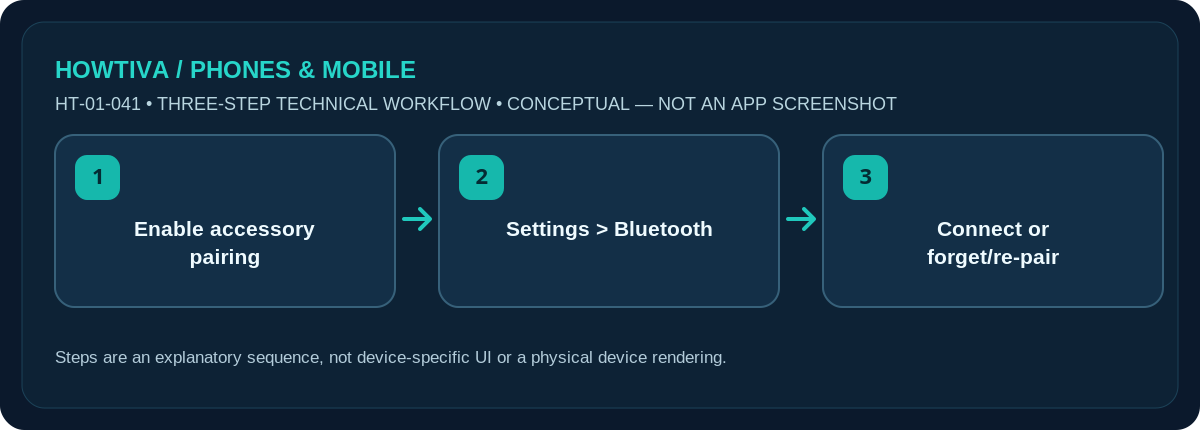
Open Settings > Bluetooth, turn Bluetooth on and put the accessory into its pairing/discovery mode. Keep it nearby and charged. If it was paired previously, tap its info (i) button, choose Forget This Device, then pair it again.
Quick answer: Open Settings > Bluetooth, turn Bluetooth on and put the accessory into its pairing/discovery mode. Keep it nearby and charged. If it was paired previously, tap its info (i) button, choose Forget This Device, then pair it again.
The iPhone can usually pair to compatible Bluetooth accessories in Settings. Bluetooth audio, app permissions, AirPods account behaviour and vehicle pairing each have additional requirements.
Pair a device from scratch
- Charge or power the accessory and use its manufacturer’s instructions to enable Bluetooth pairing/discovery. A blinking light may indicate pairing, but colours and button durations differ by accessory.
- On iPhone go to Settings > Bluetooth and turn the switch on. Keep the accessory close; Apple specifies around 10 metres (33 feet) as a typical pairing proximity limit, and obstructions can shorten practical range.
- Wait for the accessory name under the discoverable-device list and select it. If asked for a PIN/passcode, use the one supplied by the accessory maker; never invent a universal PIN.
- Test the actual function (audio output, keyboard input or vehicle hands-free) once it says connected. Pairing and being selected as an active audio output are separate things.
When it worked before but now will not connect
Check whether the accessory is already connected to a laptop, tablet or another phone. Some products support multiple connections; others require disconnecting from the earlier host or using a dedicated multipoint feature. Turn the accessory off and on, check its battery, then restart the iPhone if appropriate.
For a previously paired accessory, go to Settings > Bluetooth, tap the info (i) symbol next to its name and choose Forget This Device. Put the accessory back in discovery mode and pair it again. Important: forgetting AirPods can unpair them from other Apple devices signed in to the same Apple Account, according to Apple. Make sure you know how to re-pair the accessory before removing it.
The accessory connects but audio or an app fails
Check iPhone audio-output controls and the app’s own device selection. If an app requires Bluetooth access, look under Settings > Privacy & Security > Bluetooth and review that app’s permission, where applicable. For a car, compare the vehicle’s paired-device list with your iPhone’s Bluetooth settings and follow the car maker’s pairing sequence. Some cars have a maximum number of paired phones and require removing an old entry.
A generic Bluetooth icon or a device shown as paired is not proof that every supported Bluetooth profile is available. Headphones, fitness sensors and keyboards use different capabilities; a device may be compatible for music but not for call audio, or vice versa.
Example: headphones pair but audio stays on the speaker
First check whether the headphones are shown as Connected in Settings > Bluetooth. If they are, start audio and select the output device in the audio or AirPlay controls. A connection used for configuration or a manufacturer app does not guarantee media is routed to that accessory. For car systems, phone audio and media audio may be separate functions. Refer to the car system’s supported profiles instead of assuming every paired car can stream music.
If the accessory can connect to multiple hosts, temporarily stop active connections on other nearby devices to isolate the issue. Re-pair only after confirming that the accessory’s reset instructions are available. This prevents needless removal from an Apple Account or loss of personalised settings. Keep the pairing attempt short and near the accessory to avoid confusion with another identically named device.
Troubleshooting and escalation
- No accessory in the list: put it in discovery mode again and check that it is not connected to another host.
- Pairing refused: check the maker’s app or firmware requirements, then forget/re-pair if previously paired.
- Bluetooth switch greyed out or nothing connects: Apple’s guidance recommends contacting support when Bluetooth cannot be enabled or no accessory can connect.
- Only one app fails: check that app’s Bluetooth permission and current version.
- Interference or dropouts: reduce distance, remove obstructions and turn off nearby interfering equipment where safe.
- Tempted to reset network settings: understand that such resets can remove saved wireless configurations; try lower-risk fixes first.
Frequently asked questions
Can my iPhone be connected to two Bluetooth devices?
Some simultaneous connections are supported, but using two audio outputs or a specific multipoint feature depends on the accessory and application.
Should I enter 0000 as the pairing code?
Only if the manufacturer’s instructions specifically say so. Modern devices may use a different code or none.
Does toggling Bluetooth in Control Center fully switch it off?
Apple notes the Control Center control can disconnect accessories temporarily rather than permanently disabling Bluetooth; use Settings when checking the actual switch.
Sources & Further Reading
- Apple iPhone User Guide: Connect iPhone to Bluetooth accessories (checked 2026-10-27)
- Apple Support: If you can’t connect a Bluetooth accessory to your iPhone or iPad (checked 2026-10-27)
Use the checklists as you go, and confirm the result before moving on to a more involved repair.