How to Fix Slow Wi-Fi in One Room
Diagnose Wi-Fi that slows only in one room using baseline tests, band choice, router positioning and mesh backhaul checks.
Quick answer: When Wi-Fi is slow only in one room, first test the same device near the router and in the problem room. If performance drops in the distant room, try moving the router into the open, changing the receiving device’s position, and comparing 2.4 GHz with 5 GHz. If you use mesh, move the node toward the router, not into the dead zone. Diagnose before buying an extender.
This guide is for a home network you control. A single room can be affected by building materials, floor levels, local interference, device limitations or a poorly placed access point. Do not reset or replace equipment before checking whether the problem happens to multiple devices.
Pin down whether the room is the cause
- With one phone or laptop, run the same internet speed test next to the router. Record download, upload and if available latency.
- Walk into the problem room and test again using the same device and service. Avoid switching to cellular unnoticed; confirm the Wi-Fi network is still connected.
- Repeat with a second device. If only one device performs badly in that room, inspect its case, driver, antenna orientation or Wi-Fi radio capability.
- If every device is slow everywhere, this is not a room-specific coverage problem. Compare Ethernet or the router’s built-in speed test before blaming walls.
- Note when the slowdown occurs. A microwave, baby monitor, large upload or neighbor’s network may cause intermittent interference; a permanently weak signal suggests coverage or obstacles.
Fix the room without buying hardware
Move the router into the open. Raise it onto a shelf, ideally away from a metal cabinet, thick masonry, aquarium, crowded electronics and the floor. A short move can change signal paths substantially. Keep it ventilated and use only safe, supported power/Ethernet extensions.
Move the client a little. Try the desk’s other side, turn the laptop, or move a smart TV away from a tightly packed media cabinet if safe. Wi-Fi reflections can make a very small position difference surprisingly useful.
Compare bands. A distant device may hold onto a weak 5 GHz connection, while 2.4 GHz gives a steadier signal through walls. The latter can have lower peak speed; consistency may matter more in that room.
Reduce competing traffic. Pause large transfers or cloud backups on your own devices, and test at a quieter time. Congestion on the internet plan can appear in one room by coincidence, so verify with a router/ethernet comparison.
Check the router’s automatic channel setting. Neighboring networks may collide on busy channels. Use your manufacturer’s recommendations; avoid forcing unusual or illegal regional channels. On 2.4 GHz, channels 1, 6 and 11 are commonly recommended for 20 MHz operation in regions where they are available.
If you already have a mesh network
- Run the mesh connection test offered by your manufacturer’s app, if present.
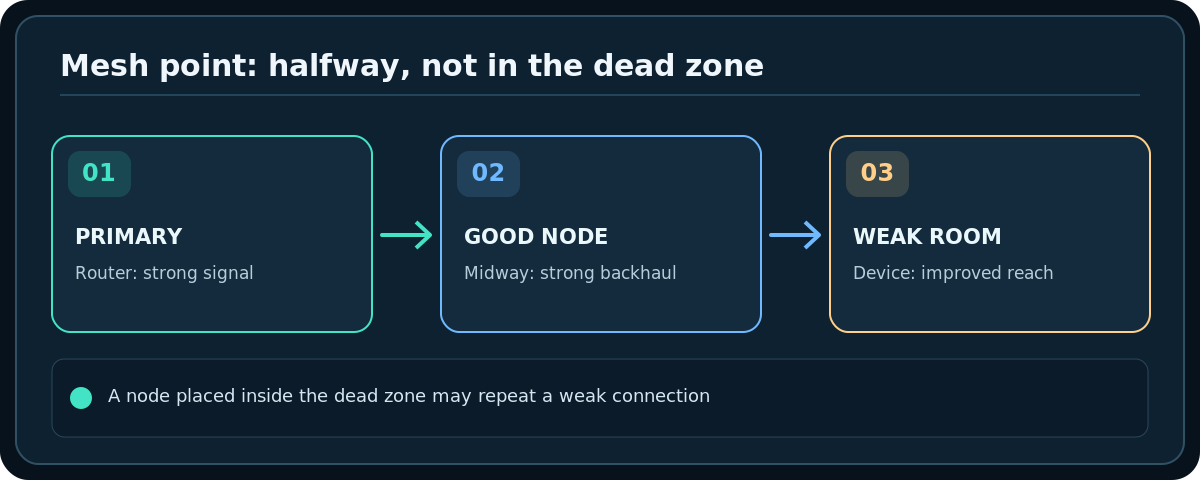
- If a distant node is weak, move it back partway toward the primary router until the backhaul connection improves. Putting it at the very edge of a dead zone may leave it with too little signal to relay.
- Prefer a location in the open and not behind multiple thick walls. Google recommends checking point spacing and testing again after each move.
- Confirm that the phone or laptop is actually using a suitable access point; some clients stay attached to a distant node for a while.
- If you can install Ethernet backhaul according to your equipment’s instructions, it may remove a weak wireless hop. Do not run loose cabling across walkways.
When an extender, access point or cable is justified
An extender can improve reach but must itself receive a usable link. Place it between the router and the problem location, not at the destination where reception is already nearly zero. Some extenders use the same radio for receiving and retransmitting, which can reduce throughput. A wired access point or Ethernet connection is usually preferable for a stationary desk or TV when practical.
If a single large home has thick concrete walls or multiple floors, no placement trick guarantees full coverage. Estimate the needed coverage from tests and building layout rather than from advertised square-foot ratings alone.
Troubleshooting
Signal bars look full but pages are slow
Bars do not measure ISP speed, interference, latency or total channel utilization. Run a real test and compare another device and a different time of day. Check for a bandwidth-heavy background update.
Video freezes but ordinary browsing seems fine
Sustained throughput and short bursts behave differently. Try a lower stream quality as a diagnostic, test the TV by Ethernet where possible, and examine whether the room’s Wi-Fi link is unstable.
A mesh node makes performance worse
Check its backhaul quality and placement; more nodes are not automatically better. Follow the manufacturer’s recommended positioning and rerun the mesh test before adding another.
Changes help for a day, then the issue returns
Record times and activities. Automatic channels, neighboring networks and microwave use can vary. If the slowdown follows one device, investigate that device rather than rearranging every router.
Frequently asked questions
Will a stronger antenna fix my room?
Not necessarily. Wi-Fi is two-way: the client must be able to transmit back. Hardware changes can also be restricted by the router design or local regulations.
Should I put my mesh point inside the dead zone?
No. It needs a good link upstream first. Position it between the router and the weak room, then verify with the mesh diagnostics.
Can thick concrete or foil insulation block Wi-Fi?
Dense and metal-containing materials can substantially weaken Wi-Fi. A wired access point may be the more predictable remedy in difficult buildings.
Sources & Further Reading
- Google — WiFi device placement (accessed 2026-10-27)
- Google — Troubleshoot slow internet on Nest/Google Wifi (accessed 2026-10-27)
- Microsoft — Wi-Fi and your home layout (accessed 2026-10-27)
Use the checklists as you go, and confirm the result before moving on to a more involved repair.