How to Fix Wi-Fi That Drops Every Few Minutes
Diagnose recurring Wi-Fi disconnects using another device, Ethernet, adapter power checks and mesh backhaul.
Quick answer: To fix Wi-Fi that drops every few minutes, first identify what is dropping: your device’s Wi-Fi link, access to the local router, or the internet service behind it. Test another device in the same room, check the router’s status and event history, and try a nearby location before changing multiple settings.
A disappearing Wi-Fi icon means something different from a stable Wi-Fi icon with no internet. The repair depends on that distinction. Frequent drops can also result from sleeping laptops, congested channels, moving between mesh nodes, unstable power, or a problem outside the home. There is no universal “best channel.”
Log the symptom before changing settings
- Note the exact time of a dropout and whether the SSID vanishes or your device remains connected without internet.
- Watch a second device connected to the same network. If only one drops, prioritize that device; if both drop together, investigate router or ISP.
- Move the affected device closer to the access point for ten minutes. A dramatic improvement suggests weak signal or interference, not necessarily a bad ISP line.
- If possible, compare a laptop connected by Ethernet. Ethernet stable while Wi-Fi drops points toward the wireless portion of the network.
Fix an individual Windows laptop first
- Confirm Airplane mode is off and that the laptop isn’t connected to an unintended guest or extender network.
- Restart Windows after saving work. If a recent Wi-Fi driver update triggered the problem, consult the laptop maker’s support guidance before attempting a driver rollback.
- Open Device Manager > Network adapters, right-click the Wi-Fi adapter, and inspect Properties. If it includes Power Management, the Allow the computer to turn off this device to save power choice may be relevant. This tab does not exist on every adapter.
- Check Windows Update and your manufacturer’s official support site for a driver appropriate to the exact laptop and adapter. Do not install an unrelated generic driver.
- For one corrupted saved profile, Settings > Network & internet > Wi-Fi > Manage known networks > Forget, then reconnect using the correct password. Forgetting removes the saved credentials for that profile.
Inspect interference and roaming
A crowded 2.4 GHz environment may suffer interference from neighboring networks and household equipment. If both your router and device support 5 GHz and you’re close enough, try that band. Farther rooms may work better on 2.4 GHz. Evaluate reliability and not only peak speed.
For a mesh network, check whether the affected device sits between access points. Move the closest mesh point to a location with a good backhaul connection, not inside an existing dead zone. If the manufacturer’s app offers a mesh quality test, use it. Don’t split networks or turn off roaming features without understanding the effect on other devices.
Investigate the router and the internet line
- Open the router status page and check uptime, WAN disconnect notices and, if supported, the system log timestamps.
- Ensure the router has ventilation and a stable power adapter, and is not hot to the touch. Use only the approved power supply.
- Ask other users whether a nightly backup, large upload or scheduled router reboot matches the reported times.
- Restart the router normally at a convenient time if multiple devices fail. Restart is not factory reset; holding a recessed reset button can erase settings.
- If the router stays online but its WAN/internet connection repeatedly falls, review your ISP’s outage page and report the timestamps and line lights.
What the pattern tells you
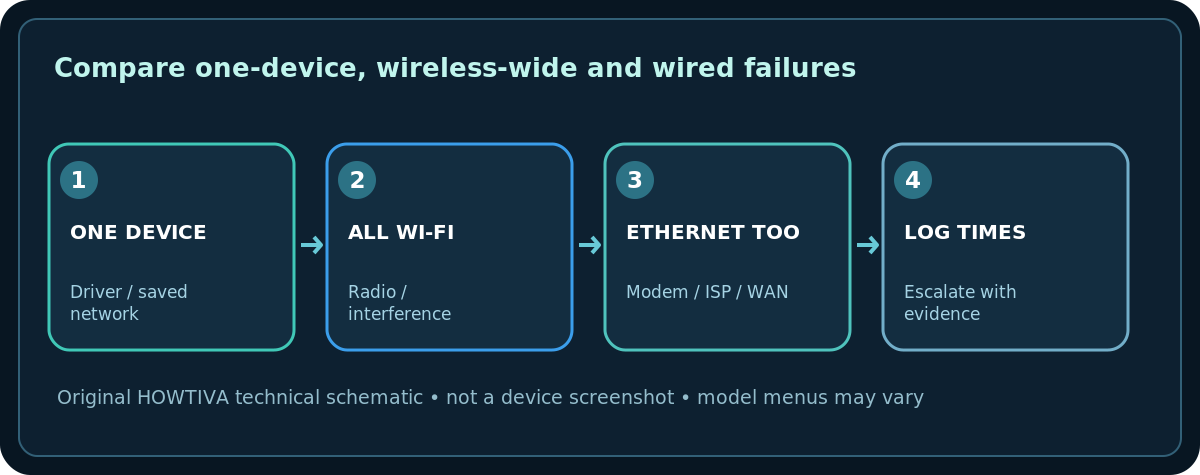
- One laptop only: Wi-Fi adapter, power management, driver, saved profile, VPN or local interference are more likely than a whole-home outage.
- All wireless devices, Ethernet fine: Inspect the access point, Wi-Fi radio, interference and mesh backhaul.
- Wireless and Ethernet both fail: ISP, modem/ONT, WAN wiring or router routing is more likely.
- Drops on a schedule: Look for router schedules, timed power supplies, smart plugs or heavy household usage.
- Only during motion between rooms: Mesh roaming decisions or poor intermediate coverage may be responsible.
Last-resort repairs and important cautions
Windows Network reset reinstalls network adapters with default settings and can affect VPN clients and virtual switches. Microsoft treats it as a last resort, not routine maintenance. Record VPN and static network settings before considering it. Similarly, update router firmware only with vendor-matched files and avoid power interruptions.
If a provider-owned router is unstable, ask the provider to check link history before replacing hardware yourself. Never casually reset a managed device or change an organization’s network configuration.
Frequently asked questions
Does switching bands always stop drops?
No. It helps only if the alternative band has adequate signal and compatible devices. A 5 GHz link may be worse through thick walls.
Is a Wi-Fi dropout the same as an internet outage?
No. Your local wireless link can remain active when the internet path fails. Ethernet and second-device checks help differentiate them.
Should I change DNS to fix Wi-Fi disconnections?
DNS affects name lookups, not the physical Wi-Fi radio. Change it only if you have evidence of a DNS problem.
Sources & Further Reading
- Microsoft — Fix Wi-Fi connection issues in Windows (checked 2026-10-27).
- Microsoft — Why is my Internet connection so slow? (checked 2026-10-27).
- Google — Mesh test guide (checked 2026-10-27).
Use the checklists as you go, and confirm the result before moving on to a more involved repair.