How to Free Up Storage on Android
Open Settings > Storage to identify what is filling your Android phone. Start with unwanted downloads and unused apps.
Quick answer: Open Settings > Storage to identify what is filling your Android phone. Start with unwanted downloads and unused apps. If Google Photos says your photos are fully backed up, its Free up space on this device tool can remove local copies while retaining the cloud versions. Do not select a delete option before confirming where the only copy lives.
Android menus differ on Pixel, Samsung Galaxy and other brands; some storage controls are limited to newer Android versions. This guide separates phone storage from Google Account cloud storage, which are not the same limit.
Check what is using the space
- Open Settings, then find Storage. Some Samsung phones put storage figures under Battery and device care > Storage or Device care.
- Read the categories: apps, photos/videos, audio, downloads, system and other files. Large numbers under Other are not a licence to delete unfamiliar system files.
- Open your Files or My Files app and inspect Downloads, large videos and offline media. Sort by size if that option is available.
- Identify a few large items you recognise before deleting anything. If the device says it is almost full, work in small batches and confirm you have gained space.
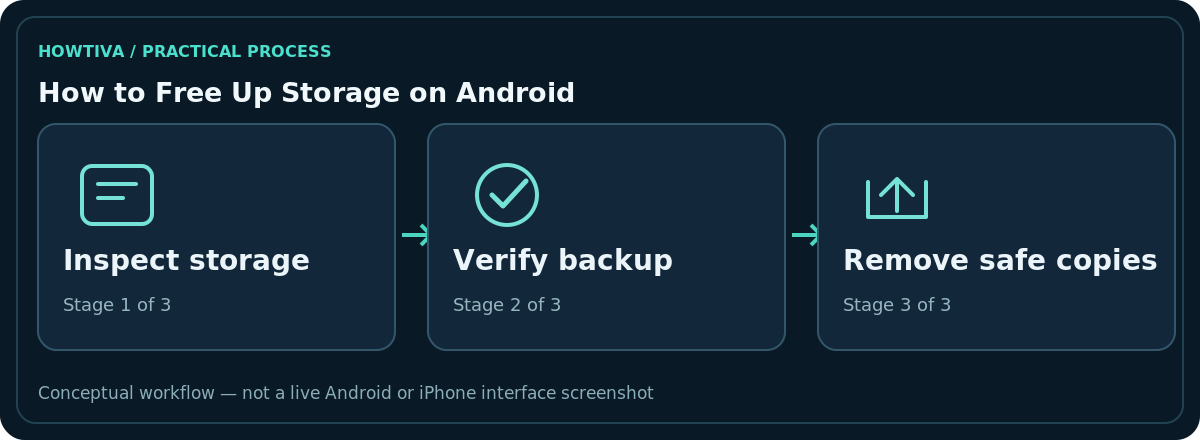
A storage bar only measures local space. Google Drive, Google Photos or another cloud service may report a different quota. Clearing one does not automatically clear the other.
Remove downloads and apps you no longer need
Start with old installers, exported videos, offline maps and media downloads you deliberately saved. Review each item in the Files app before moving it to Trash or deleting it. Media streaming apps usually manage downloaded episodes from within their own settings; deleting the app may also remove offline content and app-specific data.
Uninstall apps you no longer use from Settings > Apps or by opening their Play Store listing. Some Android phones and Play Store versions support automatic app archiving, which removes rarely used app components but retains certain user data for restoration. Archived apps can require a new download and an internet connection later. Do not assume archiving backs up your account or all documents saved by that app.
Free up local copies of backed-up photos safely
- Open Google Photos, sign in to the Google Account that holds the pictures, and tap your profile picture.
- Check the backup status. Wait until it reports Backup complete; inspect any account-switch or upload error first.
- From the profile menu choose Free up space on this device. Read the proposed amount and confirm only after checking that the files really exist in your Google Photos library.
- Open photos.google.com in a separate browser or device if you need extra reassurance. Remember that your offline Gallery app may no longer show files removed locally.
This removes device copies, not necessarily cloud copies. The ordinary Delete/Trash control in Google Photos is a different action and can delete backed-up items too. Keep original files stored separately if you need guaranteed offline access, for example while travelling without a connection.
Clear a problem app’s cache, not its data
Go to Settings > Apps > [app] > Storage or Storage & cache, then choose Clear cache where present. Temporary files can be recreated and the next launch may be slower. Clear storage, Clear data and similarly named options can erase local app settings, downloaded material or sign-ins. Do not interchange them. System apps and manufacturer-specific menus may not offer the same controls.
Cached files are a normal part of a working app. Repeatedly cleaning them every day often provides little lasting free space. If one app grows again quickly, inspect its own download and media settings or report unusual behaviour to its developer.
If you still have almost no storage
Check your messaging app for videos shared repeatedly, and remove only items you can afford to lose. Look for duplicate large downloads rather than trusting an unverified ‘cleaner’ app. Move irreplaceable documents to a computer or a verified cloud destination and open the copies before deleting the originals. Some phones support removable storage; availability and whether apps can move there vary by model.
If storage figures look wrong, restart the device and reopen Settings. Updates may require temporary installation space. Avoid factory resets or deleting unknown Android folders as a first-line response; a reset is destructive and needs a separate verified backup plan.
A safe cleanup order for a nearly full phone
If your phone shows almost no available storage, start with actions that are easy to reverse. List the largest downloads and offline media, then remove one obvious file and check the Storage screen again. Next, uninstall a game or large app whose account and saves you have verified elsewhere. Only after those checks should you consider deleting local photo copies. Avoid selecting a gallery-wide Delete action under time pressure.
For a device used for work, confirm whether files belong to a managed profile before moving them to a personal account. Storage used by a work profile may be managed separately, and your organisation may restrict off-device exports. A file-transfer cable does not itself create a verified backup: open several transferred files on the computer and confirm their sizes first.
Device storage versus Google storage: a worked distinction
A full 128 GB phone can have plenty of Google Account space, while an almost-empty phone can still have a full Google Photos/Drive quota. Clearing a downloaded film may free phone capacity but not cloud capacity. Conversely, deleting a large item from cloud storage may reduce the cloud quota while leaving a downloaded copy on your handset. Check the relevant storage meter after each action so you solve the right problem.
Common questions
Does deleting photos from Google Photos only free phone space?
No. Using its ordinary Delete action can remove the cloud item as well. Use the dedicated Free up space on this device function only after checking backup, if your goal is removing local copies.
Will deleting app cache remove my login?
Clearing cache normally removes temporary files, not saved accounts; clearing storage/data can reset the app. Check which button you are pressing.
Can an SD card fix a full phone?
Some Android phones accept microSD media and allow particular file transfers; many do not. Check the exact model and copy files before deleting them.
Why did space decrease again after cleanup?
Apps rebuild caches, photos and videos arrive, and downloads resume. Track storage over several days and identify the app or category growing most quickly.
Sources & Further Reading
- Free up storage on your Android device — Google Play Help; checked 2026-10-27.
- Free up space on your device — Google Photos Help; checked 2026-10-27.
- Back up photos and videos — Google Photos Help; checked 2026-10-27.
Use the checklists as you go, and confirm the result before moving on to a more involved repair.