How to Improve Wi-Fi CoverageWithout Buying New Hardware
Improve coverage with central router placement, band checks, reduced interference and existing mesh tuning.
Quick answer: To improve Wi-Fi without buying hardware, reposition your router in a central, elevated, open location; test 2.4 GHz and 5 GHz where you use devices; reduce avoidable interference; and move existing mesh nodes where their connection to the main router is stronger. Change one variable at a time and measure the result.
A purchased “boost” is often not the first fix. Walls, mirrors, metal cabinets, appliances, neighboring Wi-Fi and misplaced existing equipment can all undermine a good internet plan. These steps use the router and devices you already have; results depend on your home layout.
Establish a useful baseline
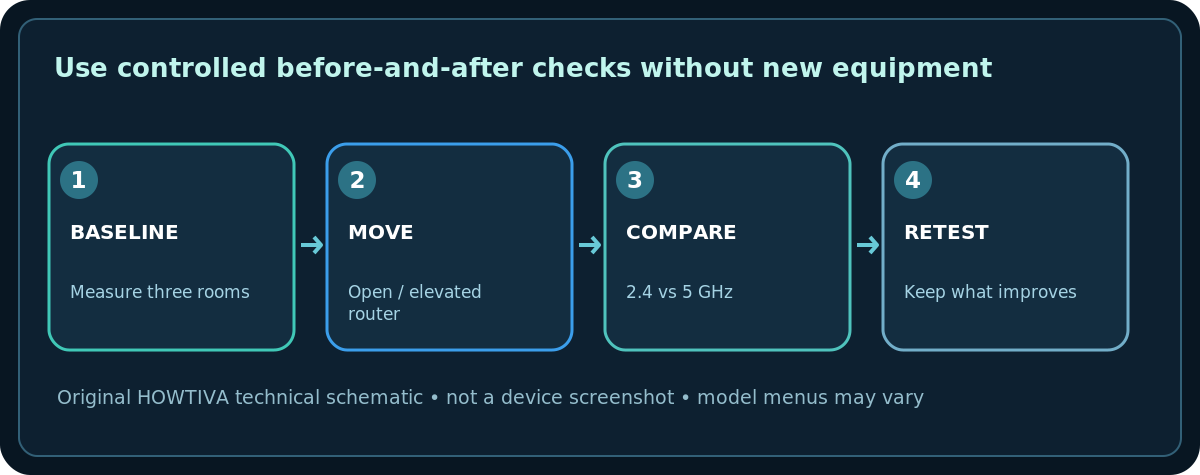
- Select three rooms: one near the router, one where Wi-Fi is acceptable, and one problem location.
- On the same laptop or phone, record how well the actual task works (streaming, video call, browsing) and, if possible, a repeatable speed test in each room.
- Compare Wi-Fi performance with an Ethernet connection if available. If both are equally slow, focus on internet service or congestion before blaming coverage.
- Note the time of day and whether neighboring equipment or large household downloads may have affected the results.
Improve router position safely
Move the router away from the floor, crowded cabinets and solid metal surfaces. A more central location often gives more even coverage than a far corner; an open shelf is preferable to a closed utility cupboard when wiring permits. Keep ventilation clear and do not stretch a fiber cable or move an ISP termination device without permission.
If the router has external antennas, start with the manufacturer’s recommended orientation. Do not assume a universal antenna arrangement for every model. A small change in height and obstruction can have a larger impact than a new phone setting.
Make a controlled band comparison
- If your router provides separately named 2.4 GHz and 5 GHz networks, test both from the problem room using the same device.
- 2.4 GHz commonly offers better reach around obstacles but may face more local interference; 5 GHz can be faster near the access point but attenuate through walls.
- If the router combines both names through band steering, you may not be able to force a specific band in every app or client. Avoid turning off automatic features without a reason.
- Leave supported security enabled—WPA2-AES or WPA3—and don’t downgrade to insecure legacy security to make an old device work.
Reduce local interference
Keep the access point away from sources of electromagnetic interference such as a microwave oven, crowded electronics and thick metal enclosures. If you own the router, you can review its channel selection settings. Automatic selection is often a sensible starting point; changing channels blindly can make things worse, especially where neighbors use the same frequencies. Observe performance across several sessions rather than relying on one signal-bar change.
Optimize existing mesh or repeaters
If you already have a mesh system, put an additional point halfway toward the weak area—not inside the dead zone—and run its mesh/backhaul test. Google advises that points need a strong link to one another. If you already use an extender, it should also receive a reasonably strong source signal; a device that repeats very weak Wi-Fi won’t invent missing bandwidth.
Reduce competing traffic and software limits
- Pause large downloads and cloud backups during critical calls, then test whether latency improves.
- Check the router’s Quality of Service features only if it supports them and you can document current settings; improper prioritization can reduce throughput.
- Use 5 GHz for nearby high-throughput devices when it is more reliable, leaving compatible smart-home devices on 2.4 GHz if needed.
- Keep legitimate router firmware current through the maker’s supported update process, but do not begin a risky update solely because one room is slow.
- Test from multiple devices to avoid confusing a defective laptop adapter with home-wide weak coverage.
What not to expect
A DIY placement change cannot bypass reinforced walls, increase an ISP plan’s contracted rate, or fix a failing modem. If every room is slow even over Ethernet, the issue is outside Wi-Fi coverage. Never buy a mystery “signal amplifier” or change regional radio regulations to solve normal domestic coverage.
Frequently asked questions
Are full Wi-Fi bars proof that speed is good?
No. Bars approximate wireless signal, not WAN throughput, congestion or packet loss.
Is 5 GHz always better?
Not in a distant room. Test both supported bands from the location where you actually use them.
Do I need to turn off my neighbors’ networks?
No. You can select suitable channels and placement on your own equipment; do not interfere with other networks.
Sources & Further Reading
- Google — Where to place your Wifi devices (checked 2026-10-27).
- Microsoft — Why is my Internet connection so slow? (checked 2026-10-27).
- Google — Mesh test guide (checked 2026-10-27).
Use the checklists as you go, and confirm the result before moving on to a more involved repair.