How to Make a Simple Budget Spreadsheet
Create a sheet with Category, Planned, Actual, and Difference columns. Put income and expenses in clearly separated sections.
Quick answer: Create a sheet with Category, Planned, Actual, and Difference columns. Put income and expenses in clearly separated sections. Sum the expenses, subtract them from income, and update actual spending through the month. A budget is useful only if its formulas include the correct cells and you revisit the numbers.
You can follow this method in Microsoft Excel or Google Sheets. The menu wording for currency formats varies, but ordinary SUM and subtraction formulas work in both. Start with one month and one currency. Do not include real banking credentials or account numbers in your budget file.
Step 1: Set up the table safely
- Create a new blank workbook. Rename the first sheet
Monthly Budgetand save a private copy before making large changes. - In A1 type
Monthly Budget — October. In A3:D3, enterCategory,Planned,Actual,Difference. - Put
Incomein A4. PutSalaryin A5 andOther incomein A6. TypeTotal incomein A7. - Put
Expensesin A9. PutHousing,Utilities,Groceries,Transport,Debt payments, andOtherin A10:A15. TypeTotal expensesin A16 andMoney leftin A18. - Enter amounts as numbers in columns B and C, not strings such as
USD 250. Apply the spreadsheet’s currency format to the cells instead. Leave unknown amounts blank rather than pretending you know them.
Step 2: Add transparent formulas
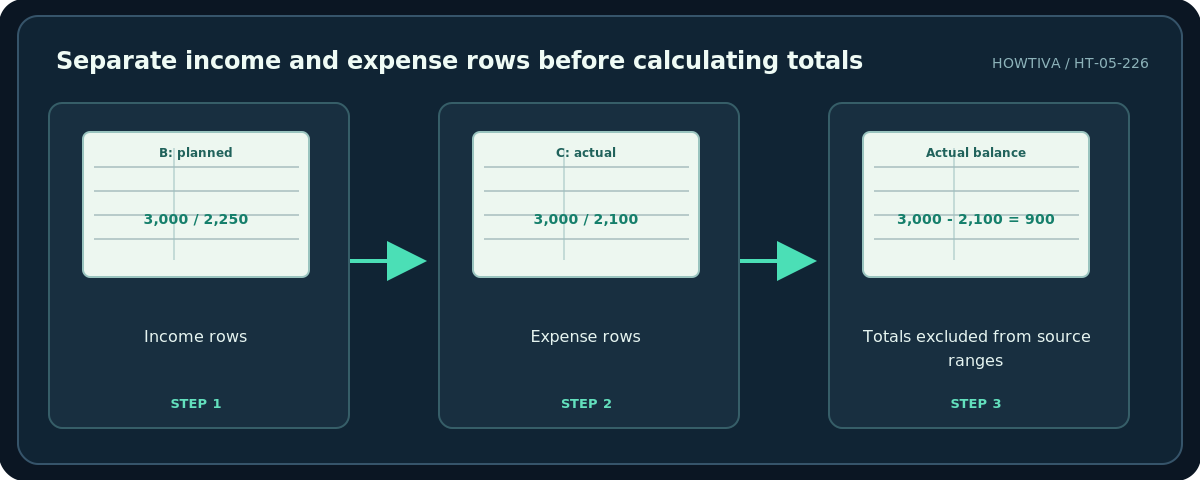
In B7, enter =SUM(B5:B6). In C7, enter =SUM(C5:C6). In B16 enter =SUM(B10:B15) and in C16 enter =SUM(C10:C15). In B18, calculate =B7-B16, and in C18 enter =C7-C16. These formulas deliberately avoid including the total rows in their own ranges.
For a spending row such as housing, enter =B10-C10 in D10 and copy it down to D15. Under this convention, a positive difference means you spent less than planned; a negative difference means you exceeded the budget. For income rows, a positive number might mean higher income, so do not apply the same interpretation without changing the sign or labeling it explicitly. If you want a total expense variance in D16, use =B16-C16.
An example: planned monthly income 3,000, planned expenses 2,250, actual income 3,000, and actual expenses 2,100. Planned money left is 750, actual money left is 900, and expense variance is +150. Check those figures with a calculator before trusting your own workbook. This is illustrative data, not a financial recommendation.

Step 3: Keep the budget usable
Format the totals in bold, freeze the heading row if needed, and format expenses consistently. Add a Notes column if unusual spending needs an explanation. For irregular bills such as annual insurance, add a monthly savings line instead of hiding the upcoming cost. Review your actuals weekly, reconcile them to transactions you can verify, and keep an untouched monthly snapshot.
If you share the budget with a household member, choose access deliberately. A Viewer can inspect but normally cannot edit; an Editor can change the data. A Google Sheets protected range is not a substitute for a private file. For a printable version, export a PDF after reviewing the layout.
Alternatives
Use a template: Microsoft publishes budget templates that may already contain charts and formulas. Review the formula ranges and default categories before substituting your numbers. Use Google Sheets: the same table and basic SUM formulas apply, and you can use Version history if a collaborator makes a mistake. Use a separate transaction log: for complex budgets, keep transaction dates and descriptions on a second sheet; avoid mixing raw entries into the totals table.
Troubleshooting
Totals are zero: Verify the amounts are numeric, not text with extra currency symbols or spaces. Check that the correct source rows are referenced. Income appears doubled: You may have summed a subtotal and the entries underneath it; inspect ranges carefully. A negative balance surprises you: Verify planned-versus-actual columns and whether refunds, transfers, or credit-card payments were counted twice. Formula displays as text: Remove a leading apostrophe and check the cell format; re-enter the formula. Different household currencies: Keep separate currencies or convert using a rate with a documented date rather than adding unlike amounts.
Frequently asked questions
Should savings be an expense?
You can list a planned transfer to savings as a dedicated allocation, but choose one consistent method: do not also subtract the same transfer elsewhere.
Do I need charts?
No. A correct total, clear remaining balance, and consistent updates matter more than a decorative dashboard.
Can the budget predict future spending?
It is a plan and a record, not a guarantee. Unexpected costs and variable income require revisions.
Sources & Further Reading
- Google Docs Editors Help — SUM — Spreadsheet SUM function and numeric ranges.
- Microsoft Support — Create your first budget — Budget templates and basic monthly budgeting context.
Use the checklists as you go, and confirm the result before moving on to a more involved repair.