How to Make a Simple Invoice in Google Sheets
In Google Sheets, create an invoice header containing your business details, customer details, invoice number, issue date and due date.
Quick answer: In Google Sheets, create an invoice header containing your business details, customer details, invoice number, issue date and due date. Put services or products in rows with quantity, unit price and calculated line total. Use a formula such as =B10*C10 for each line and =SUM(D10:D19) for the subtotal. Add tax or discounts only when applicable, then use File → Print and choose the relevant sheet or cell range for a clean PDF or paper copy.
A spreadsheet invoice is a convenient document, not a substitute for local tax or recordkeeping obligations. Required business identifiers, tax rates, invoice wording and digital-invoicing mandates differ across jurisdictions. Confirm them before sending invoices to customers; the sample below deliberately uses fictional amounts and no prescribed tax rate.
Step 1: Set up the document and identity fields
- Open Google Sheets and start a blank spreadsheet. Rename it to something like
Invoice_Template_Working. - In the top rows add INVOICE, your sender name or registered business name, contact details, and payment instructions appropriate to the customer.
- Set clearly labeled fields for Invoice number, Issue date, Due date, Bill to, and optionally a purchase-order or project reference.
- Keep the invoice number unique in your own ledger. Avoid mixing multiple invoices in one editable file; make a fresh copy for each issued invoice.
- Confirm the currency and date convention expected by the recipient. Formatting dollars on a sheet does not convert underlying money values or exchange rates.
Step 2: Create a reliable line-item table
Use this small example, adapting row numbers if you put your header in a different position:
| A: Description | B: Qty | C: Unit price | D: Amount |
|---|---|---|---|
| Design session | 2 | 75.00 | =B10*C10 |
| Draft edits | 3 | 30.00 | =B11*C11 |
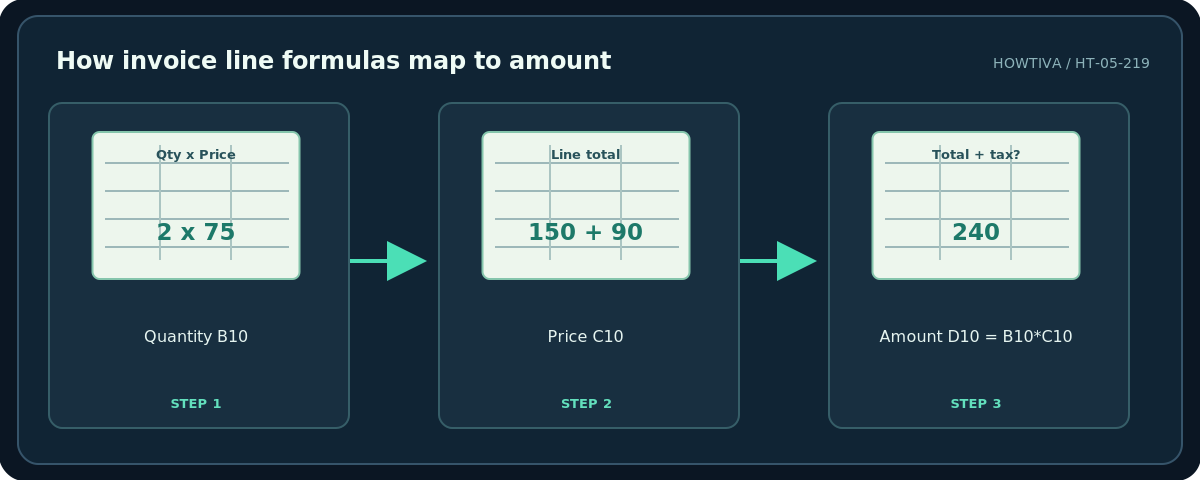
Place headings on row 9 and these example entries on rows 10 and 11. Put =B10*C10 into D10 and =B11*C11 into D11. Copy the formula downward for future items, taking care not to overwrite the subtotal row. For the example, 2 × 75 + 3 × 30 = 240 units of the chosen currency.
Step 3: Calculate the subtotal and final amount
- Reserve some empty rows for more line items, such as rows 12–19.
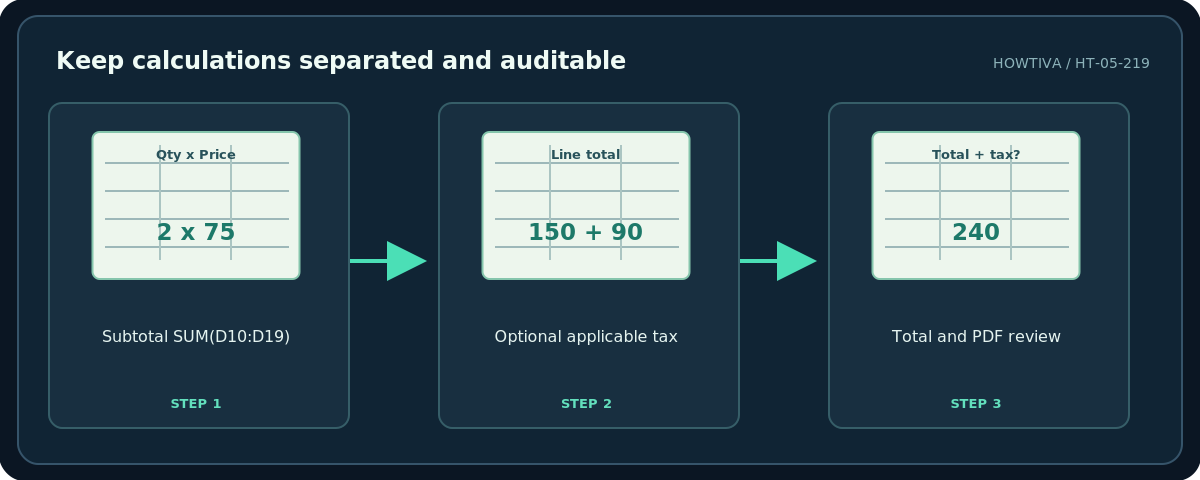
- In row 20, write Subtotal and enter
=SUM(D10:D19)in the amount cell. - If a valid tax must be charged, enter a separately labeled rate in a designated numeric cell, for example B22 as 0.10 for 10%, and use
=D20*B22for the calculated tax in D22. The 10% is only a mathematical example, not a tax recommendation. - If tax is not applicable, leave the tax line clearly marked “Not applicable” and make total equal subtotal. If discounts apply, show and calculate them transparently before the total.
- Keep currency consistent. A sheet formatted as USD does not mean a cross-border payment must use dollars.
Step 4: Apply currency and print formatting
Select money cells and use Format → Number → Currency, or Custom currency for the intended currency. Google notes that formatting defaults depend on the spreadsheet locale, so check the symbol and decimal separator. Make descriptions wide enough to wrap without clipping. Use borders only where they help distinguish entries and totals, not a dense grid across the whole page.
Select the invoice area or current sheet, then open File → Print. Google’s print interface allows Current sheet, Selected cells or Workbook, along with page orientation, margins and paper size. Inspect the print preview and make sure a private scratch sheet is not included. In supported browser workflows you can produce a PDF from the print dialog; behavior differs between Chrome and Firefox/Safari.
Common mistakes and corrections
The total displays 0. Check whether the quantity and price cells contain real numbers instead of text with currency symbols pasted inside. Format the numeric cells as currency instead of typing a symbol into each entry.
A row displays #VALUE!. A referenced cell may hold non-numeric text; correct the value and check the exact formula references.
The invoice prints on two pages. Print only the intended range, reduce unnecessary empty columns and adjust scale/portrait or landscape options in preview.
A customer edits your original. Send a PDF copy through an approved channel and keep your underlying spreadsheet private or share it read-only if collaboration is necessary.
The invoice is legally incomplete. Check applicable invoicing and tax rules; do not assume this tutorial certifies compliance.
Frequently asked questions
Does Sheets have invoice templates?
Availability varies. You can select an available template, but the blank-sheet method is easier to audit and customize.
How do I avoid sending formulas?
Export a PDF, then inspect the result. Keep the formula-bearing working copy in your own Drive.
What if I invoice in two currencies?
Create clearly separated invoices or explicitly document conversions and rate dates; formatting a cell is not an exchange-rate calculation.
Sources & Further Reading
- Google — Add formulas and functions — Formula entry and numeric calculations in Google Sheets.
- Google — Format numbers in a spreadsheet — Currency and locale formatting.
- Google — Print from Google Sheets — Print current sheet, selected cells and page settings.
- Google — Use templates — Availability of Google Sheets templates.
Use the checklists as you go, and confirm the result before moving on to a more involved repair.