How to Protect Cells in Google Sheets
In Google Sheets on a computer, open the spreadsheet and choose Data → Protect sheets and ranges. Add a range or a sheet, then choose Set permissions.
Quick answer: In Google Sheets on a computer, open the spreadsheet and choose Data → Protect sheets and ranges. Add a range or a sheet, then choose Set permissions. A warning only asks before editing; Restrict who can edit actually limits allowed editors. This feature helps prevent accidental changes but is not a security measure for confidential information.
This guide uses the browser version of Google Sheets. Mobile apps may not provide the same protection-management interface. Start from a native Google Sheets file: if you are in Microsoft Office editing mode and the menu is absent, Google says you may need to convert the file to Sheets.
Method 1: Protect a formula range
- Open a copy of the spreadsheet or capture a recoverable version before changing permissions.
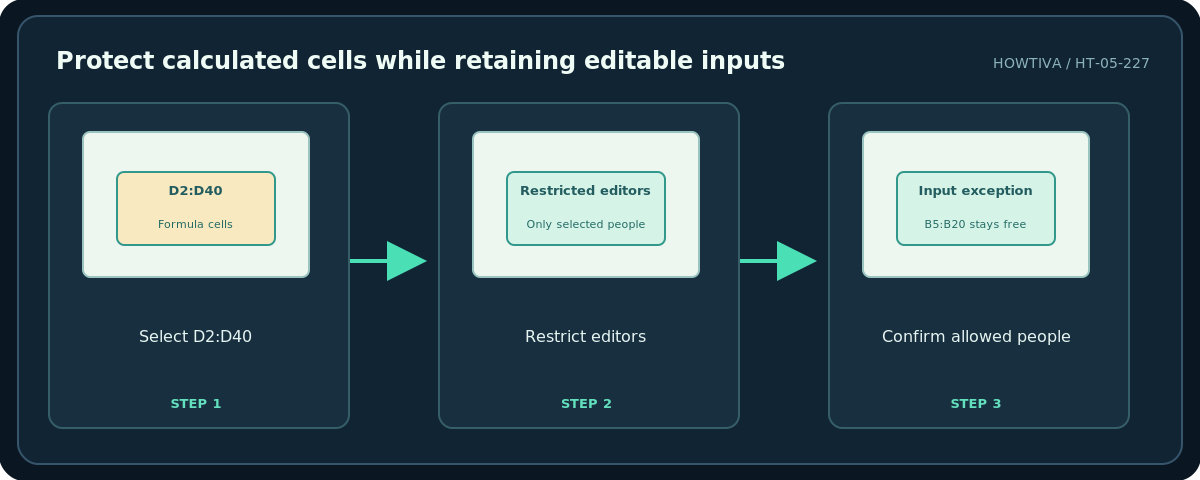
- Highlight the formula cells, for example D2:D40, rather than the entire workbook if colleagues still need to type into the input columns.
- Click Data → Protect sheets and ranges, then Add a sheet or range.
- Choose Range, verify the exact address, and optionally give it a clear description such as
Calculated totals — do not edit. - Click Set permissions. Choose Restrict who can edit this range, not just the warning option, when accidental edits must actually be blocked for other editors.
- Choose Only you or Custom to permit named collaborators as appropriate, and select Done. The sheet owner retains access.
- Ask a trusted collaborator to check the edit outcome in their own account on a test copy. Do not represent permissions as confirmed if you have not tested another account.
Method 2: Protect an entire sheet, except input cells
- Open Data → Protect sheets and ranges and add a protection.
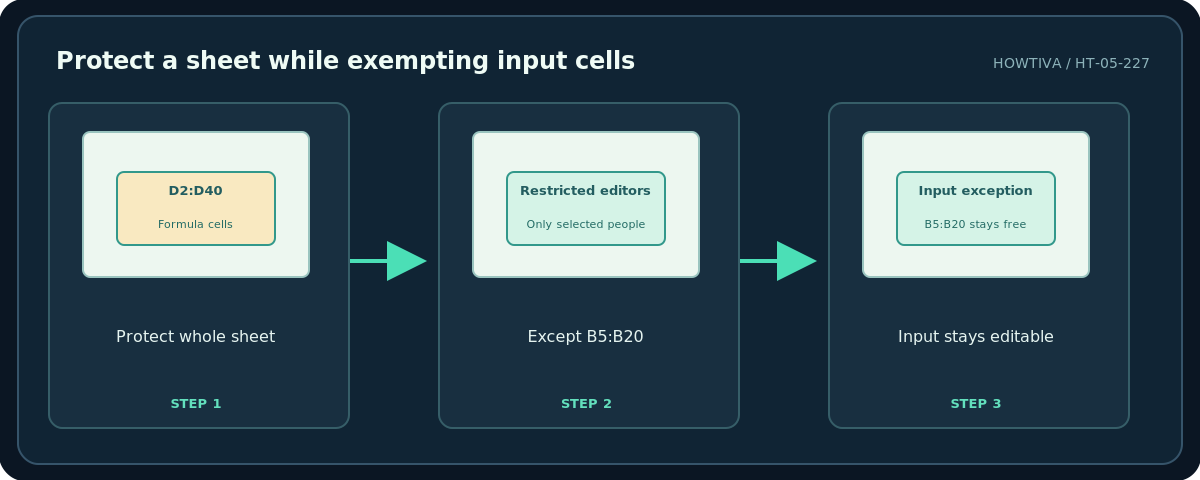
- Switch to Sheet and select the worksheet you intend to protect.
- If others must fill in a form, enable Except certain cells, and specify only the intended input ranges, such as
B5:B20. - Select Set permissions and restrict editors rather than giving a warning only.
- Save. Check that formulas, headers and reference tables are inside the protected part, while the input range is outside it.
Warning versus restriction
A warning means someone can still edit after acknowledging the message. This is useful for gentle reminders but not for preventing changes. A restricted range chooses who can edit; its effect depends on the document’s broader sharing settings. Google does not offer password-based protected sheets. Even when edits are restricted, a person who can access the spreadsheet may be able to print, copy, paste, import, export or otherwise duplicate content. Do not use range protection to hide sensitive salary, medical or personal information.
Change or remove protection
Return to Data → Protect sheets and ranges, select the rule, and adjust the range or permissions. To remove it, use the rule’s delete control. Before deleting a rule on a shared budget, check whether users were relying on it to avoid mistakes. The owner and authorized editors may have more options than viewers or commenters.
Troubleshooting
The menu is missing: Confirm you are editing a Google Sheets file, not an .xlsx in Office editing mode. Convert a copy to Sheets if needed. Users can still type: You may have selected a warning instead of a restriction or allowed them under Custom. A collaborator says everything is locked: Verify whether you protected the entire sheet without setting input exceptions. You cannot set permissions: Your role may be Viewer or Commenter, or organization policy may limit editing. A formula was changed before protection: Restore or copy a sound version using Version history; protection does not reverse prior edits.
Frequently asked questions
Can I lock cells with a password?
No. Google Sheets sheet/range protection does not work as a password lock.
Does hiding a column protect its data?
No. Hiding content changes the view, not the access rights.
Does protection work on a phone?
The documented setup steps are for a computer. Mobile interface availability can vary; use the browser workflow for setting up rules.
Sources & Further Reading
- Google Docs Editors Help — Protect, hide & edit sheets — Range/sheet protection, warning versus restriction, exceptions, permissions, and lack of password security.
- Google Docs Editors Help — Collaborate in Sheets — Sheets protection and collaboration distinctions.
Use the checklists as you go, and confirm the result before moving on to a more involved repair.