How to Manage Login Items on a Mac
Choose Apple menu > System Settings > General > Login Items & Extensions. In Open at Login, select an unwanted item and click the minus (−) button to remove it from automatic login.
Quick answer: Choose Apple menu > System Settings > General > Login Items & Extensions. In Open at Login, select an unwanted item and click the minus (−) button to remove it from automatic login. Review Background App Activity separately.
Mac login items can include applications, documents, folders and server connections that open when you sign in. Background activity is a related but different permission: it allows certain apps to work even when their windows are not open. Managing both can reduce distractions, but switching off backup or synchronization helpers may prevent expected work.
Remove an app that opens every time you log in
- Open the Apple menu > System Settings.
- Select General, then Login Items & Extensions. Scroll the sidebar if the control is not immediately visible.
- Locate the Open at Login section. Review which apps, files or other items are listed there.
- Select the unwanted item and click the Remove (−) button below the list.
- Sign out and sign back in when convenient to verify that it no longer opens automatically.
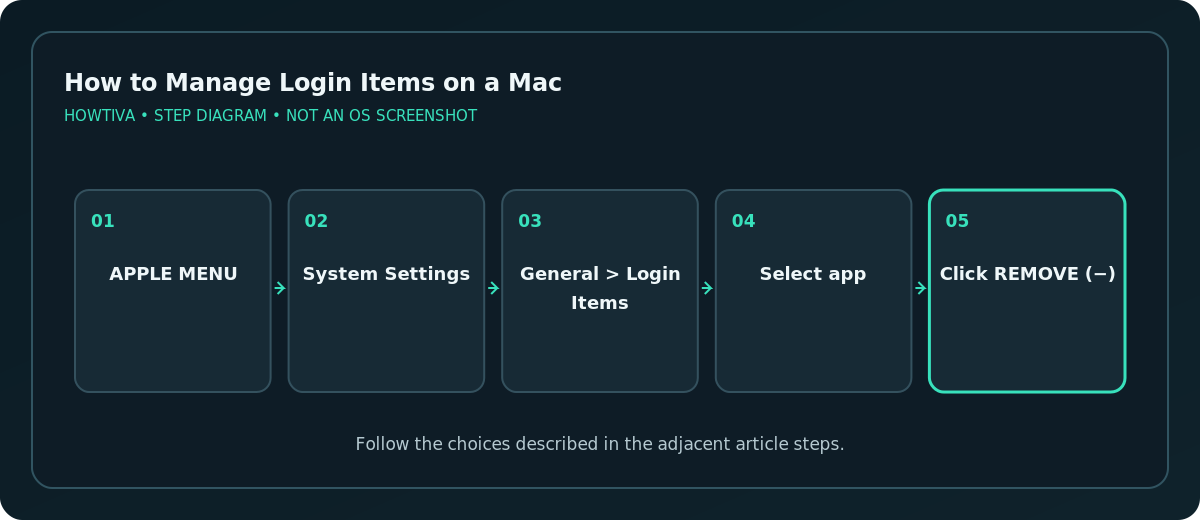
Removing an entry here does not uninstall its application. You can continue opening the app from Applications or Spotlight whenever you want. If you remove a document or network connection, it merely stops being opened automatically at login.
Add a useful item to automatic login
- Return to General > Login Items & Extensions.
- In Open at Login, click Add (+).
- Select the desired app, folder, document or server item and choose Add.
- Confirm that the item now appears in the list.
This is useful for an essential work application or a document you edit every morning. Do not add a large collection of apps without a reason; each may consume resources or request attention when you sign in.
Control background activity separately
Below the login list, find Background App Activity or the equivalent background-permissions section for your version of macOS. Turn an application’s background activity Off only after understanding what it does. Apple notes that these tasks can include software updates and data synchronization. Switching off a cloud-drive helper or backup agent might prevent uploads or automatic protection, even though the app remains installed.
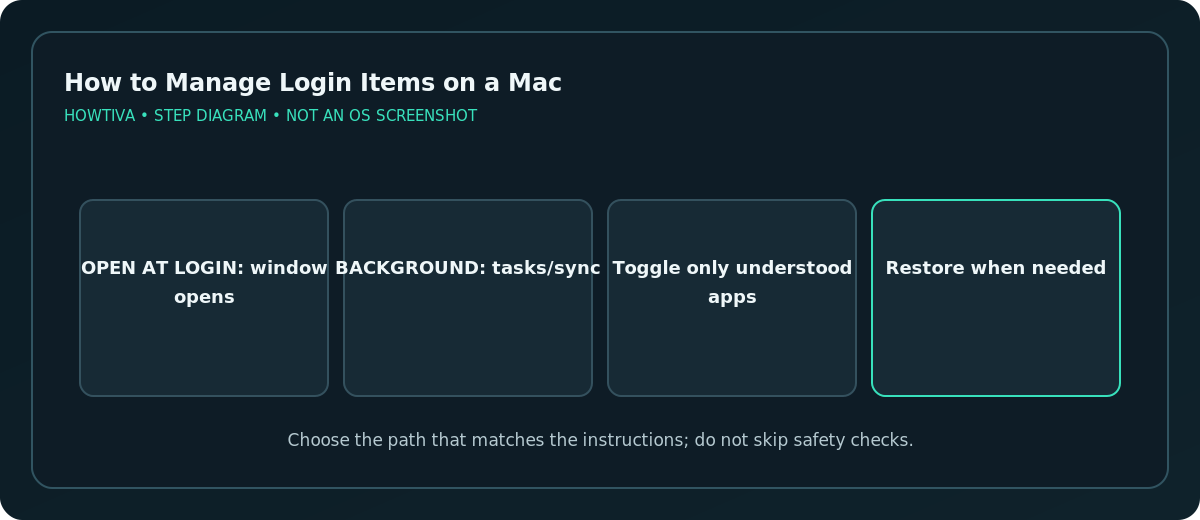
If an application stops working correctly, restore its background permission and consult its documentation. A vendor’s own settings may also have a Launch at login option that affects its behavior independently of the visible list.
Temporarily skip automatic login items
Apple documents holding Shift during login as a temporary way to prevent automatic items from opening. At a visible login window, hold Shift while choosing Log In and release it when the Dock appears. If the login window is not shown, restart and hold Shift when the startup progress bar appears, releasing after the desktop is shown. This is a troubleshooting step and does not permanently erase the login list.
Take care not to confuse this technique with the different key sequence used to enter macOS Safe Mode. If your goal is only to test login items, follow the on-screen situation and Apple’s instructions for that feature.
Troubleshoot an app that opens despite removal
- Its name is missing from Open at Login: Check the app’s own Settings or Preferences for an automatic-launch option.
- A window appears after an update: The software may have re-enabled its login registration or restored windows from the previous session.
- A sync service stopped: Re-enable its background permission if the app needs it and review any important files that were not synchronized.
- A work Mac won’t let you change the setting: A configuration profile or account restrictions may govern the helper.
- The Mac is still slow to reach the desktop: Review storage, app performance and system updates as separate issues; login items are only one potential factor.
Frequently asked questions
Is removing a login item the same as deleting the app?
No. It only removes that automatic-login entry. The app itself remains installed.
Should I disable all background activity?
No. Some helpers are needed for sync, updates, backups and other features; change only what you understand.
Can I make an app open automatically again?
Yes. Add it back under Open at Login or use its documented preference where appropriate.
Sources & Further Reading
- Apple — Open items automatically when you log in on Mac — Add, remove, background apps, and Shift temporary skip.
- Apple — If an app continues running in the background after you quit it — Background App Activity effects and restoration.
- Apple — Change Login Items & Extensions settings on Mac — Settings location and categories.
Use the checklists as you go, and confirm the result before moving on to a more involved repair.