How to Merge PDF Files
On a Mac, open the PDFs in Preview, show View → Thumbnails, then drag page thumbnails from one document into another and save the combined file.
Quick answer: On a Mac, open the PDFs in Preview, show View → Thumbnails, then drag page thumbnails from one document into another and save the combined file. In a supported edition of Adobe Acrobat, choose Menu → Combine files on Windows or File → Combine files on macOS, add your PDFs, put them in order, and select Combine.
The best method depends on your device and whether you need a local workflow, advanced page organization or mixed file types. Combining PDFs changes the order and contents of a new file; it does not merge text into one continuous editable document. Check page order, duplicate pages, rotated sheets and restrictions before sending the result.
Method 1: Merge PDFs for free in Preview on Mac
Apple’s Preview app includes PDF page organization without a third-party website. Importantly, Preview may save edits to a PDF automatically, so make copies of the originals first if you need to preserve them unchanged.
- In Finder, duplicate the PDFs that you want to keep unchanged. Give the destination copy a clear name such as
combined-working.pdf. - Open the working PDF and the other source PDF in Preview.
- In each window, choose View → Thumbnails so you can see the pages in the sidebar.
- Drag a thumbnail from the second PDF into the first PDF’s sidebar. To insert several pages, select them first; use Command-click for nonadjacent pages.
- Watch the insertion position and drag thumbnails to reorder pages. If needed, drag an entire PDF from Finder into the destination’s thumbnail sidebar.
- Save or review the destination PDF and open it again to verify that all pages appear in the intended sequence.
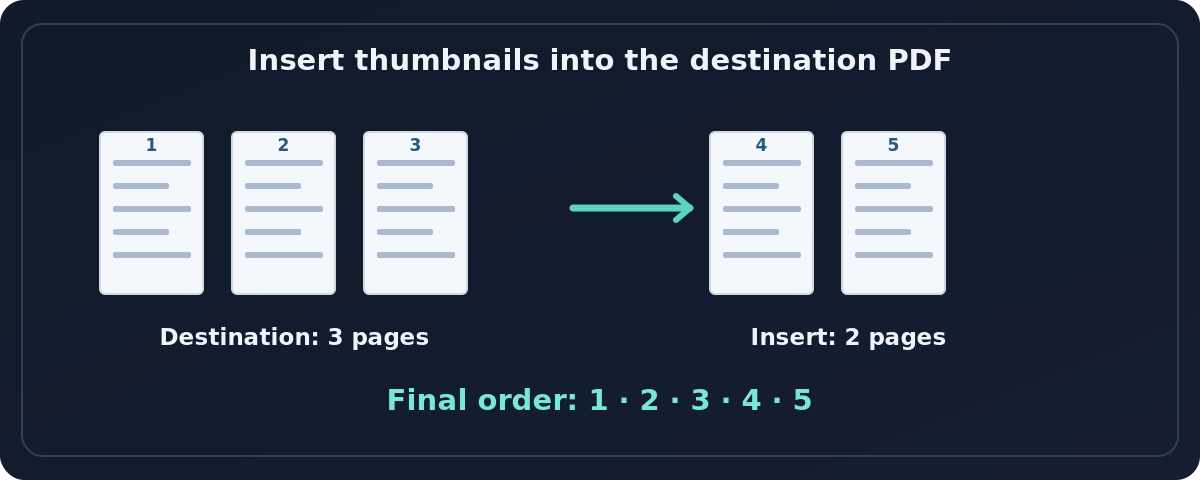
For example, a three-page proposal followed by a two-page appendix should produce five pages. If you see six, check whether you inserted a duplicated cover sheet. If one section appears backward, reorder the thumbnails before sharing.
Method 2: Combine PDF files in Adobe Acrobat
Adobe’s current Acrobat desktop documentation distinguishes the menu label by operating system. Its plan comparison lists the ability to combine file types in paid Acrobat Standard and Pro; the feature should not be presented as unlimited, permanently free Reader functionality.
- Open the appropriate Acrobat desktop app.
- On Windows, choose Menu → Combine files; on macOS, choose File → Combine files.
- Select Add Files and pick the PDFs to merge. Acrobat also permits dragging files into the combine window.
- Reorder the files before merging. Expand a file’s page previews if you need to move or remove individual pages.
- Select Combine, then choose the file name and save location.
- Open the newly merged PDF, confirm the page count and read the transitions between documents.
Acrobat can combine other supported file types too, including Word and PowerPoint, but converting different formats during the merge can change the final size and formatting. For an important deliverable, convert each source carefully to PDF first, inspect it, and only then combine the PDFs.
Choose the right order before merging
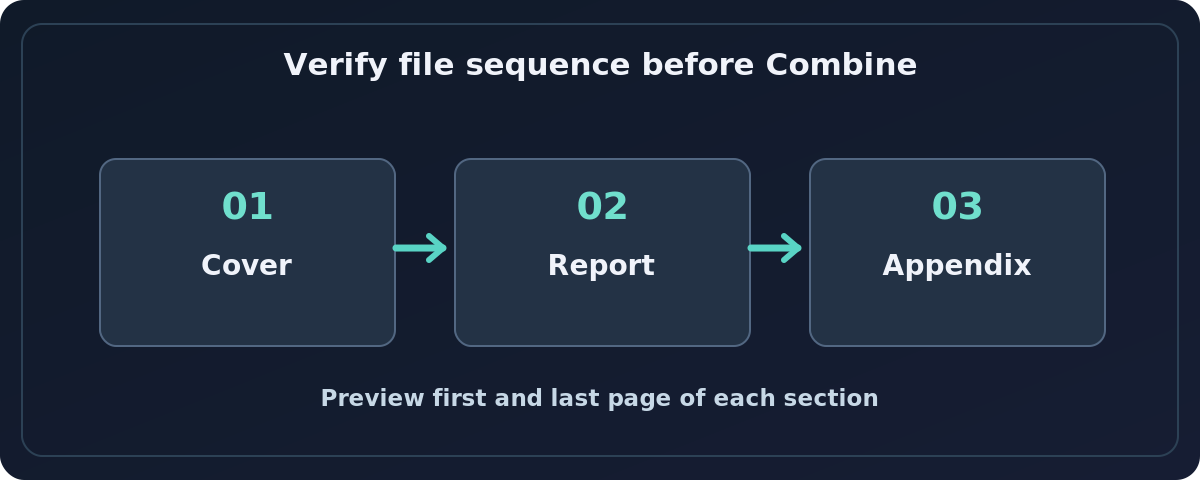
Treat the task like assembling a paper packet. A typical order might be cover letter, main report, supporting tables and appendix. Name inputs sequentially (01-cover.pdf, 02-report.pdf, 03-appendix.pdf) so you can recognize them, but still check the actual order in the merge dialog. Filenames do not prove that the software will sort them correctly.
Also check if each PDF has its own title page or page-number sequence. Joining files does not necessarily renumber the pages printed in the document body. If the original PDFs each begin at page 1, the combined PDF can display duplicate printed page numbers even if the viewer’s page counter is correct. Review bookmarks and interactive forms separately; some document features need additional checking after combining.
What if you only want some pages?
In Preview, select and move only the thumbnails needed. In Acrobat, expand the file’s thumbnails before combining or use Organize pages to remove unneeded sheets from a working copy. Never delete pages from your only original. If you want to extract only certain pages of a PDF into a separate file, that is a splitting/extraction task rather than merging.
Troubleshooting merge problems
A PDF is missing from the merged file
Check that it was listed in the combine dialog and its preview actually appeared. Repeat with just two files to identify the problematic source. A damaged, unsupported or protected PDF may require an authorized replacement copy.
The pages are in the wrong order
Reorder file or page thumbnails and save a fresh version. Check with an actual reader, especially when scanned pages were saved in reverse order by a scanner.
Preview changed my source PDF
Apple notes that edits in Preview can be saved automatically. Use File → Duplicate before rearranging documents, or restore the original from your own backup. Verify filenames before saving over anything.
The merged file is much larger
Combining collects the material from all source PDFs; it does not promise compression. Large photo scans will remain large. Reduce file size later only if necessary, and ensure fine print remains readable.
A protected or signed PDF behaves differently
Security restrictions may prevent page extraction or editing. A digital signature’s validity can be affected by modifying its document. Ask the owner for an unsigned working copy or an approved way to package files; do not bypass controls.
I cannot find Combine in Acrobat Reader
Check the precise application and subscription shown in Help/About or the account panel. Features in paid Acrobat editions, Reader and Acrobat on the web differ. Do not assume every button is included in a free license.
Privacy and final verification
For private medical, legal, employment or financial documents, prefer an authorized local tool over an unreviewed upload service. Before sharing the merged file, inspect the first and last page of every source segment, page orientation, empty separator pages and any exposed metadata or hidden comments. A merged PDF may inherit sensitive information from more than one input.
Frequently asked questions
Can I merge PDFs without installing anything on a Mac?
Yes. Apple’s built-in Preview application can combine and rearrange PDF pages.
Do PDFs need the same page size?
No, but the combined document may contain mixed page sizes and orientations. Check the result in a reader, especially before printing.
Will the original PDFs be deleted?
They do not need to be deleted, but Preview may automatically save changes to the opened document. Work on duplicates to keep originals safely untouched.
Can I join PDF files in Word?
Word is not the preferred page-preserving PDF merger. Opening PDFs in Word can reconstruct their content and alter layout. Use Preview or a PDF page-organizing tool for straightforward merging.
Sources and further reading
- Apple Support: Combine PDFs in Preview on Mac (checked 2026-10-27).
- Adobe Help: Combine files into one PDF in Acrobat (checked 2026-10-27).
- Adobe Acrobat: Acrobat plans and pricing (business comparison) (checked 2026-10-27).
Use the checklists as you go, and confirm the result before moving on to a more involved repair.