How to Move WhatsApp Chats to a New Phone
Use WhatsApp’s in-app transfer for same-platform phones; follow setup migration for Android–iPhone changes.
Quick answer: Keep both phones, use the same WhatsApp number and decide which direction you are moving. For Android → Android, WhatsApp provides Settings → Chats → Transfer chats with a QR-code linking process. For Android → iPhone, use Apple’s supported Move to iOS setup flow when applicable. For iPhone → Android, follow the new Android phone’s supported transfer setup and WhatsApp prompts. Do not erase or uninstall WhatsApp from the old phone until you see your chats on the new one.
Chat transfer is not a single universal button. The supported route depends on phone platforms, WhatsApp version, whether the new device is already set up and the account number. A cloud backup may restore chats within a platform, but it cannot be assumed to move freely between Android and iPhone. WhatsApp Business can have different, stricter transfer support. Review current official instructions for your exact direction before starting.
Before you move your chats
- Update WhatsApp through the official store on both devices. Check that you can receive a verification code for the number used by your WhatsApp account.
- Charge both phones and connect to reliable Wi-Fi as the selected transfer process requires. Keep enough free storage on the new phone for messages and media.
- Confirm you can unlock and use the old phone. Some direct transfers require its camera to scan a QR code displayed by the new phone.
- If WhatsApp offers a suitable chat backup on the old phone, check when that backup last finished. A backup is an additional safeguard, not proof every migration direction supports restoring it.
- Decide whether the new device must still be on its initial setup screens for the chosen cross-platform process. Do not reset the new device without first understanding the consequences.
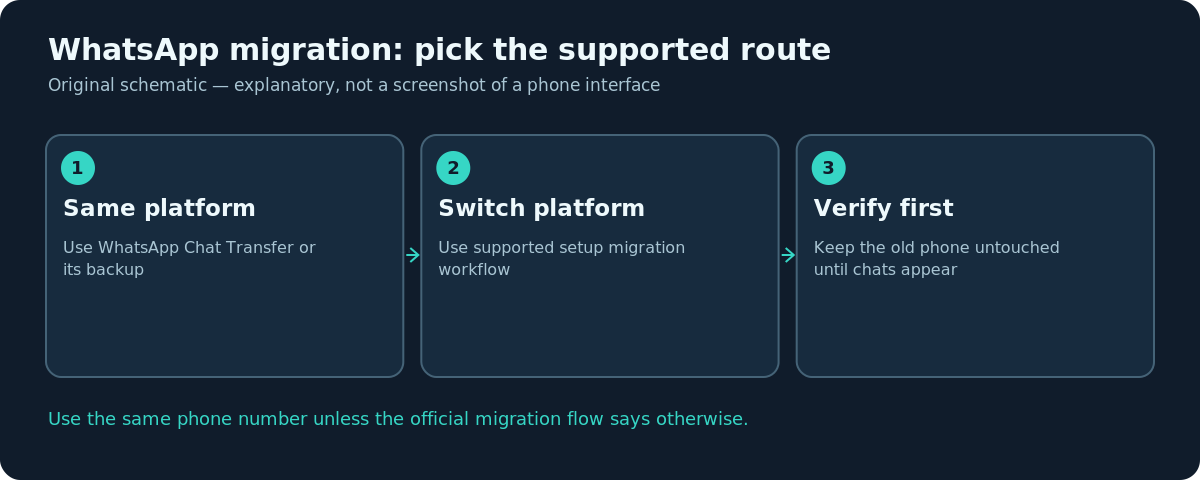
Preservation rule: Until you have checked important chats, photos, audio messages and attachments on the new phone, leave the old installation and its data untouched. If a transfer stalls halfway through, the old phone may be your only intact copy.
Android to Android: WhatsApp’s direct transfer
WhatsApp’s Android Help Center documents a same-platform QR method. On the old Android phone, open WhatsApp → More options → Settings → Chats → Transfer chats → Start. Accept the requested device permissions. On the new Android phone, install and launch WhatsApp, verify the same number, and choose Transfer from old phone when the restore/transfer screen appears. The new phone displays a QR code, which you scan using the old phone’s WhatsApp camera.
Keep both phones close, unlocked and in WhatsApp while the progress bar advances. WhatsApp’s instructions require Wi-Fi enabled and both devices connected to power; they do not necessarily need to be on an existing Wi-Fi network for this direct transfer method. The old phone’s content remains important until completion is confirmed.
iPhone to iPhone: use the official iOS transfer option
WhatsApp also offers a transfer-chats workflow for supported iPhones. On the old iPhone, look in WhatsApp’s Settings → Chats for the option to transfer chats to iPhone; on the new iPhone, sign in with the same number and follow the transfer prompt, including any QR code and local-network/camera permissions. Labels and eligibility may change with updates, so follow the in-app prompts rather than searching for an Android-only menu.
If you have a valid iCloud WhatsApp chat backup, an iPhone-to-iPhone restore is another supported direction, subject to account and backup prerequisites. The key is to verify that you’re using the relevant WhatsApp data-transfer option, not merely restoring Apple’s entire iPhone device backup and assuming that substitutes for WhatsApp’s own migration requirements.
Android to iPhone: use Move to iOS during setup
For a supported Android-to-iPhone switch, Apple documents Move to iOS as part of the new iPhone’s setup. Start setting up the iPhone and select the From Android transfer option, then follow the temporary-network, code and data-selection prompts. When offered, include WhatsApp messages and media. Complete the transfer before signing in to WhatsApp on the new iPhone with the same number. WhatsApp and Apple document additional platform/version restrictions.
If the iPhone has already been fully set up, Apple’s standard Move to iOS instructions say you may need to erase that new iPhone and restart setup to use this pathway. Erasing can destroy content already on the new iPhone, so stop and back up anything important before considering that option. Do not attempt an unsupported conversion of Google Drive WhatsApp backup files into iCloud backup files.
iPhone to Android: follow Android’s setup flow
On the new Android phone, use its supported copy data from iPhone setup. Google’s documentation explains that WhatsApp chat history transfer is supported through eligible migration modes, with requirements and features differing by Android version and model. Some devices present a cable or QR-code process; follow the exact device setup instructions and then WhatsApp’s activation prompts. Keep both devices connected when the workflow requires it.
The transfer may not copy every type of account data, and Google documents differences between classic and upgraded Android transfer workflows. A generic wireless photo transfer is not automatically a WhatsApp chat transfer. Make sure the setup screen explicitly offers WhatsApp history before treating the migration as supported.
Verify the chat history safely
When WhatsApp opens on the new phone, inspect more than the chat list. Check several old individual and group conversations, recently received media, voice messages and important documents. Confirm the phone number and account profile are correct. Only once you’re satisfied should you consider resetting or repurposing the old phone.
If you intend to change the WhatsApp phone number as well, handle that as a separate account migration issue. Transferring phones and changing numbers at the same time can complicate recovery. Follow WhatsApp’s current official number-change guidance and preserve the old account until the transition is confirmed.
Troubleshooting
- QR transfer option missing: Update WhatsApp and confirm you’re following the instructions for the correct platform and compatible version.
- New phone already activated WhatsApp: Some direct-transfer flows require registration and migration to occur in a specific order; do not repeatedly reinstall without checking the official guidance.
- Transfer stalls: Keep both devices near, charged and unlocked; retry only after reviewing WhatsApp’s recovery instructions.
- Old backup is not offered on a different platform: Google Drive and iCloud backup restoration paths are not interchangeable; use a supported cross-platform transfer.
- Not enough space: Remove unnecessary non-WhatsApp content on the new device or choose a suitable storage plan before trying again.
Frequently asked questions
Do I need the same phone number?
The cited direct-transfer instructions use the same number. Follow WhatsApp’s separate Change Number feature if your number is also changing.
Can I transfer chats without the old phone?
Sometimes an existing compatible cloud backup can restore within its supported platform, but direct transfer requires access to the old phone. Availability depends on the situation.
Is WhatsApp Business supported?
Do not assume so. Official help notes limitations for WhatsApp Business in certain transfer modes; consult its current specific support before migrating.
Should I delete WhatsApp from the old phone as soon as the new one signs in?
No. Confirm that all important chats and media transferred successfully before removing the old data.
Sources and further reading
- How to transfer your chat history — WhatsApp Help Center.
- Move chats from Android to iPhone — WhatsApp Help Center.
- Move chats from iPhone to Android — WhatsApp Help Center.
- Move from Android to iPhone or iPad — Apple Support.
- Copy apps & data from an iPhone or iPad to a new Android device — Android Help.
Use the checklists as you go, and confirm the result before moving on to a more involved repair.