How to Record Your Android Screen
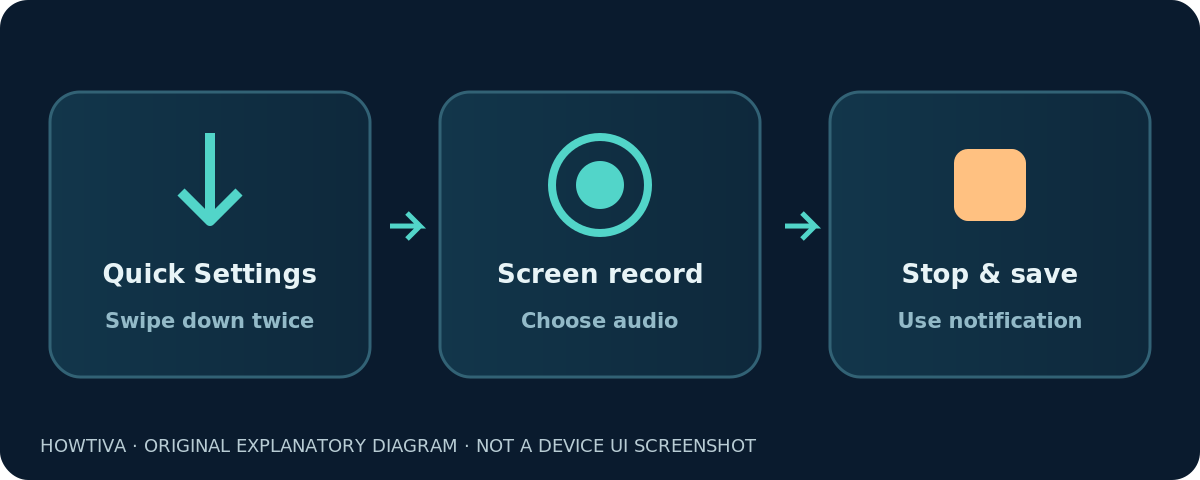
Swipe down twice, tap Screen recorder, choose recording options and start; stop through the notification or manufacturer toolbar.
Quick answer: On a supported Android phone, swipe down twice from the top, tap Screen record or Screen recorder, choose any offered audio or touch-display options, and tap Start. Recording begins after a countdown. To finish, open the notification shade and tap the Screen recorder notification, or use your phone maker’s on-screen Stop control.
Google documents the Quick Settings method in Android Help; Samsung Galaxy and other manufacturer versions may use a different label, panel layout or floating recording toolbar. The built-in feature is broadly available on modern phones, but its presence and controls are not guaranteed on every Android device. Google’s Pixel guidance covers Android 11-era and newer functionality; exact options are tied to software updates and hardware support.
Start a screen recording from Quick Settings
- Open the screen you want to demonstrate. Close private chats and turn off notification previews if they might interrupt your clip.
- Swipe down from the top of the screen twice to expand Quick Settings. On some Samsung Galaxy layouts, opening the Quick panel from the upper-right region may differ from a Pixel.
- Find Screen record or Screen recorder. Swipe sideways through the tiles if necessary.
- Tap it. Choose whether to capture audio or show screen touches if your phone offers those controls. Some devices also let you choose a single app rather than the entire screen.
- Tap Start and wait for the countdown. Dismiss Quick Settings and complete your demonstration.
- To stop, pull down the notification shade and tap the Screen recorder notification. On many Galaxy phones, you can use the Stop button in the floating recording toolbar instead.
The first test should be short. Start on the home screen, count to five, stop and find the video. Once you know which control saves your recordings, it becomes easier to narrate a longer set of steps.
Can’t find the Screen record tile?
Open Quick Settings and swipe to another page of tiles. On Google’s Android interface, tap Edit and add or drag Screen record into the visible tiles if it is available. Pixel software may use a different Edit layout after an update. Samsung’s current support guide places Screen Recorder in its Quick Panel, with additional options that vary by Galaxy model and One UI version.
If the tile is not available anywhere, do not assume there is a hidden universal setting. Some entry-level models, older Android releases and heavily modified systems do not provide the same built-in recorder. Check the device maker’s help for your exact model and software. Be cautious about third-party recorders that ask for sweeping access to your screen or account information.
Choose sound and visible taps before starting
The built-in Android recorder may offer choices such as record device audio, record microphone audio, or show taps on screen. Google states that recording options can be selected before the countdown. These labels vary: a Samsung phone may offer None, Media or Media and mic in its sound settings, while a Pixel may show different audio toggles or an individual-app choice.
For a spoken tutorial, enable the microphone option and make a brief test. Speak near the microphone while tapping the screen, then play the saved clip. A switch that enables the microphone does not guarantee that copyright-protected media or call audio will be present. Samsung explicitly says its recorder does not record phone calls, VOIP calls or video calls, and warns that some apps restrict content.
For a quiet software demonstration, select the no-audio option where one is offered. If the recorder has no suitable audio switch, edit the saved clip to remove sound instead of assuming it captured none.
Showing touches is useful when the audience must follow small gestures. But it can also reveal exactly where you typed a private code. Only enable it when helpful, and inspect the finished video.
Pixel option: record one app or the whole display
Google’s Pixel Phone Help describes a choice to record a single app or your entire screen on supported devices. Select the single-app option when you want to minimize unrelated content during a tutorial. If the option does not appear, your model or software might present fewer controls.
The Google Pixel documentation also describes microphone/device-audio options and, on supported versions, a selfie camera overlay. These extras are not Android-wide features. A Samsung Galaxy may provide front-camera recording and pause/stop controls in its own toolbar, while another Android phone offers neither.
If your goal is to demonstrate system settings spread across multiple applications, you may need a whole-screen recording. In that case, prepare the phone carefully: hide sensitive notification previews, close apps containing personal information and do a practice run without entering passwords.
Samsung Galaxy: stop from the recording toolbar
Samsung documents opening the Quick Panel and tapping Screen Recorder, choosing sound settings and tapping Start recording. The recording toolbar can include pause and stop controls in a corner of the screen. Video quality settings and touchscreen indicators may also be available under Settings → Advanced features → Screenshots and screen recordings, depending on One UI version.
Do not follow a Galaxy-only path on a Pixel or Motorola phone. Likewise, a Pixel instruction showing Collections → On this device may not match Samsung’s Gallery. Features and settings vary by model and software, even within one brand.
Find and share a saved Android screen recording
Google Android Help gives Photos → Collections → On this device → Movies as the place to look for screen recordings on the standard Photos experience. On Samsung Galaxy, the recording is often visible through Gallery; Samsung confirms recordings are saved there. If you cannot find your file, check the Gallery app’s albums or your phone’s local video collection.
Open the saved file and watch it with audio enabled. Trim an accidental start, stop or irrelevant transition if your editor supports it. Screen recordings can be much larger than screenshots, so a long recording may exceed a messaging service’s attachment limit. A cloud link or supported file-transfer option may be more practical.
Before sharing, check for notifications, usernames, addresses, one-time codes and private messages. Record the minimum needed to explain the task. If you are recording someone else’s content or a conversation, consider privacy, permissions and applicable rules.
Troubleshoot Android screen recording
Recording is missing from Quick Settings
Look on other Quick Settings pages, open Edit, and try to add Screen record. If it is absent from the available tiles, consult the manufacturer’s instructions for the exact model. Not every Android phone exposes the feature in the same way.
No sound was recorded
Review the recorder’s audio setting before the next recording, and test both the device and microphone options where available. Protected apps and communication services may not permit capture. Don’t mistake a missing call recording for a general microphone failure.
My recording stopped, but I can’t find the file
Look in Google Photos → Collections → On this device → Movies, or in the manufacturer Gallery. If you ended the recording immediately after Start, try a longer five-second test that clearly reaches the active recording state.
The video is black or incomplete
Some apps block screen capture or restrict protected media. Test the recorder on the home screen or Settings. If those record normally, the failure may be app-specific rather than a device-wide recorder problem.
Notifications or private data appeared in the video
Review the complete clip. Trim or blur sensitive portions using an editor you trust, or record again with notifications hidden. Do not assume a ‘single app’ recording prevents every possible type of overlay on every device.
Frequently asked questions
Do I need a separate app to screen record on Android?
Not on many current devices: Android includes a built-in Quick Settings recorder where supported. Older or customized phones may need a manufacturer-specific feature or may not offer one.
How do I stop the recording?
On Google’s Android implementation, swipe down and tap the Screen recorder notification. Samsung also provides a recording toolbar with a Stop control on supported Galaxy models.
Can a Pixel record only one app?
On supported Pixel devices, yes. Google documents a single app versus entire screen choice. It is not a guaranteed option on every Android phone.
Can Android record my voice?
Usually where the built-in recorder offers a microphone setting. Activate it before starting and run a short test; app restrictions can still affect captured sound.
Where does Android save screen recordings?
Google’s standard Photos instructions point to Collections → On this device → Movies. Galaxy users can check Gallery; actual folder names can vary.
Sources and further reading
- Google Android Help: Take a screenshot or record your screen on your Android device (checked 2026-10-27).
- Google Pixel Phone Help: Record your Pixel device’s screen (checked 2026-10-27).
- Samsung UK Support: How to screen record on your Samsung phone (checked 2026-10-27).
- Samsung Support: Record and capture your Galaxy phone or tablet’s screen (checked 2026-10-27).
Use the checklists as you go, and confirm the result before moving on to a more involved repair.