How to Record Your iPhone Screen
Add Screen Recording to Control Center, tap its circular control, wait three seconds, and stop from the red indicator.
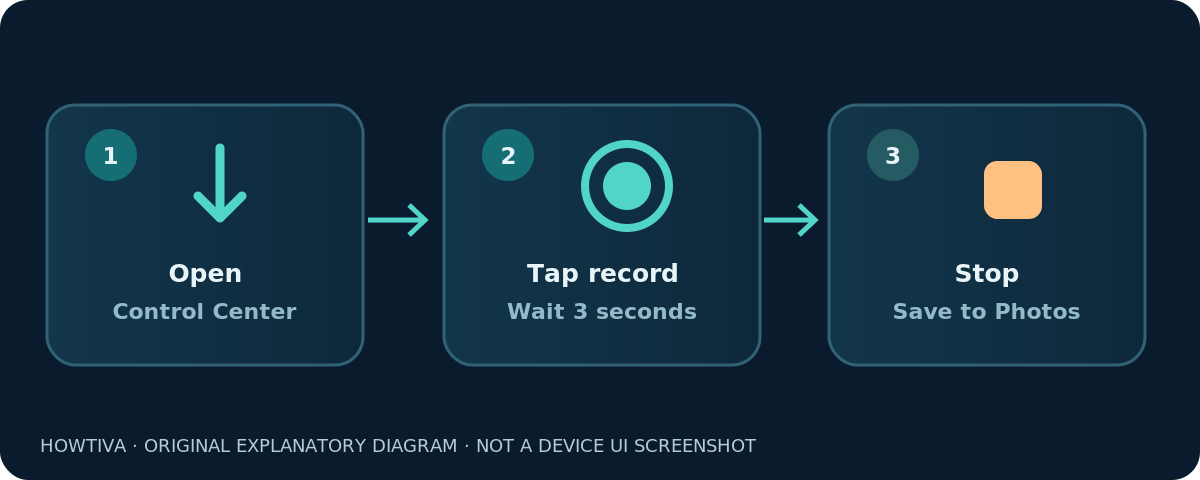
Quick answer: Open Control Center, tap Screen Recording (a circle inside another circle), wait for the three-second countdown, and use your iPhone normally. To finish, tap the red recording indicator and choose Stop. Your video saves to Photos. You do not need a separate screen recorder app.
On modern iPhones with Face ID, open Control Center by swiping down from the top-right corner. On an iPhone with a Home button, swipe up from the bottom edge. The control’s position can vary after you customize Control Center. Apple documents the workflow in the iOS 27 iPhone User Guide; older iOS versions have different control-editing screens, but the core recording gesture is similar.
Record the iPhone screen step by step
- Open the app or page you plan to demonstrate. Close unrelated tabs and hide any private notification previews first.
- Open Control Center using the correct gesture for your iPhone. Find Screen Recording, recognizable by its concentric-circle symbol.
- Tap the control once. A three-second countdown gives you time to dismiss Control Center and return to your content.
- Perform the taps, swipes or other actions that you want to show. The phone records the visible screen while the recorder runs, subject to app restrictions.
- Tap the red recording indicator at the top and confirm Stop, or open Control Center and tap the red Screen Recording control when that option is shown.
- Open Photos to review the saved recording before sharing it.
On a phone with Dynamic Island, Apple describes tapping the red circle there and choosing the Stop Screen Recording control. On other supported models, Apple describes tapping the red timer at the top-left and then Stop. If your screen looks different, the red Control Center recording control is a useful alternative.
Add Screen Recording if the control is missing
On iOS 18 and later, Apple provides editable Control Center controls. Open Control Center, touch and hold an empty area, choose Add a Control, then find Screen Recording in the controls gallery. Once added, you can use the same control for later recordings; you need not add it every time.
On an older iOS interface, the customization entry may be under Settings → Control Center rather than the newer in-panel editor. Apple changes this area over time, so avoid following a screenshot from an unrelated iOS version. If the control still cannot be added, check whether the phone is supervised by an organization or has device restrictions before changing unrelated settings.
Record your own voice with the microphone
A screen recording can be more useful if you narrate what you are doing:
- Open Control Center and touch and hold the Screen Recording button instead of tapping it immediately.
- Tap Microphone to turn it on.
- Tap Start Recording, wait for the countdown, and speak clearly while demonstrating the steps.
- Stop with the red indicator and play the saved video in Photos to check that your narration was captured.
The microphone option is for recording sound around the iPhone, including your voice. It does not guarantee that a particular app’s internal audio, a call or protected playback will be captured. Apple’s documentation warns that some apps may block content recording. Record a short test in an ordinary app before planning a longer tutorial.
To make a silent how-to clip, leave the microphone turned off. That does not necessarily mute every possible app sound; what a specific app permits the recorder to capture varies. If you need a reliably silent final clip, review and edit or mute the video before sending it.
Find, trim and share the saved video
Apple’s current Photos organization includes Photos → Collections → Media Types → Screen Recordings. A recording may also appear in your main library. Open it and watch the entire clip, not only the start: recording notifications or private content may appear later than you expect.
If you left extra time at the beginning or end, use Photos’ available video-editing controls to shorten the clip. Keep a copy of any important original before making large changes. Then use Share to send the video through Messages, Mail, AirDrop or another app; large videos may need a link or transfer method that supports their size.
Recordings are videos, not a set of screenshots. They can show gestures and timing but are less useful than a screenshot when someone only needs to see one static setting. If the goal is a single image, use the iPhone screenshot method instead of recording and extracting a frame.
What the screen recorder cannot capture
Apple notes two important restrictions: some apps do not allow their content to be recorded, and you cannot use screen recording and screen mirroring at the same time. The restriction can affect picture, sound or both. A black area or silent section in a protected app does not necessarily mean that your iPhone is malfunctioning.
Screen recordings can unintentionally include a one-time password, a banking balance, a private message or an incoming notification. Enable Focus or otherwise prevent interruptions if appropriate, but still inspect the final saved file. Get consent before recording or distributing other people’s private conversations or sensitive information.
If your device is managed by an employer or school, recording may also be limited by configuration. Do not attempt to bypass those controls; use an approved workflow instead.
Troubleshooting common screen-recording problems
Screen Recording is not in Control Center
Try Control Center’s Add a Control editor on iOS 18+. Search the gallery for Screen Recording rather than expecting it in a particular row. The control may be on a different Control Center page or group. On older iOS, look for its setup in Settings → Control Center.
Nothing happens after tapping Record
Watch for the countdown and then check for a red recording indicator. If the recording starts but a protected app produces a blank video, repeat the test in a simple app such as Settings. Also stop screen mirroring, because Apple does not support simultaneous mirroring and recording.
My screen recording has no microphone sound
Touch and hold the recording control, ensure Microphone is on, and make a short spoken test. Verify playback volume afterwards. App audio permissions and restrictions are separate from whether you enabled your physical microphone.
I cannot find the video
Open Photos and check Collections → Media Types → Screen Recordings. If the control was still counting down when you stopped, you may not have captured useful content; make another short test and wait until recording starts.
The video is too big to send
Trim unnecessary seconds first. For a lengthy recording, use a compatible file-sharing or cloud-link method instead of forcing the video through an attachment limit. Avoid lowering quality or installing unfamiliar recorder apps unless there is a genuine need.
Frequently asked questions
Can I screen record an iPhone without installing an app?
Yes. Screen Recording is built into iOS and accessed from Control Center. You may need to add its control first.
How long is the countdown?
Apple specifies three seconds before recording begins, giving you time to leave Control Center.
Can I speak while recording the screen?
Yes. Touch and hold the control, turn on Microphone, then tap Start Recording. Run a short test to confirm your voice is present.
Why is part of a video black or silent?
The source app may forbid recording for privacy or licensing reasons. Apple says some apps can block screen content recording. A normal recording from Settings can help identify app-specific behavior.
Will the recording appear in Photos?
Yes. Apple’s iPhone guide says recordings save to Photos; on recent versions, Collections → Media Types → Screen Recordings is a convenient location.
Sources and further reading
- Apple iPhone User Guide (iOS 27): Take a screen recording on iPhone (checked 2026-10-27).
- Apple iPhone User Guide (iOS 27): Use and customize Control Center on iPhone (checked 2026-10-27).
- Apple Support: Record the screen on your iPhone, iPad or iPod touch (checked 2026-10-27).
Use the checklists as you go, and confirm the result before moving on to a more involved repair.