How to Take a Screenshot on an Android Phone
Press Power and Volume Down together for a quick screenshot. Follow the steps for scrolling captures and device-specific controls.
Quick answer: Open the screen you want to save, then press Power and Volume Down at the same time and release them. A brief flash or screenshot preview usually confirms the capture. On many Android phones, that is all you need—no app required.
Android phones use different interfaces. The standard shortcut is widely supported, but your buttons, capture toolbar, Gallery location and extra gestures may vary by manufacturer, model and Android version. In this guide, Power may be labelled Side key on a Samsung Galaxy phone. Android 12 or newer is the baseline for Google’s general Capture more scrolling screenshot instructions; availability still depends on the screen and phone.
Take a standard Android screenshot with the buttons
- Open the webpage, conversation, map or app that you want to capture. Check that the important information fits within the visible screen.
- Find Power (sometimes called Side) and Volume Down on your phone. The exact edge and spacing vary by model.
- Press both simultaneously and release promptly. Avoid holding one key much earlier than the other, which can instead change the volume or open a power menu.
- Look for a preview or screenshot toolbar. You can usually tap it to inspect the capture, use Share or edit it. If it disappears, your image is still normally saved.
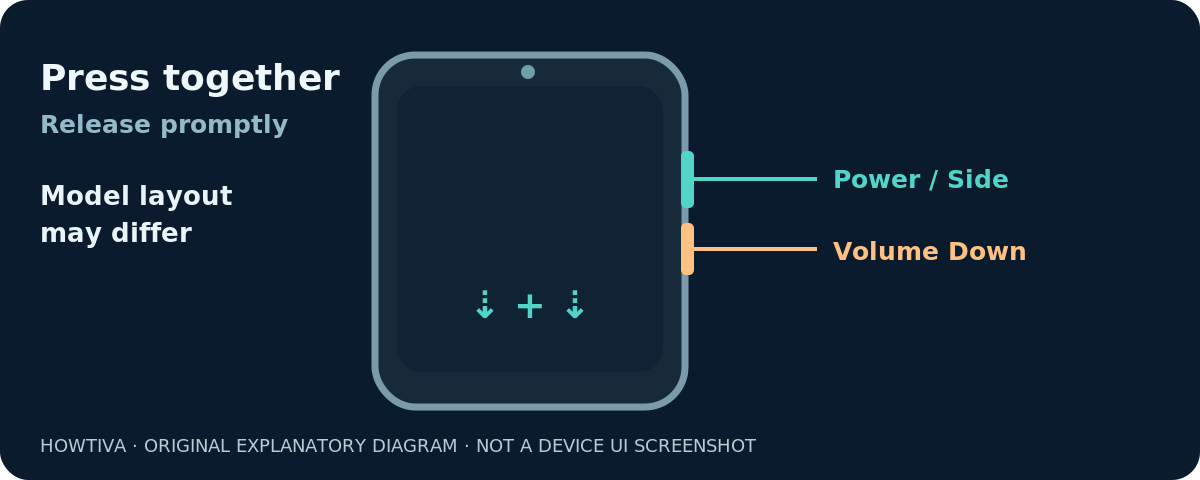
If the phone locks or the volume bar appears, try a shorter, more even press. On Samsung Galaxy phones, Samsung specifically calls this the Side key + Volume Down combination. Different Android brands may put the buttons on the same or opposite edges; rely on their names rather than the diagram’s exact placement.
Try the Power-menu option if the shortcut fails
Google documents a fallback on some Android devices: hold the Power button for a few seconds and choose Screenshot from the available options. This is not a universal menu item. Recent phones may use a long press for a voice assistant instead, and a manufacturer may remove or relocate this action.
If no Screenshot command appears, do not keep guessing through unrelated settings. Check your model’s support instructions or use its supported capture shortcut. Some phones also offer gestures or accessibility controls, but their exact setup differs, so there is no reliable Android-wide gesture to recommend.
Capture more than one screen: a scrolling screenshot
A normal screenshot shows only what is visible. On Android 12 and later, Google documents a longer capture on most pages that can scroll:
- Open a long article, document or conversation that actually scrolls.
- Press Power + Volume Down to capture the visible screen.
- When the capture preview appears, tap Capture more if the option is offered.
- Adjust the crop guidelines to choose how much of the page to keep, then finish using the displayed save control.
The feature is conditional. It might be missing inside games, some third-party apps, private views or pages that do not expose scrollable content. Samsung’s corresponding toolbar may say Scroll capture and may use an icon instead of the words Capture more. Do not assume that an Android 12+ update makes every app compatible.
Find, edit and share the screenshot
On phones using Google Photos, open Photos → Collections → On this device → Screenshots. Tap the image to open it; use the available Edit or Share controls. Google’s Android Help documents that path, although labels can move as Photos changes. On Samsung and other manufacturer-customized devices, the preinstalled Gallery app may display screenshots in a dedicated album instead.
If you just took the image, you may also find a capture preview or notification. Opening it immediately is convenient for cropping an address, annotating a button or checking that the entire message appeared. Use the actual preview before sharing, especially when the screenshot includes a phone number, email address, payment information or someone’s private messages.
To send the capture, select it from Photos or Gallery and choose the destination from Share. A screenshot is an image, not a live copy of the webpage. Any link or button shown inside it is simply part of the picture, so tell the recipient where to visit if you need them to perform an action.
Why the screenshot button combination may not work
The volume changes instead of capturing
Your presses probably were not simultaneous. Rest a finger on each physical button and make one short press; release both without keeping them held. Try again on the home screen before assuming the feature is broken.
The phone opens a power menu or assistant
The Power key may be held too long or pressed first. Use the two-button screenshot shortcut rather than a long hold. If you are intentionally trying the Power-menu method, remember that Screenshot appears only on some models.
Capture more is missing
Confirm that the content really scrolls, that the preview is still visible and that the phone supports the function. Google labels its general scrolling method Android 12+. Samsung may offer Scroll capture in its own toolbar. Taking several standard screenshots is a workable fallback when an app does not permit a long capture.
The saved picture seems to be missing
Open Photos → Collections → On this device → Screenshots, or check Gallery’s Screenshots album. If you use more than one gallery app, check the one installed by the manufacturer. You do not need to install a third-party screenshot app merely to locate a built-in screenshot.
The captured image is blank or content is missing
Some screens deliberately restrict capture for security, licensing or privacy. Samsung warns that some apps can block screenshots. A normal capture of the home screen can help you distinguish an app restriction from a broken button shortcut. Do not recommend bypassing protected-screen controls.
When to use a screenshot—and when not to
Screenshots are helpful for showing an error message, recording an order number or explaining a setting. But they can also preserve the contents of notification banners and private chats. Review the corners of the image before publishing it, and crop out account identifiers that aren’t needed. A long screenshot may include far more private content than you intended.
For moving an editable document, sharing the original file is usually preferable: a screenshot records appearance, not selectable text, document structure or a verifiable original. If the intended task is to show several steps over time, a screen recording may be more appropriate, provided the app allows it.
Frequently asked questions
Can I take a screenshot without holding the Power button?
Possibly. Google documents a Screenshot option in the Power menu on some phones, and manufacturers may offer gestures or accessibility tools. The available method is model-specific; consult your phone’s official help for its exact settings.
Does every Android phone use the same screenshot buttons?
Power + Volume Down is the standard method described by Google, and Samsung documents the equivalent Side + Volume Down shortcut. Older or customized devices may differ. Check the manufacturer’s instructions when the standard shortcut fails.
How do I take a full-page screenshot on Android?
On supported Android 12+ screens, take a regular screenshot and choose Capture more. On compatible Galaxy devices, Samsung may call the function Scroll capture. Neither feature is guaranteed in every app.
Why isn’t my screenshot in the camera album?
Screenshots often have their own album or folder. In Google Photos, look under Collections → On this device → Screenshots; in the manufacturer’s Gallery app, look for a Screenshots album.
Can an app stop me taking a screenshot?
Yes. Some apps intentionally prevent their content from being captured. Test the hardware shortcut on an ordinary screen instead of attempting to work around the app’s restrictions.
Sources and further reading
- Google Android Help: Take a screenshot or record your screen on your Android device (checked 2026-10-27).
- Samsung Support: Record and capture your Galaxy phone or tablet’s screen (checked 2026-10-27).
Use the checklists as you go, and confirm the result before moving on to a more involved repair.