How to Scan a QR Code with Your Phone
Open the Camera app in Photo mode, point at the complete QR code and tap the recognized link; fallback scanners vary by phone.
Quick answer: Open your phone’s Camera app in Photo mode, point it at a QR code so the entire square fits inside the frame, and wait for a link or action to appear. Tap the result only after checking where it will take you. You usually do not need to take a photo or install a separate scanner.
This works on iPhones and many recent Android phones, but controls differ by brand and model. iPhone offers a separate Scan Code control in Control Center. Supported Pixel phones offer Scan QR code in Quick Settings. Google’s Camera from Google app supports both normal Photo mode and a QR mode only on selected devices.
Scan a QR code with the iPhone Camera
- Open the built-in Camera app.
- Make sure it is in Photo mode rather than Video or another special mode.
- Hold the camera steady and position it so the entire QR code is visible, with some space around its edges.
- Wait for the phone to recognize it. Apple’s iOS 27 instructions say a link appears at the bottom of the screen when a compatible code is detected.
- Read the visible link or action, then tap it if you trust the destination.
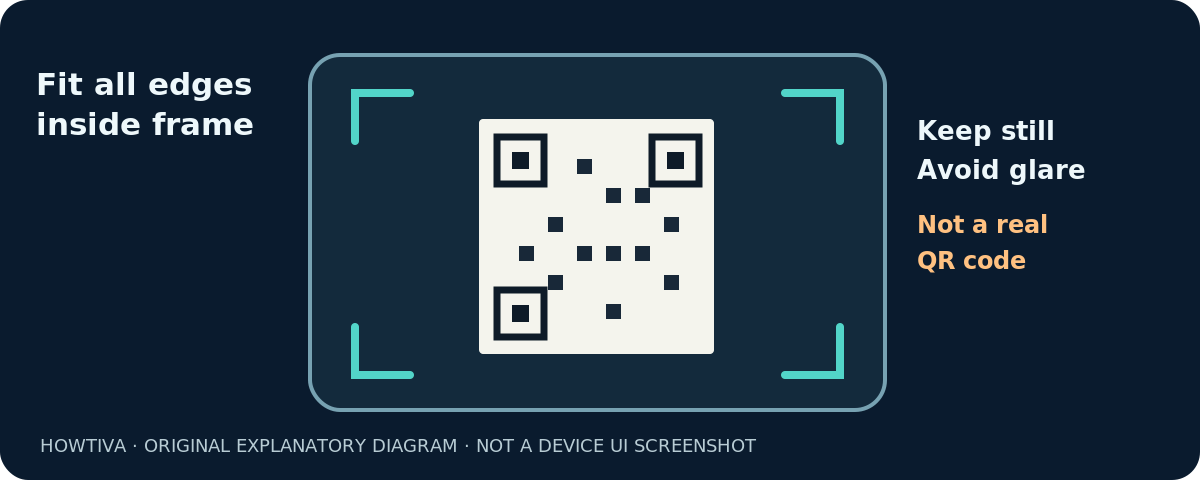
You do not have to press the Camera shutter. The camera only needs to recognize the code. If you are scanning a poster, move to a position where the squares are not distorted by glare or extreme angle. A code displayed on another screen may need a small adjustment in distance or screen brightness.
Use iPhone’s Scan Code control instead
If Camera does not recognize the code, Apple’s iPhone User Guide also documents Scan Code in Control Center:
- Open Control Center—swipe down from the top-right on a Face ID iPhone, or up from the bottom on a Home-button iPhone.
- Find and tap Scan Code. If the control is missing, add it using your iOS version’s Control Center customization options.
- Point the scanner at the QR code. On supported interfaces, use the flashlight control if you need more light.
- Read the result before opening a webpage, app, coupon or ticket action.
Control Center differs between iOS versions, and the Scan Code control may have been moved to a different group. You do not need to look for an identical screenshot of someone else’s Control Center; search for the control name instead.
Scan a QR code on an Android phone
On many Android phones, begin in the normal Camera app:
- Open Camera and choose its usual Photo mode.
- Hold the phone so the full QR code is clear in the preview. Do not crop out a corner.
- Pause until the phone shows a link, bubble or similar action.
- Check that the link looks appropriate, then tap it to continue.
Google’s Pixel help documents an optional Camera scan suggestions setting under Camera settings if scanning does not work on a supported Pixel. The exact menu layout changes between Pixel releases. Google Camera Help says its QR mode is only on selected devices, and QR scanning does not work in some modes such as Portrait or Video. Therefore a named Pixel or Google Camera option is not a universal Android setting.
On Samsung and other brands, check the phone’s camera settings or manufacturer guidance if a QR result does not appear. Avoid assuming every Android camera will offer precisely the same banner or scanner button.
Android fallback: Quick Settings QR scanner
On supported Pixel and other Android devices, Google documents Scan QR code as a Quick Settings option. Pull down Quick Settings and look for that tile. Swipe to another page or use Edit if the tile is available but not visible.
Tap Scan QR code, aim the dedicated scanner at the code and follow the result. If your phone does not have this tile, that does not mean it is malfunctioning; it may be a model or software limitation. Some phones instead integrate the function with Google Lens or the camera app.
If the QR code is on the same phone screen you are using, you cannot point that phone’s camera at itself. Check whether the relevant app has a built-in option to recognize codes from an image, or display the code on another screen. Do not assume every gallery app includes a scan-from-photo function.
What to check before opening a QR link
A QR code can contain a website address, text, Wi-Fi information or an action such as opening an app. It does not prove that the destination is safe. A sticker placed over a legitimate payment or parking QR code could direct you somewhere else. Read the previewed website address carefully, especially the domain name; a familiar logo beside the QR code is not a guarantee.
For payment, login, account recovery or sensitive personal information, prefer a known official app or manually entered official website if the destination seems unusual. Be cautious if scanning unexpectedly asks you to install software, enter a password or provide a one-time code. Close the result instead of proceeding if the address is inconsistent with the service you expected.
QR codes that represent tickets, Wi-Fi networks or other special actions may show a prompt rather than a browser URL. Review that prompt too: an automatic-looking action still requires your judgment.
Fix a QR code that will not scan
The camera sees the code but nothing happens
Check that you are in Photo mode, not Video or Portrait. Hold still for a moment and move slightly nearer or farther until the whole square is sharply focused. On Pixel, confirm that Camera scan suggestions is enabled where supported. Try the dedicated scanner in Control Center or Quick Settings.
The printed code is too small or blurred
Aim in good light, avoid reflections and keep all four corners visible. Clean the camera lens with a suitable soft cloth. A damaged or low-resolution printed code may not contain enough readable detail, regardless of the phone.
The code is on a computer monitor
Reduce glare and make sure the displayed code is not cut off. Adjust distance to avoid blur. The phone needs a clear view of the entire pattern, including its quiet border area.
I see a link that looks suspicious
Do not tap it. Compare the domain with the service’s official website or use the service’s own app. Reputable-looking graphics printed around a QR code do not authenticate the encoded address.
I cannot find the QR scanner tile
Try the regular Camera app first. On iPhone, add Scan Code to Control Center if available. On Android, check Quick Settings and its Edit view. The exact control and availability are device-dependent.
Frequently asked questions
Do I need a QR scanner app?
Usually not. iPhone Camera can scan QR codes; supported Android cameras and Quick Settings scanners can too. Be wary of apps that request unnecessary permissions for a basic scan.
Do I have to photograph the code?
No. Normally you point the camera at it and wait for the link or action. Taking a photo is not required for the standard live-camera method.
Why can my friend’s phone scan a code but mine cannot?
The default camera software, its current mode and supported QR features differ by model. Try Photo mode, improve lighting, or use the dedicated QR scanner available on your device.
Can a QR code be dangerous?
The square itself is just data, but it can direct you to a misleading website or request an unwanted action. Preview links, inspect the destination and avoid entering sensitive information on an unexpected site.
Can I scan a QR code displayed on my own phone?
Not using that same phone’s outward-facing camera on its own display. Some apps can recognize codes in saved images, but availability varies. Another device or a built-in image-scanning option may help.
Sources and further reading
- Apple iPhone User Guide (iOS 27): Scan a QR code with your iPhone camera (checked 2026-10-27).
- Google Pixel Phone Help: Scan QR codes with your Pixel phone (checked 2026-10-27).
- Google Camera Help: Scan QR codes on Camera from Google (checked 2026-10-27).
Use the checklists as you go, and confirm the result before moving on to a more involved repair.