How to Review Privacy Settings on Facebook
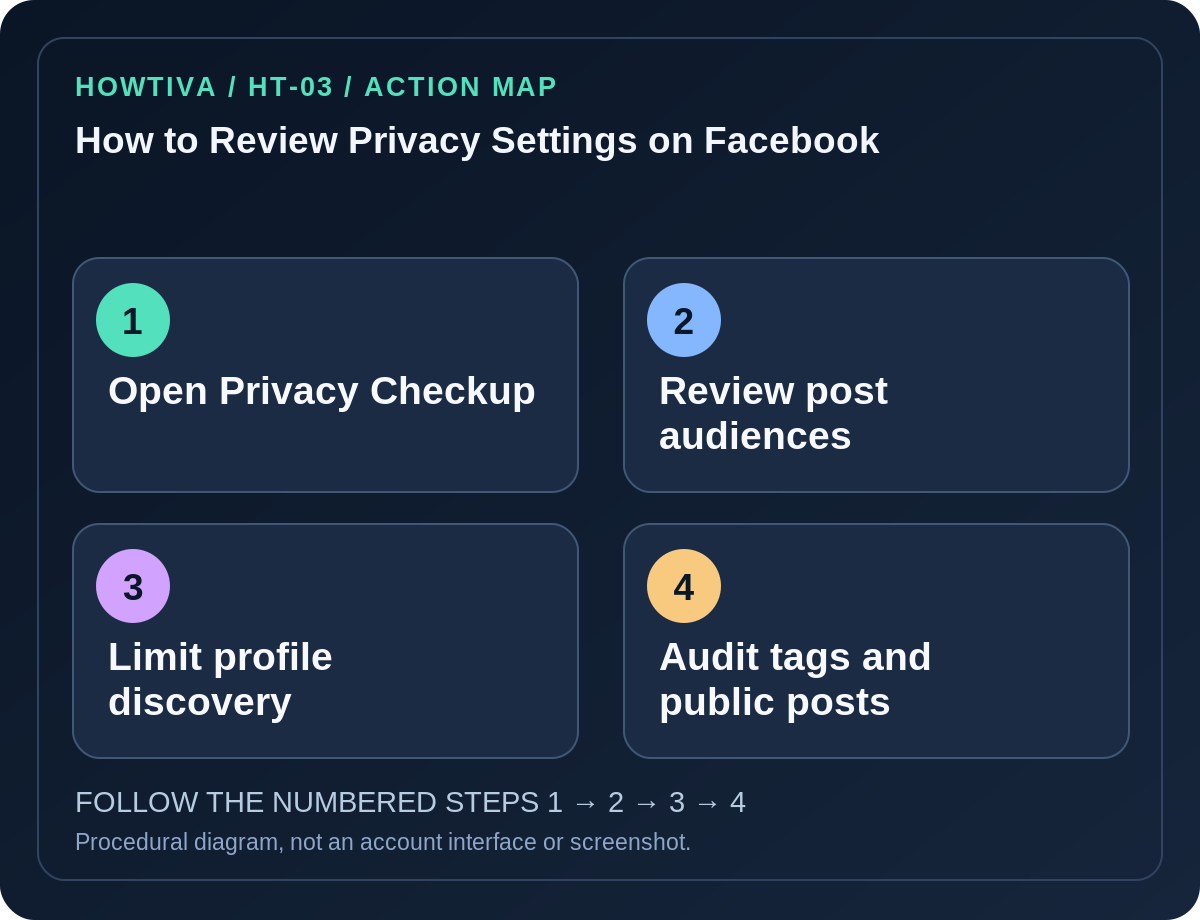
On Facebook, open your profile menu and choose Settings & privacy → Privacy Checkup to review who can see what you share, how people find you and related account settings. For more granular choices, go to Settings → Audience and visibility.
Quick answer: On Facebook, open your profile menu and choose Settings & privacy → Privacy Checkup to review who can see what you share, how people find you and related account settings. For more granular choices, go to Settings → Audience and visibility. Review your default audience for future posts, older posts, profile contact details, friend discovery, tagging and public content separately. Menu names can vary between web, mobile and different profile types.
Facebook does not provide one universal button that makes every old interaction invisible. “Friends” on a new post does not retrospectively erase public posts, Pages, public comments or information already copied. A sensible privacy review is an audit of several categories with an external visibility check.
Run Facebook Privacy Checkup
- Open Facebook through the official app or website and sign in to the profile you want to review.
- Open the profile/menu control, then Settings & privacy. Select Privacy Checkup where available; on some layouts it appears under Settings.
- Review Who can see what you share or the equivalent privacy topic. Check sensitive profile details such as address, phone, birthday and relationships.
- Continue to how people can find and contact you and consider whether strangers should be able to discover your account using contact details.
- Visit the topics about account security and data settings where offered. Some security steps are in Accounts Center instead of Privacy Checkup.
- Save each change and return to the main privacy screen to verify the choice persisted.
Inspect Audience and visibility one control at a time
- Go to Settings → Audience and visibility, the category described by Facebook’s own Help Center.
- Under Posts, confirm your default audience for future posts and inspect tools concerning past posts. Some tools can limit older public audiences but do not affect copies that other people saved.
- Under Profile details, make personal contact and demographic details as private as the platform allows. Some elements such as name and public profile photo may remain visible.
- Under How people find and contact you, review searchability and friend-request preferences. Separate a discovery setting from your own account recovery email or phone.
- Under Profile and tagging, consider whether you want to review posts you’re tagged in before they appear on your profile. Approval of appearance on your profile does not delete the post from someone else’s timeline.
- Review Followers and public content, Stories and Reels separately when those settings exist. Public comments on public Pages may remain visible despite your personal post audience.
Check what a stranger might see
Facebook provides profile-visibility tools in some layouts, such as View As. Use them to inspect public-facing fields. If your profile type does not offer that control, use a normal logged-out browser session for a limited outside view. Do not create fake identities to bypass someone’s privacy settings.
Recheck photos, cover images, profile bio, public posts and the linked accounts or websites shown on your profile. If you operate a professional mode profile or a public Page, visibility and audience controls may differ from an ordinary personal profile; do not assume identical menus or protections.
Troubleshooting and privacy boundaries
- An old public post is still visible: Changing the future-post default does not necessarily alter older material. Review the individual post audience or available past-post limitation tools.
- A friend sees a tag in another person’s post: Your profile review preference and the original publisher’s audience are separate.
- Contact details continue appearing in search: Edit the source profile field and consider search-result removal options where supported; de-indexing a result does not erase content from the original website.
- Settings look locked or different: Account type, age settings, region or organization rules can restrict options. Consult official Help Center instructions for that account type.
- A stranger already captured a screenshot: Audience changes cannot retract material already saved or reposted externally.
Keep the audit current
Repeat this review after major product updates, profile conversions or new cross-posting arrangements. Check connected apps and sign-in activity in Accounts Center if you suspect account compromise. If an impersonator copied your profile, use Facebook’s separate reporting process, rather than assuming tightening privacy will remove the fake profile.
Frequently asked questions
Will setting future posts to Friends hide all earlier photos? No. Examine older audiences and album permissions individually.
Is blocking a person the same as private posting? No. Blocking governs an account interaction, while post audiences specify who may view particular content.
Can I prevent every search engine from indexing my name? Do not assume a global guarantee; public information may be discoverable through other services and archived copies.
Sources & Further Reading
- View and adjust your Facebook privacy settings — Facebook Help Center.
- Facebook Privacy Checkup — Facebook Help Center.
- Data scraping and protect information on Facebook — Facebook Help Center.
Use the checklists as you go, and confirm the result before moving on to a more involved repair.