How to Review Privacy Settings on Instagram
In Instagram, open your profile, tap the menu (three lines) → Settings and activity and review Account privacy under Who can see your content.
Quick answer: In Instagram, open your profile, tap the menu (three lines) → Settings and activity and review Account privacy under Who can see your content. Turn on Private account if that choice fits your needs, then check Tags and mentions, Messages and story replies, Story audience, and blocked or restricted accounts. Instagram’s options and group labels change over time, so use the controls visible in your version rather than following a stale screenshot.
A private account can reduce who sees your posts and follower list, but it does not make every part of your identity invisible. Your profile photo, username and portions of your bio may still be seen publicly. Business and professional accounts can have different options; Instagram’s help states a business account must generally switch to a personal account before it can be made private.
Decide whether your account should be private
- Open the official Instagram app and select Profile.
- Tap the three-line menu to open Settings and activity.
- Under Who can see your content, choose Account privacy where available.
- Review the current status. If Instagram offers Private account, turn it on and confirm the change.
- Remember: existing approved followers may continue to see your private content. Review your follower list and remove people you no longer want to grant access to.
- If the option is missing, check whether you use a business/professional account, a teen account with managed defaults or organization-specific restrictions. Do not invent a hidden setting.
Reduce contact from strangers
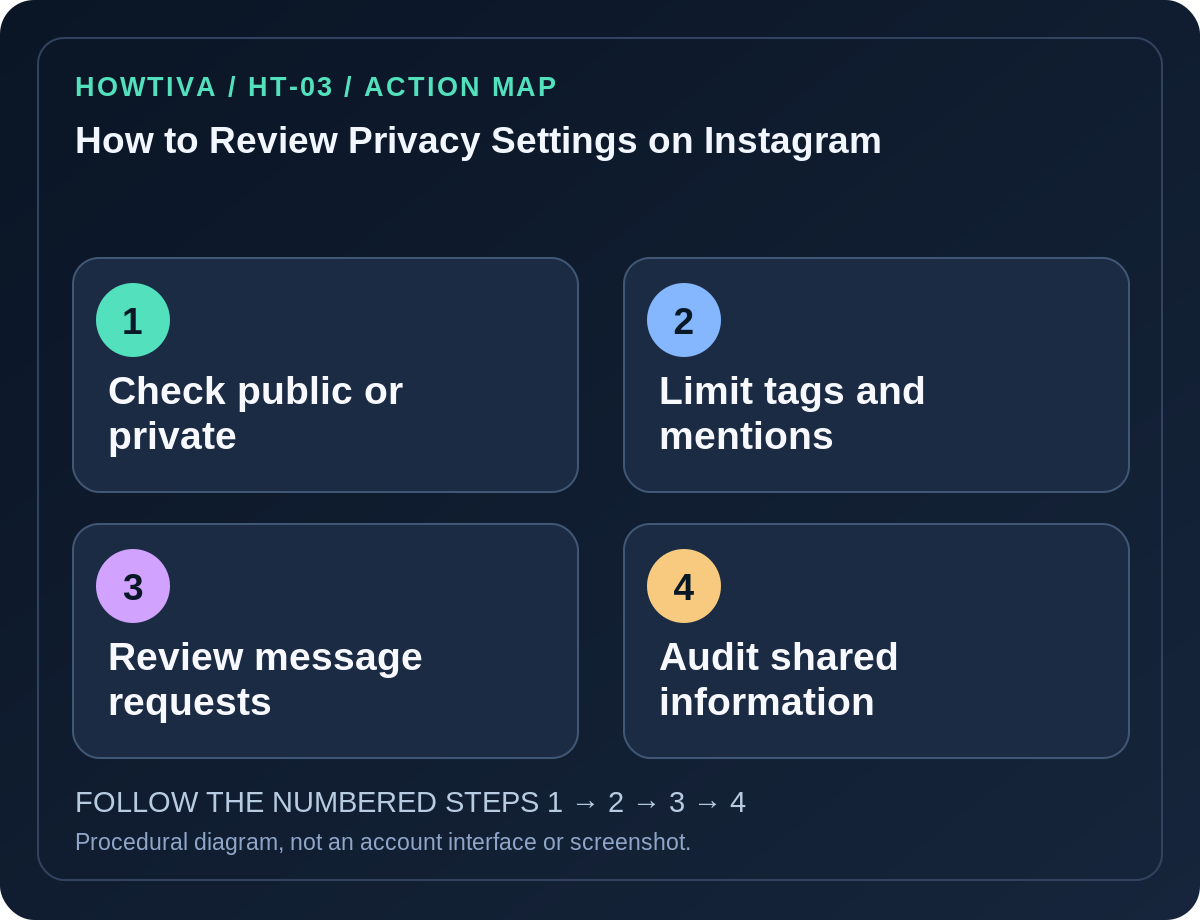
In Settings and activity, look for Instagram’s current sections governing Messages and story replies, Tags and mentions, and Comments. These controls regulate different interactions: who can send a message request, who can tag or mention you, and who can comment. Set the narrowest choice that still allows the interactions you want. The precise labels depend on account status and app version, so read Instagram’s description in the control before saving.
Check message requests separately from ordinary direct messages. A private account does not necessarily stop strangers from contacting you through all channels. If someone sends a suspicious link, report or block them rather than supplying security codes or using a website to “verify” your account.
Review stories, close friends and older content
- Inspect your Story sharing and any Close Friends list. These audiences may differ from normal feed sharing.
- Review tagged photos and posts in which other users mentioned you; hiding content from your profile may not delete the original post.
- Look at old highlights, captions and location tags for addresses, daily routes or work schedules.
- If your account is connected to another Meta account through Accounts Center, inspect cross-posting and shared-experience settings rather than assuming changes in Instagram modify Facebook’s settings automatically.
- Check third-party Apps and websites that were connected through Instagram where that control remains available, and revoke unfamiliar integrations using official settings.
- After changes, view the profile from a logged-out browser or ask a trusted contact who is not following you to check visible content without sharing private login information.
Privacy choices beyond the private-account toggle
Restrict can limit certain interactions while being less direct than a block; Block prevents contact according to current platform behavior. Neither ensures old screenshots disappear. Review your account’s two-factor authentication and recent login activity in the appropriate security area, but do not treat a privacy switch as account takeover protection.
For a professional account whose public reach is part of its purpose, you can still reduce personal exposure: remove home addresses, avoid precise location, limit personal contact details and manage who can message or tag you. Review profile fields before applying global restrictions that might affect business communications.
Troubleshooting
- Private account toggle unavailable: Check whether you are using a business account, teen supervision feature or another managed restriction. Follow the platform’s documented account-type process, not a workaround.
- Someone still sees an old photo: They may already follow you, possess a screenshot or be viewing the photo where someone else posted it.
- Unwanted messages continue: Review separate message request controls and block/report users as needed.
- Tags keep appearing: Revisit Tags and mentions, tag-approval settings and previous approved posts.
- The app layout changed: Update Instagram from the official store and search for the setting within the app; Meta frequently changes labels and category placement.
Frequently asked questions
Will making Instagram private hide my username? No, not necessarily. Some profile details remain public.
Does private mode remove existing followers? No. You must audit your follower list separately.
Can someone screenshot a private story? Privacy settings cannot reliably prevent a viewer from copying content they can access.
Sources & Further Reading
- Make your Instagram account private — Instagram Help Center.
- Differences between public and private accounts — Instagram Help Center.
- Manage privacy on Instagram — Instagram Help Center.
Use the checklists as you go, and confirm the result before moving on to a more involved repair.