How to Scan a Document with an iPhone
Open Notes, select a note, choose Attachments → Scan Documents, capture pages and tap Done; use Files to save a PDF directly.
Quick answer: Open Notes, create or select a note, tap Attachments → Scan Documents, and point your iPhone at the paper. It can capture pages automatically or let you use the shutter manually. Adjust the corners, capture any additional pages and tap Done. Your scanned document is saved as a PDF in the note. Use Files → More → Scan Documents when you want to save a PDF directly to a chosen folder.
Apple provides these built-in scanning routes on supported iPhones, so a separate scanner app is usually unnecessary. Button names and placement vary by iOS release. Apple’s current guide also describes scanning directly in the Preview app on newer iOS versions, including iOS 27. The workflow below distinguishes a document scan from the separate Scan Text feature, which inserts recognized text into a note.
Scan paper pages in the Notes app
- Put the paper on a flat, contrasting surface in even light. Straighten folded edges and avoid glare from lamps.
- Open Notes and create a new note or open the note where you want to store the scan.
- Tap the Attachments button and choose Scan Documents. The button may look different on an older iOS version; use its on-screen label.
- Hold the iPhone above the page until the whole document is visible. In Auto mode, the camera captures the page when it detects the boundaries; keep the phone steady.
- To capture manually, switch from Auto to Manual if the control is shown, and press the shutter. Apple’s support article also documents using a Volume button for manual capture.
- If necessary, drag the crop corners so they follow the paper’s actual edges rather than the table underneath. Confirm or keep the scan using the control shown on your version.
- Capture additional pages in the same session and tap Done when finished.
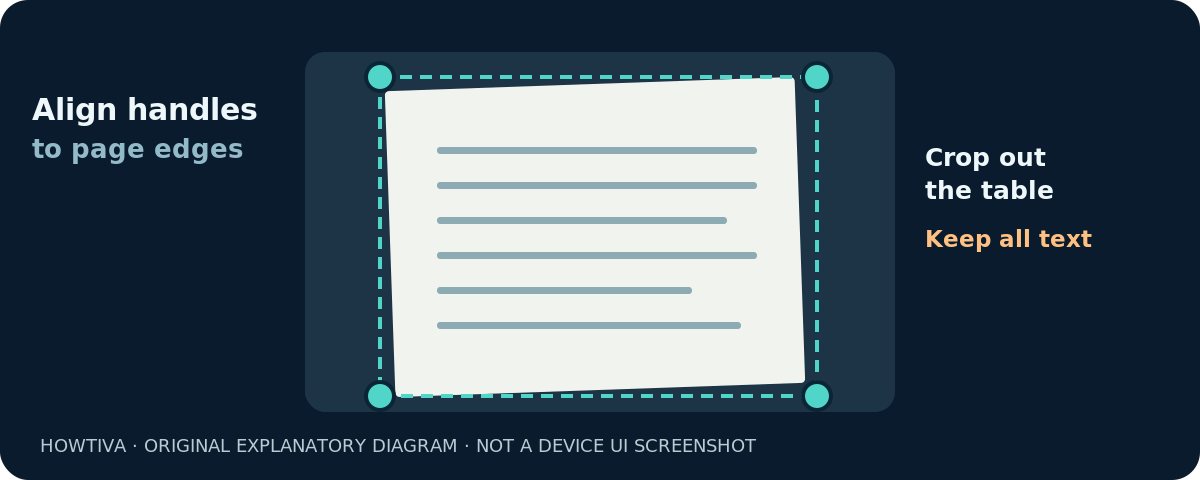
Apple’s iOS 27 Notes guide confirms that the result is a PDF within the note. A multi-page scan collects the captured sheets into one document, rather than requiring a separate photo for each page. If the automatic crop is wrong, adjust it before you finish instead of assuming software will fix every slanted edge later.
Save a PDF directly in Files instead
If you need a scan in an organized folder rather than embedded in a note, use Apple’s Files app:
- Open Files and navigate to an appropriate location if needed.
- Tap More and choose Scan Documents.
- Position the camera over the first page. Let Auto capture it or use the manual shutter/Volume button on supported versions.
- Adjust the corners if necessary. Scan the remaining pages, then tap Done.
- Choose the destination folder and tap Save.
Apple documents a destination selection as part of this route. That makes Files convenient when you have to upload a PDF to a form, email it as an attachment or keep a folder of invoices. Verify that the saved PDF opens correctly before you delete or put away the paper original.
Use Preview on supported newer iPhones
Apple’s iOS 27 iPhone User Guide describes a third path: open the Preview app and tap Scan Documents. Point the camera at the paper and capture the page; to switch from automatic capture, tap Auto to change to Manual, then use the shutter. Continue with additional pages and tap Done. Preview supports reviewing thumbnails and adjusting crop, rotation or color before finishing.
This is a version- and app-dependent alternative, not the universal path for every older iPhone. If Preview is not available on your device, use Notes or Files instead of hunting for an identical icon from a newer iOS demonstration. On supported devices Preview also provides PDF viewing and editing options after you scan.
Make the scan easy to read
A document scan will look best when the page is flat, sharply focused and evenly illuminated. Place white paper against a medium or dark plain surface so edge detection can distinguish the document. Avoid casting a shadow with your phone and keep the lens parallel to the page where possible. If your iPhone keeps capturing before you are ready, switch to manual capture so you can adjust the position first.
Apple’s scanning controls may offer flash and filters, depending on the app and software; its current support guide explicitly mentions those options in iOS 26. Use a filter only if it makes the actual writing clearer. Check small print, stamps and signatures at full size before sending. Automatic enhancement can sometimes remove faint pencil marks or make a lightly printed date hard to read.
Make sure the four crop handles enclose all important text, including a date or signature close to the margin. Do not cut off a barcode, seal or footer. For receipts with curled edges, flatten the paper carefully or use manual crop so the entire text block remains visible.
Add pages, organize the PDF and sign when needed
For a multi-page document, remain in the same scan session and keep capturing pages before tapping Done. Check the order before sharing. If a page is upside down, rotate it with the available editing controls rather than scanning the entire file again when your app offers rotation.
Apple Support also documents a signature workflow in Notes: open the scanned document, choose Markup, tap Add → Signature, and insert a saved or newly created signature. The signature is a visible mark on the document, not proof that a service accepts it as a legally valid electronic signature. For legal, banking or regulated submissions, follow the receiving organization’s requirements.
If you are collecting identity documents, account statements or medical papers, treat the PDF as sensitive. Double-check the sharing destination and the intended recipients, and consider the security of the storage location you choose. Do not upload sensitive pages to an unfamiliar scanning website merely to change the crop.
Fix common iPhone scanning problems
Notes has Scan Text but I need a PDF
Choose Scan Documents, not Scan Text. Apple’s user guide treats them as separate tools: Scan Text inserts recognized characters into a note, while Scan Documents produces a document/PDF.
The camera captures too early
Switch to Manual capture if available, move the camera to a stable position and press the shutter when ready. You can also adjust the corners after capture if the app provides crop handles.
The page edges are wrong
Tap the preview or adjustment control and move the crop handles to the true page corners. Use stronger contrast between paper and tabletop, and re-scan if a corner or line of text is missing.
The scan is blurry or hard to read
Increase even lighting, clean the lens, hold the phone still and recheck focus. Avoid reflections on glossy pages. Zoom in on the resulting PDF to confirm that small text is legible before sending it.
I can’t find the saved document
A Notes scan is stored in its note. A Files scan is saved to the folder you selected. Preview saves or manages documents through its own file workflow on supported versions. Look in the app you used rather than assuming every scan is a normal camera photo.
Frequently asked questions
Can an iPhone scan a document without another app?
Yes. Apple documents scanning in the built-in Notes and Files apps, and supported newer systems also provide Preview scanning.
Will Notes save the scan as a PDF?
Yes. Apple’s iPhone User Guide describes the scanned document as a PDF embedded in the note. Files offers a direct save-to-folder workflow.
Can I scan multiple pages into one PDF?
Yes. Continue scanning additional pages before tapping Done. Review the final page order afterward.
Can I scan a document from an iPhone without automatic capture?
Yes. Switch to manual capture if offered, tap the shutter (or use a Volume button in Apple’s documented workflow), then adjust the crop corners.
Can I sign a scanned document on my iPhone?
Apple documents adding a signature in Notes using Markup. Whether that signature meets a particular recipient’s legal or procedural requirements is a separate question.
Sources and further reading
- Apple Support: How to scan documents on your iPhone or iPad (checked 2026-10-27).
- Apple iPhone User Guide (iOS 27): Scan text and documents in Notes using the iPhone camera (checked 2026-10-27).
- Apple iPhone User Guide (iOS 27): Scan text and documents in Preview on iPhone (checked 2026-10-27).
- Apple iPhone User Guide (iOS 27): Get started with Preview on iPhone (checked 2026-10-27).
Use the checklists as you go, and confirm the result before moving on to a more involved repair.