How to Schedule a Smart Plug
Create verified on/off smart plug schedules, check time zones and prevent automation conflicts.
Quick answer: Open your smart plug’s official app, choose the device, open Schedule (or the equivalent automation section), add an On or Off event, choose a time and repeat days, then save. Verify the correct home time zone and test the schedule with a safe, low-power appliance. The exact menus and whether schedules execute locally or require internet vary by brand and model.
Plan the automation before tapping Save
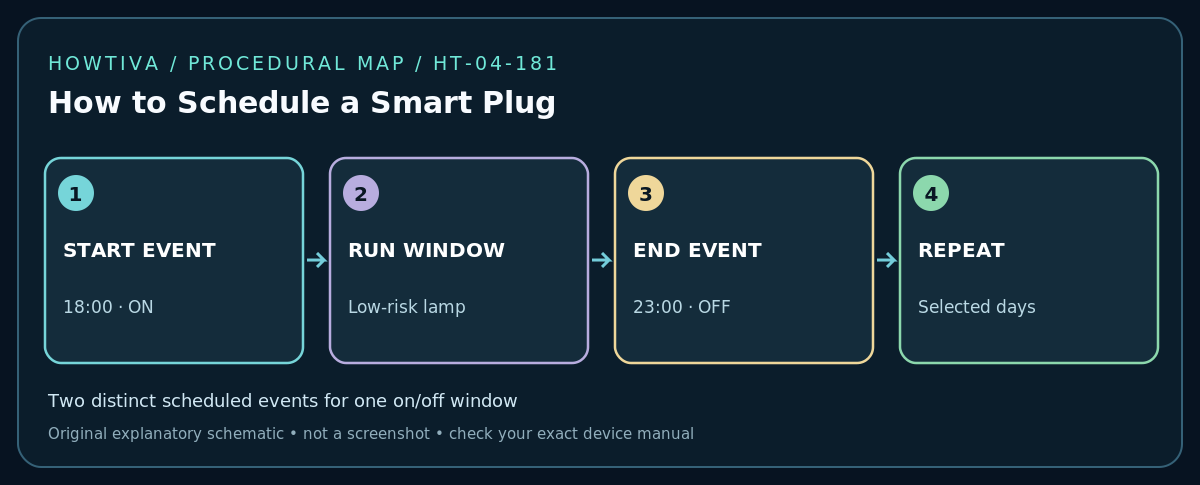
Decide what should switch, when, how often and how it should recover after a power outage. A basic overnight routine often requires two separate events: On at the start and Off at the end. Consider daylight-saving changes, household vacations, and whether the app supports sunrise/sunset instead of fixed time. If several family members can edit automations, agree on one authoritative schedule to avoid conflicts.
Never schedule heaters, high-draw appliances, medical equipment, charging equipment with safety-sensitive requirements or unattended cooking without their manufacturer’s explicit approval. Confirm the plug’s electrical rating and the appliance’s safe behavior when power is automatically restored. A switched outlet is not a supervised safety device.
Step 1: Find the device schedule
Open the Kasa, Tapo or other official plug app and select the correct device card. In TP-Link’s Kasa instructions, Schedule is available on the individual device page, with a plus icon to create an event. Other brands may use Automations, Rules or Routines. Verify the exact product model and app version rather than inventing a single universal menu sequence.
Step 2: Choose the trigger and action
Set an explicit On or Off action, a fixed time or supported sunrise/sunset option, and the days it repeats. If the schedule spans midnight, inspect day assignment carefully: an Off event at 00:30 on Tuesday may need a different recurrence pattern than an On event on Monday night. Save the first event, then add the second event where necessary. Avoid stacking an app schedule, Alexa routine and Google Home routine that all command the same plug at nearly the same time.
Step 3: Confirm time zone and save
Compare the clock/time zone displayed in the official app with your actual location. TP-Link documents location-and-time settings for its Kasa app and notes that schedule behavior is tied to device/app time-zone handling, not simply every later change to your phone’s displayed time. Check daylight-saving and travel behavior in your own product’s documentation. Save and look for an enabled state, not just a draft entry.
Step 4: Test an early short cycle
Rather than waiting for a distant holiday or bedtime, schedule a short on/off interval several minutes ahead while supervising a low-power lamp. Observe whether the device responds, whether the app shows the correct state and whether it still runs if your phone screen locks. If the product requires internet for its cloud routine, confirm service is available. If your model has offline/local execution, verify that specific claim from the manufacturer, not from an assumption.
Step 5: Protect against conflicting automations
Review sunrise/sunset offsets, repeat days, away mode, countdown timer, auto-off rules and any linked voice-assistant routines. TP-Link specifically distinguishes Schedule, Away Mode (randomized switching), Timer (countdown) and Smart Actions for multiple devices. These are different functions. If a light turns off unexpectedly, check each automation platform before resetting the plug.
Troubleshooting
- Nothing happens at the chosen time: Check device online state, enabled schedule, account/home, clock zone and automation service status. Re-save a short supervised test.
- Triggers one hour early or late: Inspect device/app time zone and daylight-saving rules. Do not keep moving event times blindly without identifying the clock source.
- The app says the plug is on but lamp stays dark: The lamp’s physical switch may be off. Test with a safe appliance that automatically resumes after power restoration.
- Two schedules fight each other: Temporarily disable one routine at a time, including third-party assistants.
- Schedule lost after Wi-Fi change: Verify whether it was device-local or account/cloud-managed; restore the routine if necessary without assuming it survived re-pairing.
Alternative methods
A supported Alexa or Google Home routine can manage some plug models, but cloud dependency, device discovery and time-zone rules differ. For multiple devices, use the official app’s group or multi-device automation feature rather than replicating a poorly synchronized schedule across accounts. A non-smart outlet timer may be simpler for a very basic, low-risk task.
Frequently asked questions
Does the schedule run if my phone is off?
Often yes, but not always. It depends on the product’s local versus cloud scheduling design. Check the vendor support document and run a supervised test.
Can I schedule a sunrise-based event without location access?
Some apps calculate sunrise from a stored home location. Provide the minimum required location information and verify its correctness.
Sources & Further Reading
- TP-Link — Kasa Schedule, Away Mode and Timer Setup for Smart Plugs (checked 2026-10-27).
- TP-Link — Set Up Schedule, Away Mode and Timer for Tapo (checked 2026-10-27).
- TP-Link — What to Do If Your Tapo or Kasa Smart Plug or Switch Won’t Control Your Appliances (checked 2026-10-27).
Use the checklists as you go, and confirm the result before moving on to a more involved repair.