How to Screen Record on a Mac
Record all or part of a Mac screen using built-in tools, save the video, and understand macOS version-specific audio options.
Quick answer: On a Mac, press Shift + Command + 5, select Record Entire Screen or Record Selected Portion, and click Record. To stop, click the Stop icon in the menu bar or press Command + Control + Esc. The recording normally saves to your Desktop. You can also choose QuickTime Player → File → New Screen Recording.
macOS has built-in screen recording tools, but audio and window recording vary by macOS version. On macOS Tahoe 26 or later, Apple adds an option to record one selected window. On macOS 27 Golden Gate or later, the Screenshot toolbar adds a built-in Include System Audio option. Earlier versions have microphone choices but should not be assumed to capture all computer audio directly.
Record your whole screen with the Screenshot toolbar
- Arrange your desktop, hide notifications, and close anything containing private information.
- Press Shift + Command + 5 to open the Screenshot toolbar. Look for the record controls to the right of the still-image capture icons.
- Choose Record Entire Screen. If several displays are connected, follow the onscreen prompts to select the screen you actually intend to record.
- Click Options to choose where to save the file, whether to use a microphone, whether to show mouse clicks, and whether to delay the start. Available items depend on the macOS version.
- Click Record and demonstrate the steps at a steady pace. Stop with the menu-bar Stop control or Command + Control + Esc.
- Look for the resulting recording on the Desktop unless you selected another destination. Play the file to inspect it before sharing.
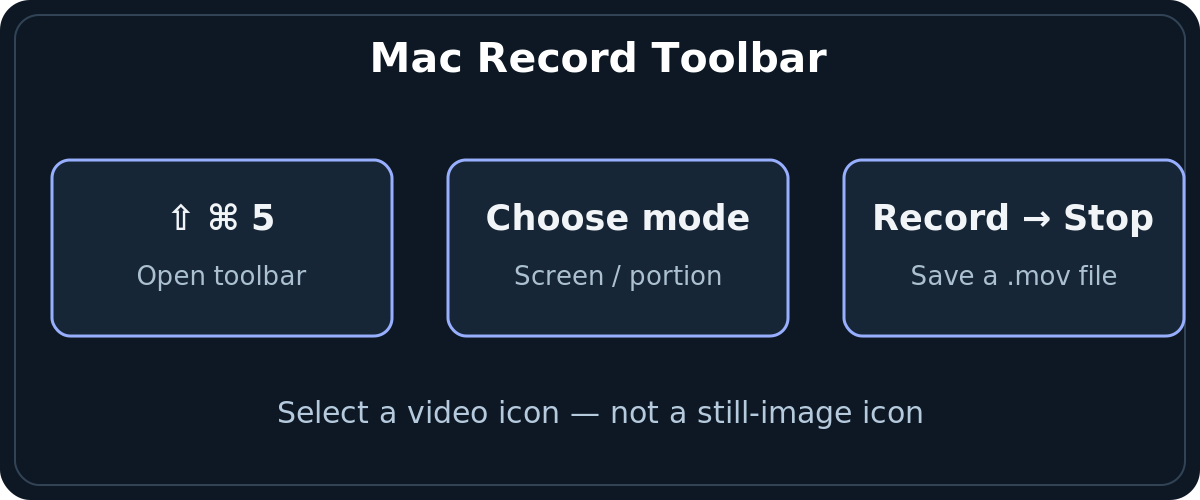
The toolbar uses different icons for still screenshots and video recordings. If your result is a picture instead of a movie, you probably selected a screenshot icon. Reopen the toolbar and select the record option; recordings usually have an .mov extension rather than a PNG image.
Record a selected area instead of showing everything
For a focused tutorial, press Shift + Command + 5, then choose Record Selected Portion. Drag the selection frame to the appropriate location and pull its edges to resize it. Use Options before you start if you need a microphone or a different save folder. Click Record, then stop using the menu-bar control.
A region recording is especially helpful when demonstrating one setting, one browser page, or a small application panel. It also keeps unrelated desktop content outside the video—although notifications or another app that moves into the selected area could still appear. Close sensitive windows rather than assuming the crop protects everything.
Record a single app window in newer macOS
Apple documents Record Selected Window on macOS Tahoe 26 and later. If this control is visible, choose it from the recording icons, then click the window you want to record as instructed. Earlier versions may provide only full-screen and selected-portion modes. If your Mac lacks the window option, use Record Selected Portion and size the frame around that application. Do not treat a missing option as a hardware failure without checking your macOS version.

Include a microphone, and understand system-audio limits
Open Shift + Command + 5 → Options → Microphone, then select the microphone you want, or None when you need silent video. This is the correct built-in way to record narration or ambient audio picked up by that microphone. Use headphones to avoid echoes when you are explaining something with audio playback.
Apple’s current instructions specify Include System Audio in the Screenshot toolbar for macOS 27 Golden Gate or later. On older macOS versions, do not assume the built-in Screenshot app will capture browser audio or application sounds simply because a microphone is selected. If system sound is essential, check the exact macOS version and the audio options your computer actually displays; avoid installing unknown audio-routing utilities without reviewing their permissions and trustworthiness.
For a tutorial with spoken commentary, make a short test recording and listen through headphones to confirm that the correct microphone is being used. Muted microphones, wrong input sources, and unsupported system-audio settings are different problems and need different fixes.
Record with QuickTime Player instead
- Open QuickTime Player from Applications.
- Choose File → New Screen Recording or use Control + Command + N within QuickTime Player.
- On modern macOS, the Screenshot toolbar typically appears. Follow its area and audio controls, click Record, and stop from the menu bar.
- If an older-style Screen Recording window appears, follow its instructions for clicking anywhere to record the entire screen or dragging to select part of it. The exact controls reflect the macOS version.
- After recording, review the result in QuickTime Player if it opens there, then save or share it from the app.
QuickTime is an alternate entry point, not automatically a separate capture engine with unlimited recording permissions. Apple’s support guide explicitly notes that newer QuickTime workflows hand off to the same Screenshot tools. It can still be convenient for opening, inspecting, trimming, and sharing finished recordings.
Locate your video and make it easier to share
A built-in Mac screen recording commonly saves as a .mov file with a date/time-based name, on the Desktop by default. If you chose another Save to destination, open the Screenshot toolbar and inspect Options. Finder’s recent files and date sorting also help when several recordings share similar names.
On supported Macs running macOS Tahoe 26 or later, the toolbar can expose SDR (Most Compatible) and HDR capture choices. Apple identifies SDR video with H.264 and HDR video with HEVC on supported models. When you are sending a guide to people with older players, prefer a compatible output if the choice is available and check playback on a second device when feasible.
Troubleshoot Mac screen recordings
Shift + Command + 5 opens a toolbar but no recording starts
Make sure you selected a video recording mode rather than a still-image capture. Click Record only after choosing the relevant mode and, if applicable, positioning the selected area. Press Esc if you want to cancel and start over. Try capturing a normal Finder window to distinguish a general keyboard problem from an app-specific limitation.
I cannot see Record Selected Window
That mode is documented for macOS Tahoe 26 or later. If you use an earlier release, select a portion of the screen instead. The existence of new options on another Mac does not mean your toolbar is malfunctioning.
My video records no voice
Open Options → Microphone and confirm a real input device is selected instead of None. Check the Mac’s microphone input and privacy permissions if necessary. Record a short sample, stop it, and listen. Avoid adjusting dozens of settings without first verifying the selected source.
The app sound is missing even though the microphone works
Microphone capture and internal system audio are separate. Apple specifies the built-in Include System Audio feature for macOS 27 Golden Gate or newer. On earlier versions, the Screenshot recorder may not have a native system-audio option; do not promise one where Apple has not documented it.
Another app says it cannot record my screen
Third-party apps may need permission under Apple menu → System Settings → Privacy & Security → Screen & System Audio Recording. This permission management applies to the apps listed there; it is not proof that protected content can be recorded. Only grant access to software you trust and review permissions afterward.
A protected streaming window appears blank
Apple notes that certain apps, including Apple TV, may block recordings of their windows. Test the tool with an ordinary Finder window. If that works, respect the application’s restrictions rather than attempting to bypass them.
Frequently asked questions
Can I screen record a Mac without downloading an app?
Yes. Shift + Command + 5 opens Apple’s built-in Screenshot recorder. QuickTime Player also offers New Screen Recording, which may open the same toolbar.
Does a Mac screen recording include sound automatically?
Not necessarily. Choose a microphone explicitly for spoken commentary. The built-in Include System Audio control is documented for macOS 27 or later, not all Mac versions.
Where are my recorded videos?
By default, on the Desktop as time-stamped .mov files. Check Shift + Command + 5 → Options → Save to if that location was changed.
Sources and further reading
Use the checklists as you go, and confirm the result before moving on to a more involved repair.