How to Set Up a Mesh Wi-Fi System
Configure a primary mesh unit and satellites, choose router or access-point mode and test wireless backhaul.
Quick answer: To set up mesh Wi-Fi, connect the primary mesh router to your modem or existing router, use the manufacturer’s official setup app, and add secondary nodes in places where they still receive a strong connection to the primary. Run the system’s mesh test and relocate weak nodes before judging coverage.
Mesh equipment is not interchangeable across all generations and brands. For example, Google notes that Nest Wifi Pro cannot form the same mesh with older Nest Wifi or Google Wifi units. Always check the exact kit’s compatibility, power supplies, ISP requirements and regional documentation before beginning.
Plan the network mode first
- Identify whether you have a standalone modem/ONT or a combined ISP gateway that already routes internet traffic.
- Decide whether mesh will replace your existing router or extend its coverage as an access point system. In access point mode, the existing router usually remains responsible for IP addresses and routing.
- Check the mesh maker’s documented Router mode and Access Point mode support. Placing a second router behind an active ISP router may create double NAT; that is not automatically fatal but can affect gaming, incoming services and troubleshooting.
- Write down ISP connection credentials or VLAN settings only if they are required for your particular ISP; do not assume every connection requires them.
- If replacing an existing network, plan reconnection of cameras, printers and smart-home devices. Reusing the same SSID and password may help some clients but does not guarantee every device reconnects.
Set up the primary mesh unit
- Install the vendor’s authentic setup app (for example, Google Home for supported Google Wifi models or Deco for TP-Link Deco).
- Connect the primary unit’s documented WAN port to the modem, ONT or upstream router using Ethernet. Some hardware has auto-sensing ports; follow its label.
- Power it with the supplied adapter and follow the app’s onboarding. If asked to scan a QR label, use the code printed on your own device, not one found online.
- Choose an appropriate network name and strong unique Wi-Fi password and configure WPA2/WPA3 as supported by your client devices.
- Confirm that the primary unit has internet access before installing secondary units. If it cannot get online, examine modem/ISP connection and network-mode setup first.
Add nodes where backhaul is strong
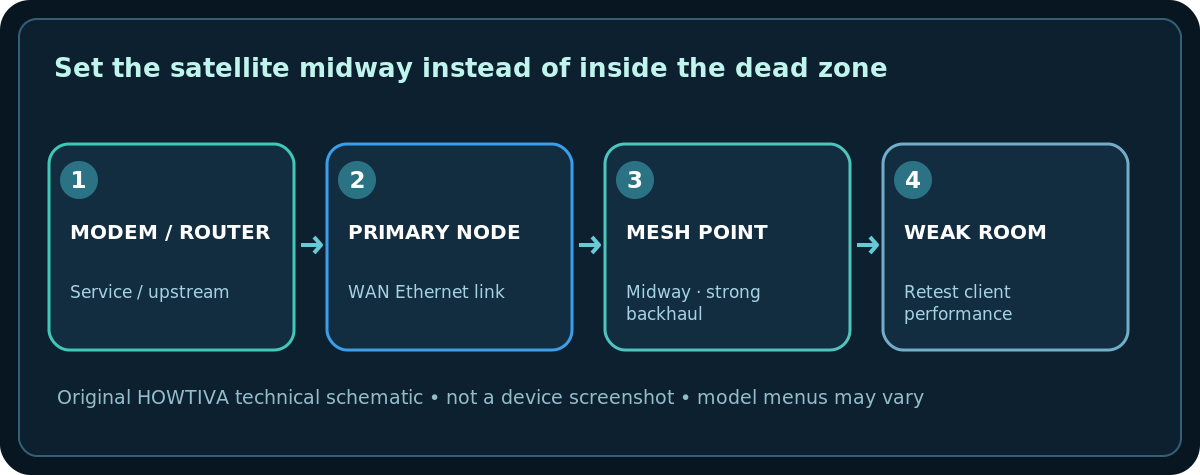
- Place the first additional node in an open area partway toward the weak room. Do not begin with the node inside a place that receives no signal.
- Add it from the app and wait for the vendor’s setup confirmation. Status light colors vary by device and cannot be generalized.
- Run any available mesh test. Google’s mesh guidance recommends moving a weak point closer to the router or existing point and avoiding thick walls or appliances.
- Test normal device use in the formerly weak room. A strong Wi-Fi icon at the phone does not prove that the node’s own link is fast.
- Repeat as needed. If you have Ethernet wiring, check whether the mesh model supports wired backhaul and the correct port topology.
Common pitfalls and safe remedies
- Main mesh router is online but satellites are weak: Relocate nodes toward good backhaul rather than placing them at the far edge of the house.
- Phone cannot discover a new node: Ensure appropriate Bluetooth/Local Network permissions, network access and app/device compatibility; check the maker’s documented pairing sequence.
- Two Wi-Fi networks overlap: Consider whether the ISP gateway should keep its Wi-Fi active. Do not disable it until you know the new mesh is working and you can administer the gateway afterward.
- Double NAT warning: Review AP/router mode and gaming requirements; changing modes may restart the network and remove advanced routing features.
- Different product generations: Check explicit backward compatibility; “same brand” does not guarantee a shared mesh.
- Weak signal despite many nodes: Excess nodes, crowded placement or poor backhaul may reduce performance rather than improve it.
Validate before calling the project complete
Measure coverage and speed from at least three everyday rooms, confirm video calls work without prolonged drops, and check whether printers or smart-home devices can be reached from the network where they are expected to work. Guest isolation and access point behavior may differ from the original gateway.
Frequently asked questions
Do mesh nodes need to be next to the main router?
No, but they need a sufficiently strong backhaul link. Placement should be tested, not guessed.
Can I use mesh without changing my ISP modem?
Often yes. An existing modem/router can feed a mesh configured in a compatible mode, but the topology depends on the equipment.
Will mesh increase the internet plan’s maximum speed?
It generally improves local coverage and reliability, not the speed provisioned by the ISP.
Sources & Further Reading
- TP-Link — Connect a Deco mesh system to an existing router (checked 2026-10-27).
- Google — Set up Google Wifi (checked 2026-10-27).
- Google — Where to place your Wifi devices (checked 2026-10-27).
- Google — Mesh test guide (checked 2026-10-27).
Use the checklists as you go, and confirm the result before moving on to a more involved repair.