How to Find Your IP Address on a Mac
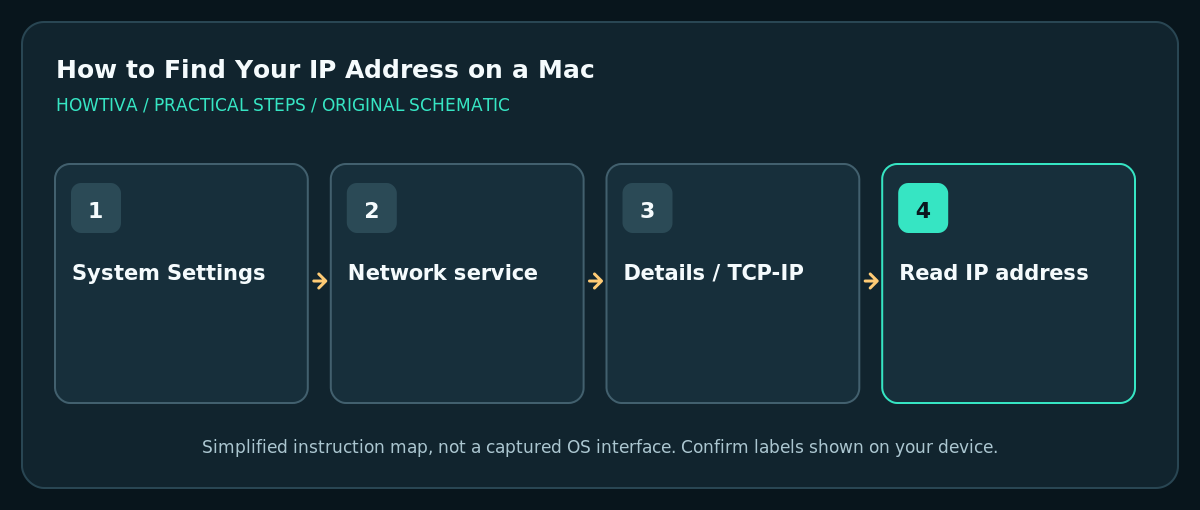
On macOS, open Apple menu > System Settings > Network, choose the active Wi-Fi or Ethernet connection, select Details > TCP/IP, and look for IP address under IPv4.
Quick answer: On macOS, open Apple menu > System Settings > Network, choose the active Wi-Fi or Ethernet connection, select Details > TCP/IP, and look for IP address under IPv4. That is typically the Mac’s local network address, not necessarily its public internet address.
A Mac can have more than one network address: Wi-Fi, Ethernet, VPN and virtual interfaces can each differ, and IPv6 may be active alongside IPv4. If you are connecting another device on the same network, the local IP is often relevant. If a website or hosting provider requests your public IP, that is a different question. The steps below follow Apple’s modern System Settings arrangement.
Find your local IP in System Settings
- Check that the Mac is actually connected to the Wi-Fi or wired network you want to inspect. A green or connected status in Network settings is helpful, but it does not by itself guarantee internet access.
- Open Apple menu > System Settings, then choose Network in the sidebar. On much older versions, look under System Preferences > Network.
- Select the connection you are using, such as Wi-Fi or Ethernet. If multiple connections are enabled, do not copy an address from an unrelated VPN or adapter by mistake.
- Choose Details, then TCP/IP. Apple’s network help documents this area as the place to view or configure IPv4 and IPv6 addressing.
- Read the IP address field. It might resemble
192.168.0.24for a private home-network address. Record the exact value on your own Mac; the example is not a real result from your device. - If the IP is not displayed or shows a self-assigned address, return to the network status and investigate the connection rather than entering a made-up static IP.
Alternative: inspect a network service
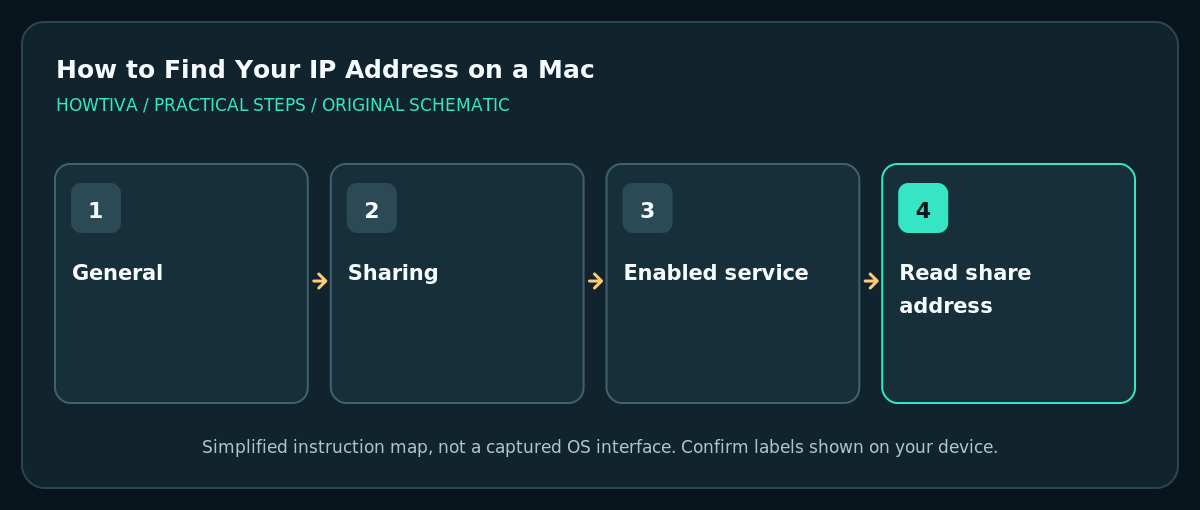
For file sharing or screen sharing, Apple also documents opening System Settings > General > Sharing and inspecting the enabled service’s information to see a network address such as smb://... or vnc://.... This is useful if the other computer needs the share address rather than just a bare IP. Do not turn on file sharing solely to find an IP; use the Network pane when sharing is off.
Private IP, public IP and router are different
The IP address shown next to your network interface usually identifies the Mac on that local network. The Router field identifies the gateway, which is often a different device. A public internet address may be assigned to your router or a VPN endpoint rather than directly to the Mac. IPv6 addresses use a different format; compare the type requested rather than relying on a superficial number pattern.
Avoid accidental network changes
Viewing TCP/IP is safe; changing Configure IPv4 from Using DHCP to Manually can disconnect you if you do not have legitimate administrator-provided settings. Do not press Renew DHCP Lease, change DNS servers, or adjust proxies just to answer a simple support question. On a company-managed Mac, follow IT instructions for VPN or static-address setups.
Troubleshooting
The IP address is missing or self-assigned
Check the selected connection’s status, Wi-Fi network credentials and router. A self-assigned address often indicates that the computer could not obtain normal DHCP configuration. If on a managed network, confirm with its administrator before changing anything.
I see different values for Wi-Fi and Ethernet
Each interface can have a separate address. Use the one corresponding to how the Mac is connected to the device or service that needs the address. Disconnected or virtual adapters may retain irrelevant entries.
I was asked for a public IP address
Ask who needs it and what they plan to do with it. A reputable external IP-check service shows an internet-visible address, which might be the router or VPN exit rather than the Mac itself. Do not confuse that result with Network > TCP/IP.
Address changes when I reconnect
Many networks assign addresses dynamically. Changes after network or router restarts can be normal. If stable addressing is essential for a legitimate service, discuss router DHCP reservation or managed static configuration rather than copying a random old address.
Frequently asked questions
Is the Router value the Mac’s IP?
Usually not. The Router address normally points to the device forwarding traffic to other networks. Read the IP address field for the selected Mac network connection.
Can I use this address to reach my Mac from the internet?
Not necessarily. A local private IP usually is not directly reachable from the public internet, and sharing services must be enabled and authorized. Avoid exposing a Mac by opening router ports without a secure, planned configuration.
Can a Mac have IPv4 and IPv6 simultaneously?
Yes. Both may appear, and the correct one depends on the service you are configuring or diagnosing.
Sources & Further Reading
- Apple — Use DHCP or a manual IP address on Mac — System Settings Network Details TCP/IP and IP addressing.
- Apple — Find your computer name and network address on Mac — How to find sharing-service network addresses.
- Apple — Resolve IP address conflicts on Mac — DHCP and address-conflict troubleshooting.
Use the checklists as you go, and confirm the result before moving on to a more involved repair.