How to Stop Unwanted Notifications on iPhone
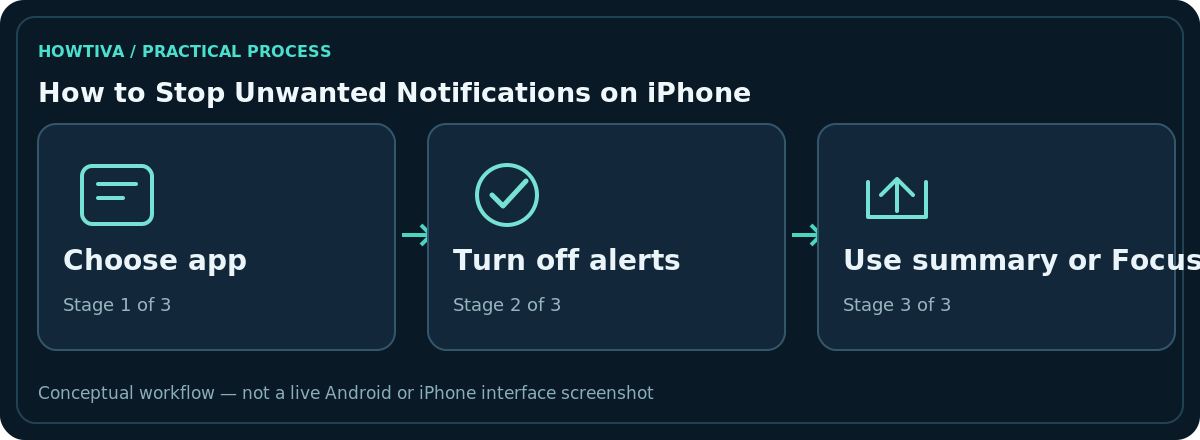
Go to Settings > Notifications, choose the noisy app under Notification Style, and turn off Allow Notifications. If you still need important alerts from that app, leave notifications on and disable only banners, sounds or badges, or use Scheduled Summary for less urgent updates.
Quick answer: Go to Settings > Notifications, choose the noisy app under Notification Style, and turn off Allow Notifications. If you still need important alerts from that app, leave notifications on and disable only banners, sounds or badges, or use Scheduled Summary for less urgent updates.
These controls apply to modern iOS, including iOS 27. Individual apps have different categories, emergency alert behaviour and options. Be cautious about disabling messages from work, school, medical, banking or emergency-contact services.
Turn off notifications for one app
- Open Settings > Notifications.
- Scroll to the application under Notification Style.
- Open its settings and turn Allow Notifications off if you no longer want that app to alert you.
- Return to the list and repeat for other noisy apps only when you know what you are disabling.
A missing application may not have notification permission or may not be installed. Some apps include their own notification-category settings accessible from the app’s iPhone settings or inside the app itself.
Keep useful alerts but remove interruptions
For an app you still rely on, review Lock Screen, Notification Center and Banners separately. Turning off banners can remove pop-up interruptions while retaining other notification destinations. You may also be able to disable the sound or badge without stopping delivery. Some apps expose Time Sensitive Notifications or Customize Notifications; read what each option means before switching it off.
Use Show Previews > When Unlocked or Never when your problem is other people seeing message text on the Lock Screen, rather than the total number of alerts. This changes how previews display; it is not a guarantee that a message will never arrive.
Try Scheduled Summary for lower-priority apps
If the issue is frequent but nonurgent news, shopping or entertainment alerts, open Settings > Notifications > Scheduled Summary. Turn it on, choose delivery times and select the apps whose notifications should be collected. Some alerts can still arrive immediately depending on priority and app capabilities. Review the schedule if you notice time-sensitive information arriving later than expected.
Focus is another choice when you want to reduce interruptions during certain hours rather than permanently muting an app. Under Settings > Focus, choose a Focus and configure allowed or silenced apps and people. Check exceptions and emergency-contact behaviour carefully so you do not miss calls you need.
Stop notification previews during presentations
Before a screen share or recording, look under Settings > Notifications > Screen Sharing for the setting controlling whether notifications appear while sharing. Test a non-sensitive message in a practice call if disclosure matters. Hiding previews and stopping notification delivery are separate choices; choose based on whether you need to know an alert arrived.
If the alert still appears
Confirm the app that generated it; several apps may send similar-looking promotional messages. A calendar invitation or browser web push alert may come from a different app than expected. Open the relevant app’s own notification preferences and disable the specific campaign or category there if available.
If Focus is active, priority and time-sensitive exceptions can permit some notifications. If a notification is actually an alarm, government alert or another system-level event, it may have distinct controls. Do not broadly disable safety-critical alerts simply to remove advertising.
A sensible order for cleaning up interruptions
Begin with the two or three apps that interrupt you most, rather than muting every application. For each, decide whether you want no alerts, fewer alerts, quieter alerts or only private previews. A shopping app might need no notification permission; a group-chat app might benefit from muting one conversation within the app; a calendar may need an audible reminder while keeping marketing messages disabled. That distinction preserves the usefulness of your phone.
After making changes, deliberately check an essential notification such as a calendar reminder or a message from a trusted person. If it is missing, inspect Allow Notifications, Focus exceptions, Scheduled Summary and the app’s own settings before reversing unrelated controls.
Privacy settings are different from frequency settings
You may want to keep an alert but prevent its contents from appearing in public. Show Previews > When Unlocked can be suitable if other people glance at your Lock Screen. Never can hide message text more consistently, but you may still see that an alert arrived. Similarly, disabling the red badge does not stop actual messages. Use the narrowest control matching the problem so critical information remains accessible.
Frequently asked questions
Will I still receive messages if I turn off notifications?
Usually the app may continue receiving content, but it will no longer notify you in the disabled ways. Open the app to check messages.
Is Scheduled Summary the same as deleting notifications?
No. It changes delivery timing for eligible notifications; it is not a message-deletion function.
Can I mute just one chat?
Often, yes, inside the messaging application’s own conversation settings. That is more targeted than disabling the entire app.
Why do alerts appear during Focus?
Review allowed apps, people and any time-sensitive or emergency exceptions configured for that Focus.
Sources & Further Reading
- Change notification settings on iPhone — Apple iPhone User Guide; checked 2026-10-27.
- Allow or silence notifications for a Focus on iPhone — Apple iPhone User Guide; checked 2026-10-27.
Use the checklists as you go, and confirm the result before moving on to a more involved repair.