How to Take a Screenshot on an iPhone
Use Side + Volume Up on Face ID iPhones, or Home + Side/Top on older models. Includes full-page captures and options if buttons are hard to press.
Quick answer: On an iPhone with Face ID, press the Side button and Volume Up at the same time, then release both immediately. If your iPhone has a Home button, press Home + Side, or Home + Top on older models. Your screenshot can then be saved, edited or shared. You do not need an extra app.
The button combination depends on the physical buttons on your iPhone, not just its iOS version. This guide covers modern Face ID models, iPhones with a Home button, and screenshot previews in iOS 26–27 versus older software. The steps apply to standard iPhone screenshots; full-page capture is available only where the app supports it.
Choose the right button combination
| Your iPhone | Buttons to press at the same time |
|---|---|
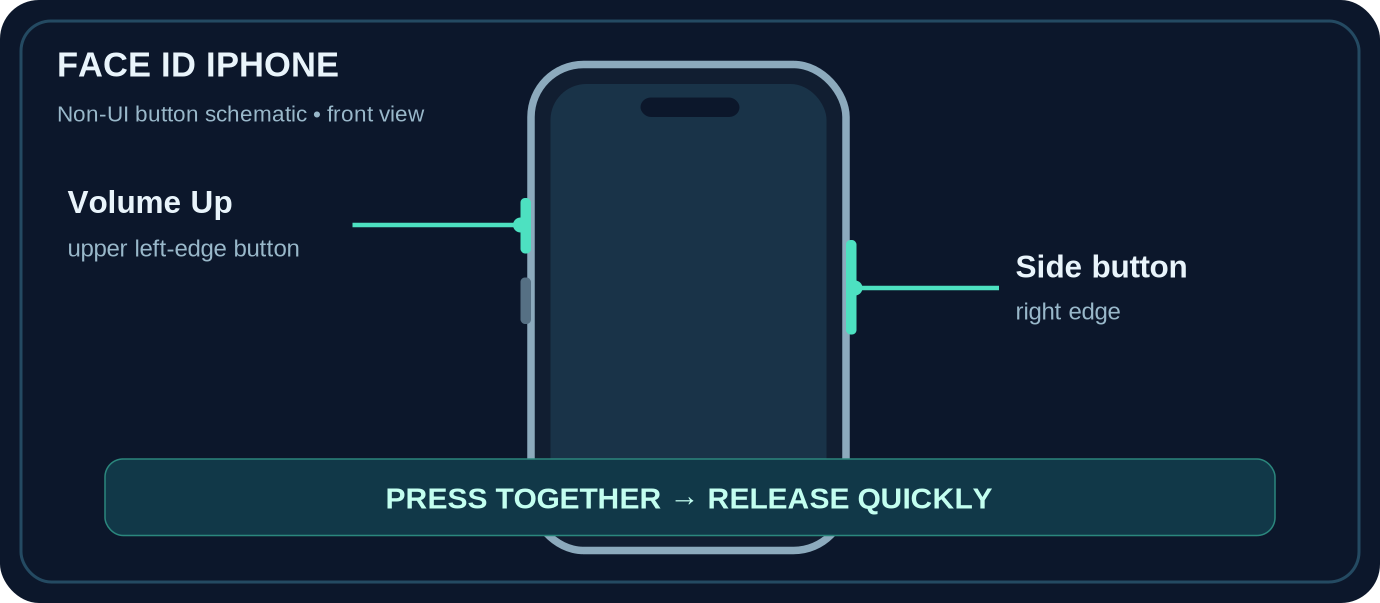
| Face ID model without a Home button | Side + Volume Up |
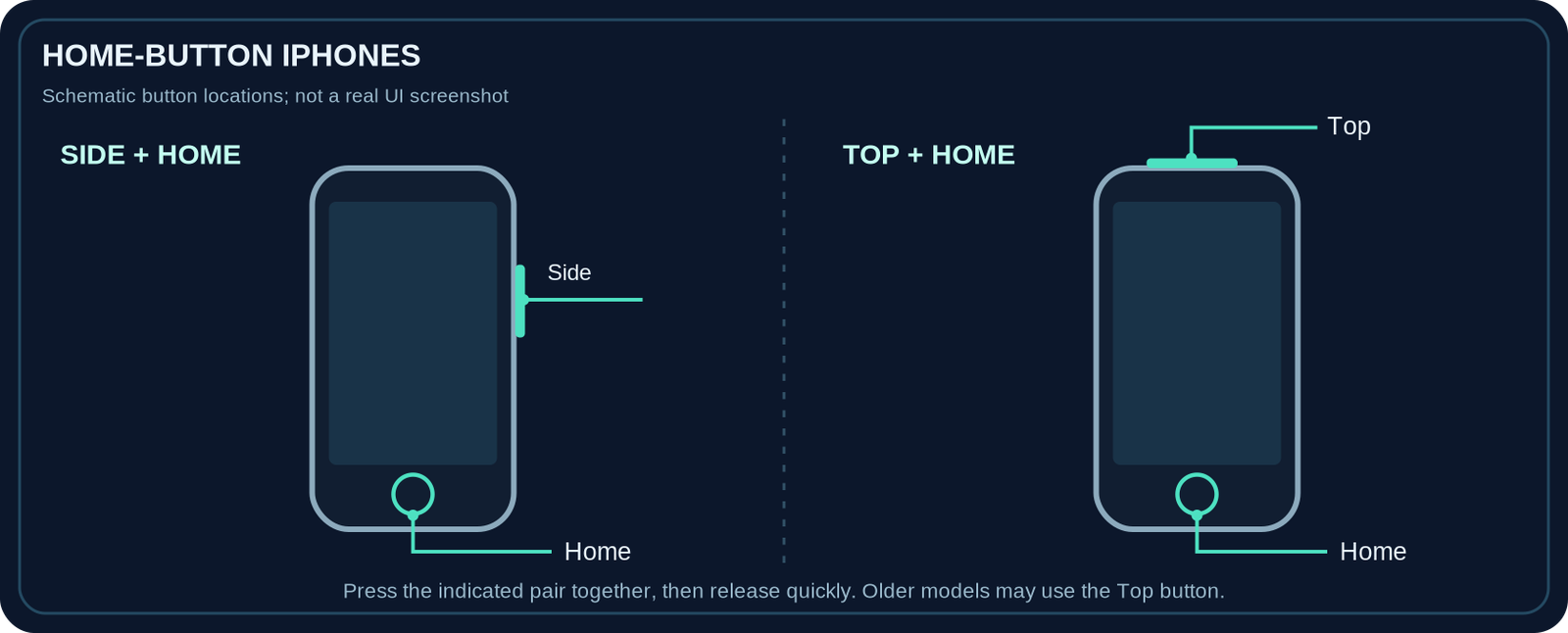
| Home button and Side button (including iPhone SE 2nd and 3rd generation) | Side + Home |
| Home button and Top button (some older iPhones, including original iPhone SE) | Top + Home |
Timing matters: make one short, simultaneous press. Holding the buttons down is not the screenshot gesture. If the phone locks, changes volume or shows a power-related screen, try again with a quicker, more even press.
1. Take a screenshot on an iPhone with Face ID
- Open the app, webpage, message or other content you want to capture.
- Locate Volume Up, the upper volume button on the left edge when looking at the screen, and the Side button on the right edge.
- Press both together and release them quickly. Your iPhone captures the content that was on the screen.
- If a full-screen preview opens, save or dismiss it as described below. If a temporary thumbnail appears, tap it to edit or leave it alone to allow the screenshot to save automatically.
2. Take a screenshot on an iPhone with a Home button
On an iPhone with both a Home button and a Side button, press Home + Side together, then release promptly. This includes iPhone SE (2nd and 3rd generation) and other Home-button models with a button on the right edge.
On an older Home-button iPhone whose sleep/wake button is on the top edge, press Home + Top together, then quickly release. The original iPhone SE is one example. Do not assume every Home-button iPhone has its power button in the same place; look at the device.
3. Save the screenshot or change the preview style
What appears after the button press depends on your software and settings:
- iOS 26 and iOS 27: Apple documents a full-screen screenshot preview as the default. You can review the image, crop it, add Markup, share it, or use the on-screen save control to choose a save option. To keep the picture, finish with a save option or swipe up as offered by the preview.
- iOS 18 and earlier: A temporary thumbnail normally appears at the lower-left corner. Tap it to edit or share; if you do not interact with it, the screenshot saves automatically. Swipe the thumbnail left if you simply want it out of the way.
- Prefer the small thumbnail on iOS 26/27? Go to Settings → General → Screen Capture, then turn Full-Screen Previews off. The temporary-thumbnail behavior returns.
Apple’s screenshot controls can vary by software version, language and context. Follow the labels displayed on your iPhone instead of expecting a specific icon to look identical on every version.
4. Find and share a saved screenshot
Open Photos, choose Collections, scroll to Media Types, then tap Screenshots. You can also look for the image in your photo library. If you saved a full-page capture as a PDF instead of an image, look in the Files location you selected rather than expecting a normal photo.
To send a saved image, open it in Photos and use Share to choose Messages, Mail, AirDrop or another available destination. If you captured a password, one-time code, address, private conversation or payment details, review the entire image carefully before sending it. Crop or obscure sensitive information where appropriate.
5. Capture a full webpage in Safari
A regular screenshot captures the visible part of the screen. For supported scrolling content such as a webpage in Safari, you may be able to capture the entire page instead:
- Open the webpage in Safari and take a screenshot using the correct button combination.
- Open the screenshot preview if it is not already displayed, then choose Full Page if that option appears.
- Use the narrow page preview to check the captured length. Crop or annotate if needed.
- Choose the available save action. On supported versions, you can save the full page to Photos as an image or choose Save PDF to Files and pick a folder.
If Full Page is missing, do not assume the feature is broken. It is context-dependent: a static home screen, a chat view or an app that does not support full-page capture may not offer the option. Try a standard webpage in Safari first. A full-page screenshot is not the same thing as a video recording or a stitched series of screenshots.
6. Take a screenshot without using both physical buttons
Use Back Tap (supported iPhones)
Back Tap works on iPhone 8 or later with iOS 14 or later, according to Apple. Go to Settings → Accessibility → Touch → Back Tap. Select Double Tap or Triple Tap and choose Screenshot. Then use the chosen taps on the back of your iPhone to capture the screen. If you do not see Back Tap, check the model and software requirements; it is not available on every older iPhone.
Use AssistiveTouch
Go to Settings → Accessibility → Touch → AssistiveTouch and turn it on. Under Customize Top Level Menu, you can assign Screenshot to a menu icon. Tap the floating AssistiveTouch button and the configured Screenshot action when needed. You can also assign screenshot capture to an available custom action, such as a double tap of the floating button. Menu layouts depend on your customization.
Ask Siri
Apple also lists Siri as an alternative to hardware buttons. On a device where Siri is enabled and available in your language, try asking Siri to take a screenshot. Use Back Tap or AssistiveTouch if voice activation is inconvenient or unavailable.
7. Troubleshoot when a screenshot does not work
The phone locks instead of capturing. You may be pressing the Side button alone. Put one finger on each required button, press simultaneously and release immediately. Check that you chose the correct combination for Face ID or Home button.
The volume indicator appears. The Volume Up button may have registered without the Side button. Avoid pressing one button first and then the other. Try a brisk simultaneous press, or use AssistiveTouch to avoid the timing issue.
A power-related screen appears. Stop holding the buttons. A screenshot takes a quick press-and-release, not a long hold. Dismiss the screen normally and retry.
I cannot find the screenshot. Check Photos → Collections → Media Types → Screenshots. If you used Full Page and saved a PDF, check the folder in Files that you selected. If a full-screen screenshot preview is still open, complete its save step before looking for the image.
The buttons are difficult to press. Set up AssistiveTouch or Back Tap if your model supports it. These are accessible alternatives and require no third-party screenshot app.
I need the entire page, not just the visible area. Use Full Page from a supported webpage’s screenshot preview. If the option is unavailable in that app, the standard capture is still only the visible screen.
Frequently asked questions
Can I take an iPhone screenshot without installing an app?
Yes. Hardware shortcuts are built into iPhone, and Apple provides Back Tap, AssistiveTouch and Siri alternatives. None requires a screenshot app from the App Store.
Does taking a screenshot notify the person in a message or app?
Do not assume the answer is always no. Notification and capture restrictions are app-specific and may change. This guide only covers the iPhone screenshot controls, not the notification policies of individual messaging or social apps.
Why does my screenshot open full-screen instead of showing a thumbnail?
That is the documented default in iOS 26 and 27. Go to Settings → General → Screen Capture and switch off Full-Screen Previews if you want the older thumbnail flow.
Is a screenshot the same as a screen recording?
No. A screenshot saves a still image; a screen recording captures moving on-screen activity as a video. Use the iPhone’s separate screen recording feature when you need a sequence rather than one instant.
Sources and further reading
- Apple Support — Take a screenshot on your iPhone (published 16 October 2026; checked 26 October 2026).
- Apple iPhone User Guide — Take a screenshot on iPhone, iOS 27 (checked 26 October 2026).
- Apple iPhone User Guide — Change the screen capture settings, iOS 27 (checked 26 October 2026).
- Apple iPhone User Guide — Use AssistiveTouch on iPhone, iOS 27 (checked 26 October 2026).
- Apple Support — Use Back Tap on your iPhone (checked 26 October 2026).
- Apple iPhone User Guide — Full-page screenshot save options (versionless entry; checked 26 October 2026; exact controls may vary).
Use the checklists as you go, and confirm the result before moving on to a more involved repair.