How to Turn On Do Not Disturb on iPhone
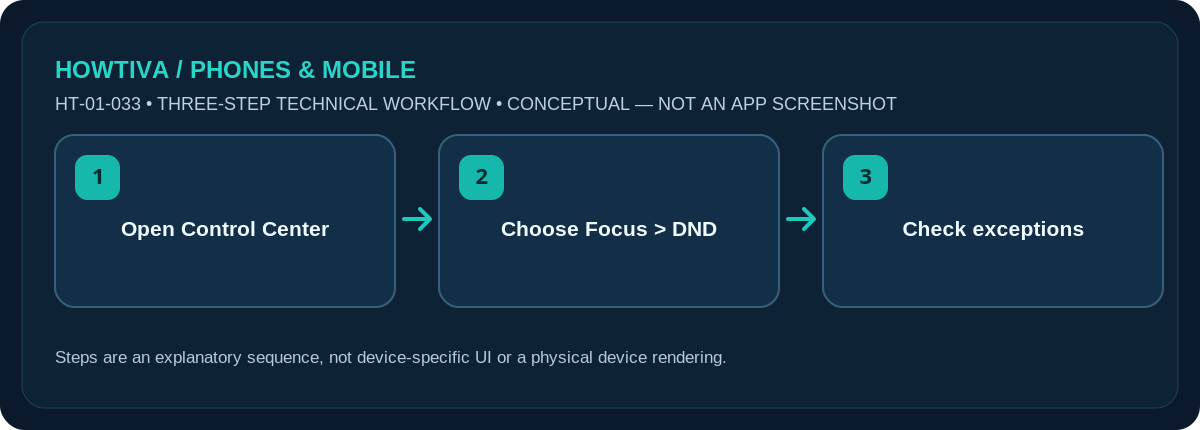
Open Control Center, tap Focus, then choose Do Not Disturb. To configure who can reach you, open Settings > Focus > Do Not Disturb and review People, Apps, and permitted interruptions.
Quick answer: Open Control Center, tap Focus, then choose Do Not Disturb. To configure who can reach you, open Settings > Focus > Do Not Disturb and review People, Apps, and permitted interruptions.
The Focus interface is available on supported modern iOS releases including iOS 26/27. Do Not Disturb silences selected interruptions; it does not switch off mobile service or block callers.
Switch on Do Not Disturb now
- Open Control Center: swipe down from the upper-right on Face ID models, or swipe up from the bottom on many older Home-button iPhones.
- Tap Focus. If another Focus is active, you may need to choose the Focus control before seeing the list.
- Select Do Not Disturb. Look for its status icon on the Lock Screen or status area to confirm that it is active.
- To end it, return to Control Center and tap the active Focus. For a temporary session, use the duration options (such as one hour) offered by the Focus control instead of forgetting to turn it off.
Let important people or apps through
Go to Settings > Focus > Do Not Disturb. Under allowed notifications, review People and Apps. You can allow specific contacts, or silence certain contacts, depending on how you configure the Focus. Check Time Sensitive Notifications and Repeated Calls options where present. A repeated call or a permitted app can still interrupt you, which is often intentional rather than a bug.
A Focus may also interact with Lock Screen choices and your other Apple devices if Share Across Devices is enabled. Check the current settings on the device you care about instead of assuming all of your devices will behave identically.
Schedule quiet hours and avoid surprises
Within the same Focus page, find Set a Schedule or Add Schedule to configure time, location or app-based activation, as supported by your iOS version. For predictable sleep, use the distinct Sleep Focus if you want its dedicated schedule and Health app integration. You can make Do Not Disturb manual-only by removing unwanted schedules.
Do Not Disturb does not guarantee that alarms, government/emergency alerts, permitted people, critical alerts, or every app behaviour will be completely silent. Verify emergency communications before relying on it during an on-call shift. Testing a permitted contact during ordinary conditions is safer than disabling all alerts blindly.
Choose between manual quiet time and a recurring Focus
For a meeting, a one-hour Do Not Disturb session is often easier to remember than editing a daily schedule. For regular quiet periods, a scheduled Focus avoids repeated manual toggles, but it can also activate unexpectedly when you travel or change work shifts. If you use multiple Focus profiles—Work, Sleep and Do Not Disturb—review each one’s allowed-people list separately. Activating one Focus does not guarantee all earlier Focus settings apply to it.
Important calls during quiet hours
Before relying on Do Not Disturb for a shift or overnight rest, consider whether family, childcare, on-call colleagues or medical providers must reach you. Configure the correct contact and permitted interruption rules in advance. If Share Focus Status is on, some people may see that notifications are silenced, but that status is not a confirmation that their message will be delivered at a particular time. Distinguish muting a notification from delaying or blocking its underlying message.
Troubleshooting and alternatives
- Still hearing calls: look at People, Repeat Calls and your active Focus rather than simply toggling the switch.
- Notifications vanish unexpectedly: another Focus may be running or syncing from an Apple device.
- Status icon is absent: reopen Control Center and check which Focus is actually selected.
- Want just one app quiet: change that app’s notification settings rather than applying Do Not Disturb to everything.
- Need ringing for an emergency contact: confirm the allowed person is listed with the right telephone number and test non-emergency calls before depending on it.
Frequently asked questions
Will my callers hear a busy tone?
Usually Do Not Disturb changes your device’s alerting, not the network call connection. Carrier and voicemail outcomes differ.
Is Do Not Disturb the same as Silent mode?
No. Silent mode primarily changes sounds; Focus offers conditional notification filtering and scheduling.
How do I make it stop automatically?
Select a temporary duration in Control Center or configure the Focus schedule in Settings.
Sources & Further Reading
- Apple iPhone User Guide: Turn on or schedule a Focus on iPhone (checked 2026-10-27)
- Apple iPhone User Guide: Allow or silence notifications for a Focus on iPhone (checked 2026-10-27)
Use the checklists as you go, and confirm the result before moving on to a more involved repair.