How to Uninstall Apps on a Mac
Quit the app, look for the developer’s dedicated Uninstall tool, and use it if supplied. Otherwise open Finder > Applications, move the app to Trash, and empty Trash only when sure.
Quick answer: Quit the app, look for the developer’s dedicated Uninstall tool, and use it if supplied. Otherwise open Finder > Applications, move the app to Trash, and empty Trash only when sure. Some built-in macOS apps cannot be deleted.
A Mac application often appears as a single icon in Applications, but it can also install helper tools, settings or background components. That is why the best removal method depends on the developer. Do not simply delete random folders from Library or System to “clean everything,” especially if you cannot tell which program owns them.
Before you remove any application
- Save and export important projects, templates, plug-ins or other documents created with the app.
- Quit the application with Command + Q while it is active. Wait for file exports or cloud synchronization to finish.
- Find the application in Finder > Applications. Apple notes that some apps can instead live in the Applications folder inside your home directory.
- Check for a developer-provided uninstaller. It might be beside the app, in its installation folder or available through the app’s own menu.
- If it has an official uninstaller, follow the prompts and review whether personal data will be kept.
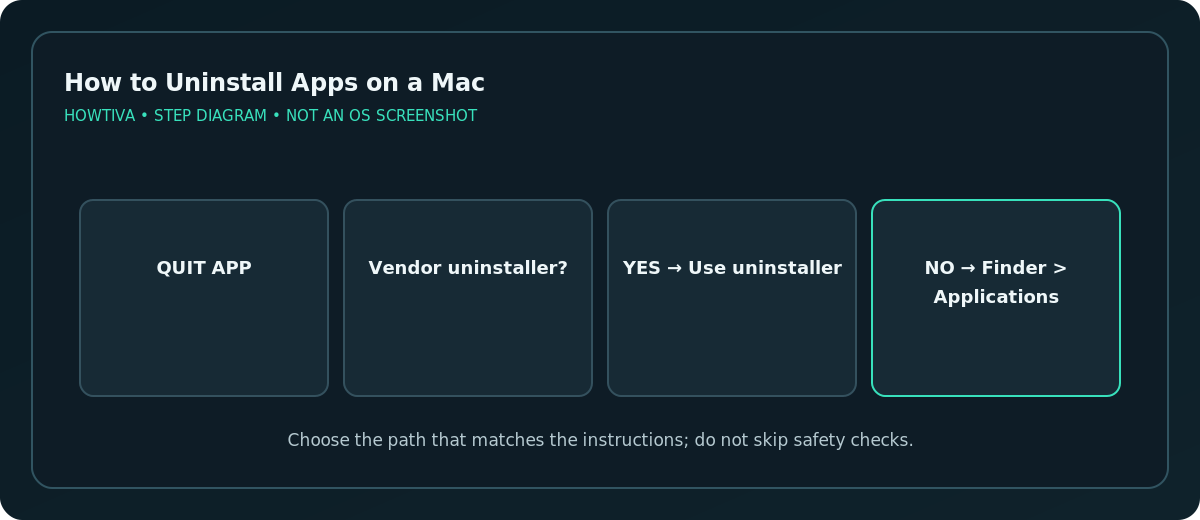
A vendor uninstaller is particularly useful when the app installed login items, extensions or components in more than one location. Obtain it through the vendor’s own support page if necessary, not a search ad.
Remove a standard app through Finder
- Open Finder and choose Applications from the sidebar or Go menu.
- Select the exact app you no longer need. If in doubt, choose File > Get Info and inspect the app’s name and location.
- Drag it to Trash, or choose File > Move to Trash.
- Enter an administrator username and password if macOS requests authorization.
- Verify the selected app was moved and that your remaining apps behave normally.
- When you are certain you no longer need to restore the app, select Finder > Empty Trash.
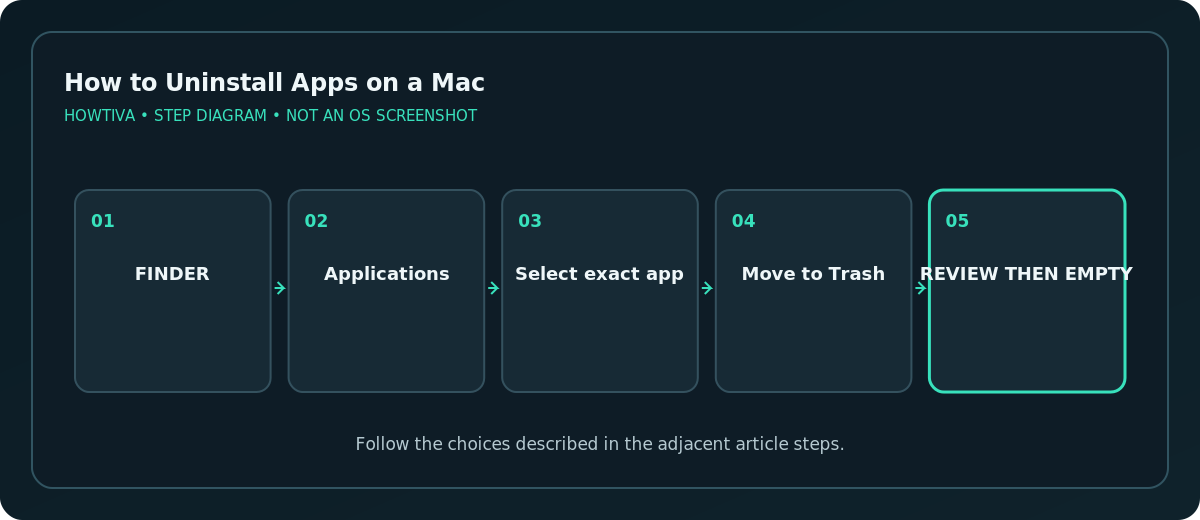
Moving a file to Trash is not permanent deletion until the Trash is emptied. It may provide a short opportunity to restore a mistakenly selected app. Do not empty the Trash while unsure about what else is inside it.
Understand what uninstalling does not remove
Apple explains that removing an app does not necessarily delete documents created with it and does not cancel its subscription. Your text documents, saved videos and exported work may remain. Conversely, if a project is stored only within an app-controlled database, access after uninstalling can be difficult without restoring the software. Export or back up first.
Some vendors leave cache or preference files behind even after the application is gone. These are not automatically dangerous. Avoid manual cleanup of ~/Library unless you have a documented reason and know exactly which files belong to the target app.
What if macOS says the app cannot be deleted?
If the app is in use, quit it and try again. Restart your Mac if it will not close; Apple also suggests Safe Mode for stubborn “in use” situations. You cannot remove many apps required by macOS from Finder, including numerous first-party applications and contents of the protected System folder. A managed work or school Mac may also prevent removal by policy.
If macOS asks for admin authorization and you do not have it, use an authorized administrator rather than attempting to bypass controls. Some software has its own service that must be stopped by the documented uninstaller.
Alternative: remove an App Store download
App Store apps also appear in the Applications folder and can usually be removed using the standard supported macOS method when they are not protected system apps. The specific layout of Launchpad and the newer Apps interface varies by macOS version, so Finder is a more consistent route to describe across supported systems. You can download a purchased app again if it remains available to your Apple Account.
Troubleshooting after uninstalling
- An app still starts at login: Check System Settings > General > Login Items & Extensions and remove the leftover entry when appropriate.
- The app’s files still occupy disk space: Inspect the Storage categories, documents and vendor’s cleanup instructions; do not assume the leftover files are safe to delete indiscriminately.
- A subscription charge continues: Cancel it with the seller or in Apple subscription settings, independently of uninstalling.
- You cannot open an old document: You may need to reinstall the original app or export to another format from a backup.
- The item cannot be moved to Trash: Confirm it is not a required macOS component or a managed application.
Frequently asked questions
Does deleting an app erase my account?
No. Many accounts live on the developer’s servers and must be closed separately if you want account deletion.
Can I remove built-in apps like Mail?
Apple states that many macOS-required apps, including Mail, cannot be deleted through Finder.
Do I have to empty Trash immediately?
No. Empty it when you have confirmed that all items in it can be permanently removed.
Sources & Further Reading
- Apple — Delete or uninstall apps on Mac — Finder deletion, vendor uninstaller, app limitations and subscriptions.
- Apple — Open items automatically when you log in on Mac — Login item management.
Use the checklists as you go, and confirm the result before moving on to a more involved repair.