How to Update Router Firmware Safely
Upgrade router firmware from an official source with exact model matching, secure backup and post-update checks.
Quick answer: Update your router’s firmware only through its official vendor app, authenticated management interface or the firmware download for the exact model, hardware revision and region. Back up settings when supported, use reliable power and a wired connection if recommended, and never interrupt an update in progress.
Router firmware updates may fix security vulnerabilities, stability defects and compatibility problems. A wrong image can damage equipment or prevent the router from booting. Some ISP-managed gateways update themselves and do not allow user-installed firmware: contact the provider rather than forcing another brand’s procedure.
Prepare before starting
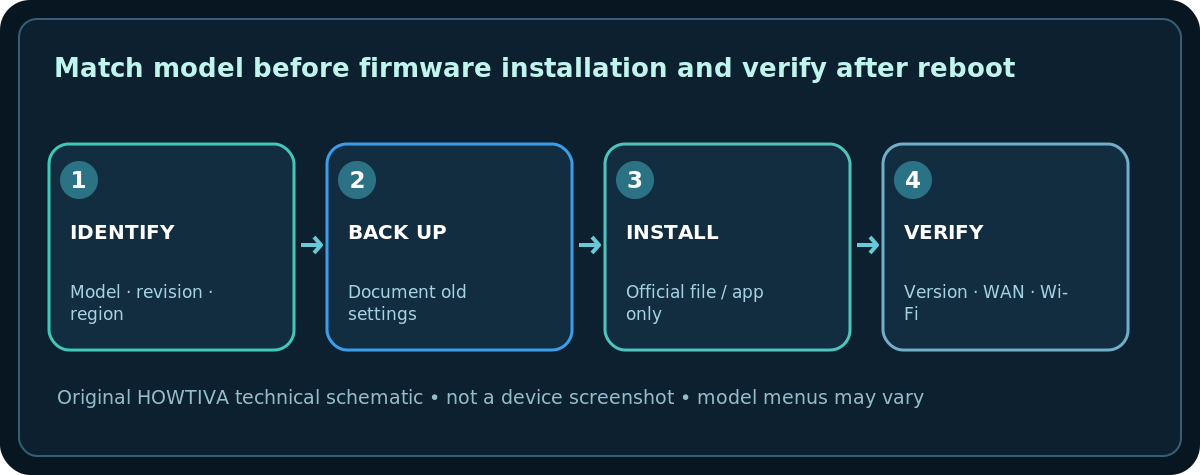
- Find the brand, model number, hardware version/revision, region and existing firmware version. The label and vendor administration page are common sources; note that TP-Link warns that hardware revisions and regions can have different firmware.
- Read the model-specific release notes and official upgrade guidance. Check whether the update needs intermediate versions, resets settings or changes features.
- Back up configuration using the vendor’s supported menu if offered. Store the backup securely because it can contain network information; do not publish it or upload it to unknown sites.
- Make sure your computer or phone remains charged and the router has stable power. Prefer Ethernet from a computer for manual firmware uploads where the manufacturer recommends it.
- Inform household members because internet, calls, cameras and smart-home equipment may be temporarily unavailable.
Method A: built-in official update
- Sign in to the router’s genuine local dashboard or official mobile app. Use your own saved bookmark or the address described in its manual.
- Find the vendor’s Firmware Update, System Update or similar screen. The menu path varies by model.
- Use Check for updates and examine the offered version and any release notes before selecting Update.
- Leave the router powered and the app/session alone while the firmware installs and the router reboots. Status messages and duration vary. Do not assume an apparent pause is a failure.
- After the router finishes, verify the firmware version, internet connectivity, Wi-Fi, mesh nodes and critical household devices.
Method B: manual download, only if supported
- Go directly to your router manufacturer’s official support/download site, choose your exact model and hardware revision and then the correct country or regional firmware. Do not use results from a forum mirror.
- Review vendor notes for compatibility, file format and any required archive extraction. TP-Link, for example, documents extracting the router firmware file before uploading it on supported manual-update models.
- In the router’s authenticated administration page, choose its documented manual firmware upload method and select the correctly matched file.
- Start the upgrade once and avoid closing power, unplugging Ethernet or attempting a factory reset while the device reports that installation is active.
- Confirm the new version. Restore settings only when the vendor specifically says the backed-up configuration is compatible; old backups may not be safe across major releases.
Troubleshooting and recovery boundaries
- No firmware update button: The model may have automatic updates, a different app or ISP management. Do not try to flash a similarly named model.
- File rejected: Recheck region, hardware revision, file extension and release notes. Do not rename an unrelated image to bypass checks.
- Update still appears active: Follow the manufacturer’s documented time and LED guidance. Power cycling mid-flash can cause failure.
- Settings changed afterward: Use the secure backup only if vendor instructions permit restoration. Otherwise manually restore known safe settings.
- Router no longer boots: Stop repeated attempts and consult the manufacturer’s recovery instructions/support. Do not invent a universal bootloader reset sequence.
- Security fix announced for a model no longer supported: Consider vendor lifecycle guidance; unsupported hardware may ultimately require replacement rather than unofficial firmware.
Protect the management account
Firmware maintenance is also a good point to confirm a unique administrator password, disable unnecessary remote administration, and review who has permission to manage the network. The router admin password is not the Wi-Fi network password. Never enter either password into a firmware download website.
Frequently asked questions
Can I use firmware for a similar model?
No. Match the exact model and revision. The same marketing name can represent different hardware internally.
Does updating always reset my Wi-Fi?
No, but release notes may warn that configuration is reset or migrated. Back up first where supported.
Can I turn off the router if progress seems frozen?
Not casually. Follow the vendor’s recovery procedure and do not interrupt a firmware write merely because the interface looks idle.
Sources & Further Reading
- TP-Link — How to Update Firmware on TP-Link Wi-Fi Routers (checked 2026-10-27).
- TP-Link — Find the firmware and hardware version (checked 2026-10-27).
- Federal Trade Commission — How To Secure Your Home Wi-Fi Network (checked 2026-10-27).
Use the checklists as you go, and confirm the result before moving on to a more involved repair.