How to Use Split View on a Mac
Open an app window, hover over its green window button, then choose Full Screen > Left of Screen or Full Screen > Right of Screen. Click a second window to fill the other side. The pair opens in its own desktop Space.
Quick answer: Open an app window, hover over its green window button, then choose Full Screen > Left of Screen or Full Screen > Right of Screen. Click a second window to fill the other side. The pair opens in its own desktop Space.
Split View is useful when you need reference material beside the document you are editing. Unlike ordinary side-by-side window tiling, Split View places the pair into a full-screen Space. Apple has changed the appearance and wording of its window controls across macOS releases; use the equivalent left/right full-screen tiling command shown on your Mac.
Put two apps into Split View
- Open both apps and make sure each has an ordinary, visible window. For example, open Safari with a reference page and Notes with the text you are writing.
- Move your pointer over the green button at the top-left of the first window. Do not immediately click it: hover to reveal available window actions.
- In the menu, choose Full Screen > Left of Screen (or Right of Screen). Some older macOS versions describe the action as Tile Window to Left/Right of Screen.
- Click the second available app window on the other side. The desktop becomes a paired full-screen workspace.
- Click either half to work inside that app; move the pointer to the top when you need the menu bar or window controls.
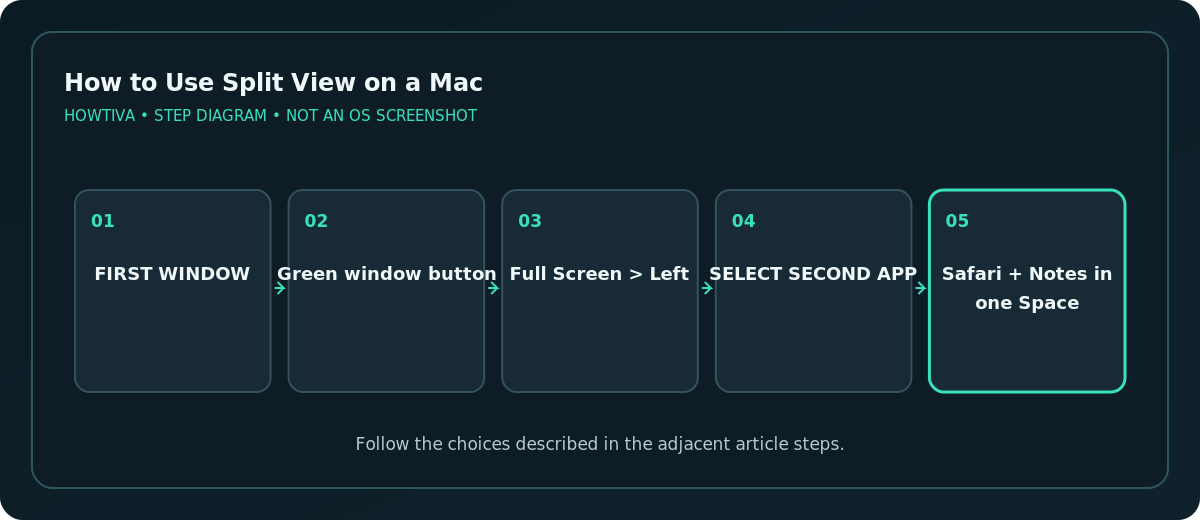
If the second app does not appear, check that it has an open window and supports Split View. Certain compact utility windows and apps that cannot be resized will not accept a tile. Return the first window to the desktop and try a different pair.
Resize and change the pair
Point at the divider between the two apps and drag it left or right. The visible resize range depends on the minimum width required by each app; a complex spreadsheet may resist an extremely narrow column. Double-click the divider to restore the normal balance when that option is available.
To switch the app on one side, activate that half, hover over its green button, choose Replace Tiled Window, and select the replacement window. To exchange sides, drag a window using its title or toolbar toward the opposite side. These changes affect your current workspace; your underlying documents remain open.
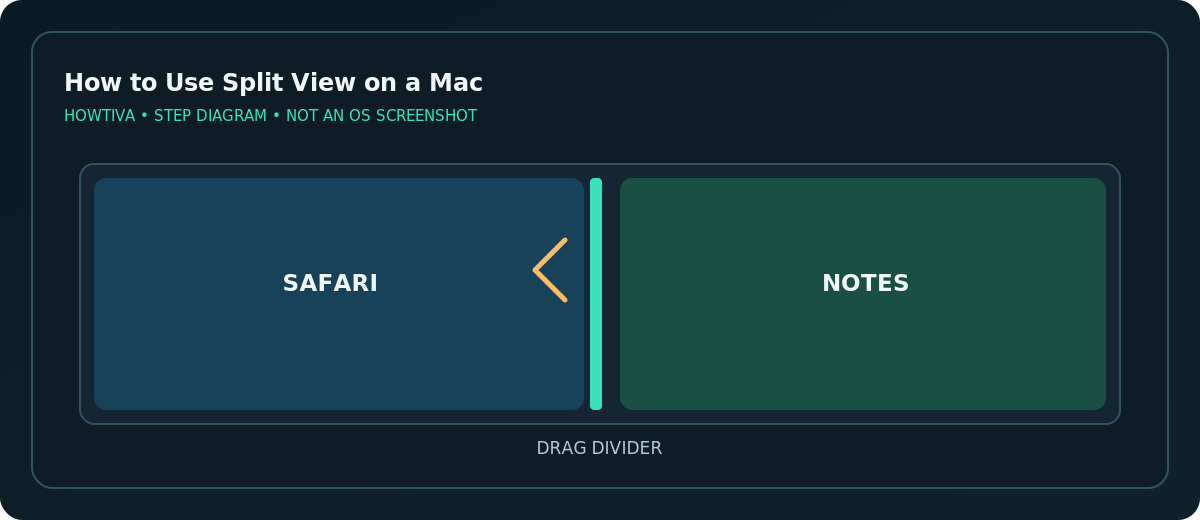
If you frequently compare a PDF and spreadsheet, a slightly wider spreadsheet side is usually easier to use. Keep the PDF at a readable zoom rather than trying to force two unreadably narrow windows onto a small display.
Leave Split View without losing your work
Move your pointer to the top-left corner of the app you want to remove. Hover over the green button and choose Move Window to Desktop to move that app out of the paired Space, or Make Window Full Screen to keep it in a separate full-screen view. The other app can remain full screen. To find it, open Mission Control with Control–Up Arrow (or your trackpad’s Mission Control gesture), then select its Space.
To use both windows normally on the desktop again, return each from its full-screen view. Closing a window is not required; exiting a display mode is different from quitting or deleting the app.
Alternative: tile ordinary windows on your desktop
On recent macOS versions, window tiling can place windows beside one another without entering a full-screen Space. This is a different feature from Split View. The green button’s menu, menu-bar Window commands, or dragging to a screen edge may offer tiling. Choose the ordinary tiling option when you want to keep the Dock, desktop and other windows readily available.
If instructions on another website say to drag windows onto one another in Mission Control, that is another supported way to arrange full-screen windows, but the green-button method is generally simpler for an initial setup.
Troubleshooting when the option is missing
- Green button shows only full screen: Confirm that you have a standard app window rather than a popup, dialog, or fixed-size utility. Try Safari and Notes to isolate the app limitation.
- No second window is offered: Open the second window first and ensure that it is not minimized or already part of a different full-screen workspace.
- External monitor doesn’t behave like a separate workspace: Check System Settings > Desktop & Dock and review Displays have separate Spaces. Apple requires that setting for Split View on other displays; a sign-out may be needed after changing certain display-space options.
- You cannot find your original desktop: Use Mission Control to select another Space. Split View is not a destructive operation.
- Keyboard shortcut advice does not match: Tiling and full-screen behavior differ between macOS releases and applications. Prefer the visible menu rather than assuming one shortcut works everywhere.
Frequently asked questions
Can I keep three apps in Split View?
Split View is a two-window arrangement. Use normal window tiling or several Spaces if you need three or more windows visible or organized.
Does Split View work with different monitors?
Yes, where the display has its own Spaces and the apps support Split View. Confirm the separate-Spaces setting for additional displays.
Will exiting Split View close my documents?
No. It changes the placement and full-screen state of app windows, not the contents of your documents. Save your work normally before making major changes.
Sources & Further Reading
- Apple — Use apps in Split View on Mac — Green button, full-screen left/right, resize, swap, exit, and display Spaces.
- Apple — Tile windows on Mac — Ordinary tiling distinction.
Use the checklists as you go, and confirm the result before moving on to a more involved repair.