How to Use SUMIF in Excel
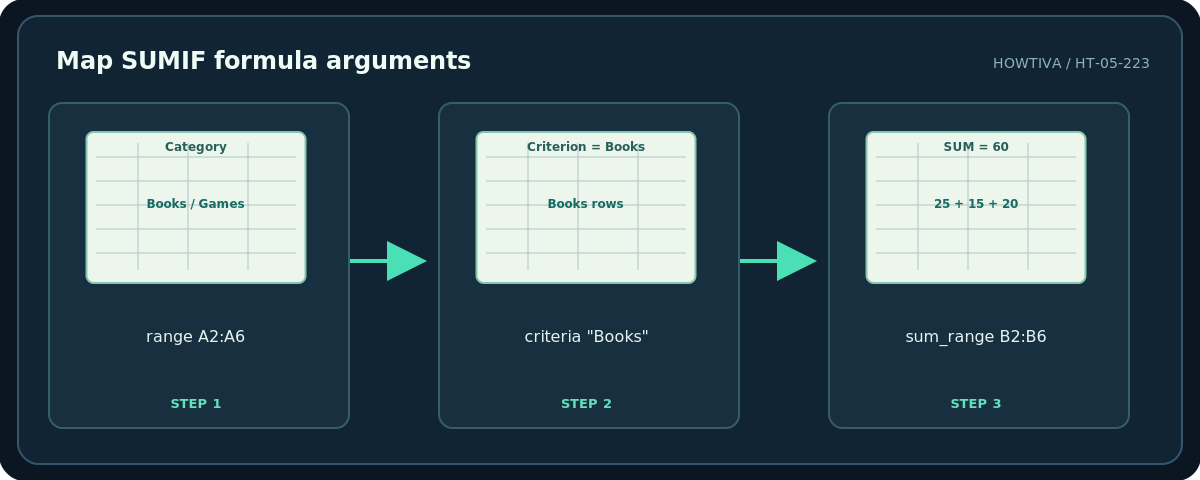
Use =SUMIF(range, criteria, [sum_range]) to add numbers only for rows whose criterion matches. For example, if column A contains product categories and column B contains sales amounts, =SUMIF(A2:A6,"Books",B2:B6) adds only the amounts in rows where column A equals Books.
Quick answer: Use =SUMIF(range, criteria, [sum_range]) to add numbers only for rows whose criterion matches. For example, if column A contains product categories and column B contains sales amounts, =SUMIF(A2:A6,"Books",B2:B6) adds only the amounts in rows where column A equals Books. Use SUMIFS when you must satisfy more than one independent condition.
The order is important: the first argument is the range Excel examines; the second is the test; the optional third is the numbers it sums. If you omit sum_range, Excel sums the matching cells in range itself when those contain numeric values.
Step 1: Enter a worked example
In a blank sheet type the sample below. These are illustrative numbers, not real sales data.
| Row | A: Category | B: Sales |
|---|---|---|
| 2 | Books | 25 |
| 3 | Games | 40 |
| 4 | Books | 15 |
| 5 | Music | 10 |
| 6 | Books | 20 |
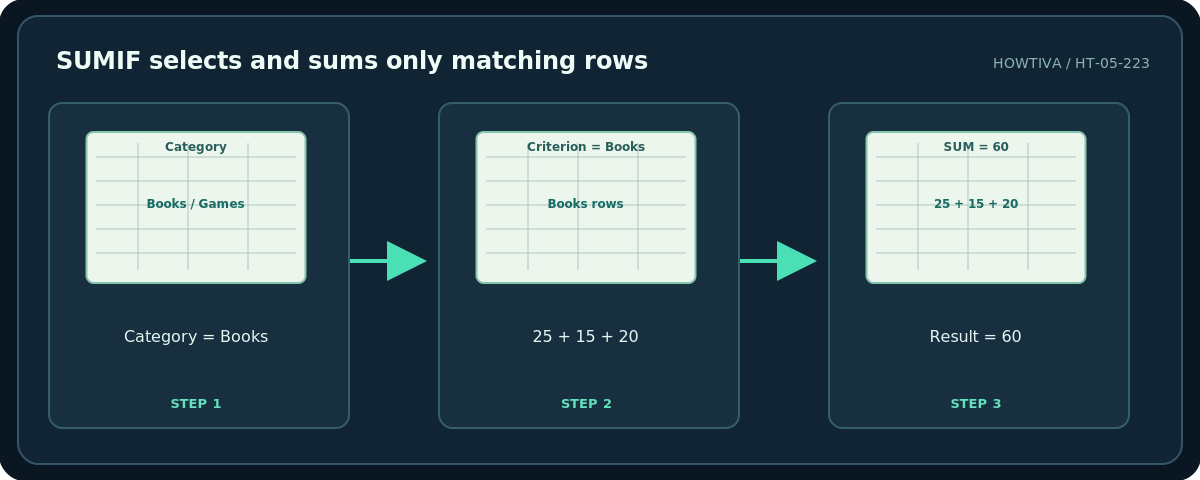
In an empty cell, enter =SUMIF(A2:A6,"Books",B2:B6). The intended result is 60 because the Books amounts are 25 + 15 + 20. Change one Books category to Games and check how the answer updates. This makes the conditional logic visible before you apply it to thousands of rows.
Step 2: Use a cell reference instead of hard-coded text
Put Books in D2 and use =SUMIF(A2:A6,D2,B2:B6). You can then change D2 to Games and get 40 without editing the formula. In a report, show the criterion cell clearly so the reader knows what the total represents. If your Excel uses semicolons as argument separators because of regional settings, adapt the separators while retaining the same argument order.
Step 3: Match numeric thresholds and wildcards
For an amount-only range, =SUMIF(B2:B6,">20") totals sales strictly greater than 20, which here equals 25 + 40 = 65. The comparison needs quotation marks. =SUMIF(A2:A6,"B*",B2:B6) totals categories beginning with B, which matches Books in this sample. An asterisk stands for any sequence of characters; a question mark matches exactly one character. To search for a literal wildcard, prefix it with a tilde (~).
Step 4: Check sum ranges and data types
Keep range and sum_range aligned: for ordinary one-row-per-record data, the evaluated rows must correspond to the numbers being added. Prefer equal-size explicit ranges, such as A2:A100 and B2:B100. Totals can be misleading if imported numeric values are actually stored as text. Check with a small sample calculation using normal SUM and inspect the cell format or raw value.
For dates, compare real Excel date serial values rather than unreliable text labels. For a condition such as an amount threshold held in F2, use ">"&F2 as the criterion so the operator joins to the numeric value in F2. Consider using an Excel table so formulas reference named columns as the data grows.
Alternatives and important limitations
Multiple criteria: use SUMIFS, not several SUMIF conditions pasted together. Microsoft explicitly documents SUMIFS for rows that satisfy multiple criteria; its syntax places sum_range first, unlike SUMIF.
Summarizing multiple categories: a PivotTable may be more convenient than duplicating many SUMIF formulas and manually tracking source changes. A PivotTable needs refresh after the source is updated.
Large text conditions: Microsoft warns of SUMIF mismatches for strings longer than 255 characters. Short normalized category codes are more reliable than huge descriptive fields.
Troubleshooting
Result is zero. Confirm the category spelling and spaces, inspect whether sales are numeric, and ensure the criteria and amounts refer to the same rows.
Result is too large. Verify whether blank or broad wildcard criteria match more rows than intended, and whether there are unexpected extra records in the range.
Excel reports an error. Check quotation marks, parentheses, locale argument separators and matched range dimensions. Do not silently change formulas without recording the intended total.
Frequently asked questions
Is SUMIF case-sensitive?
The function’s standard text matching is not case-sensitive. Use a different approach if case differences are meaningful identifiers.
Do criteria in quotes always mean text?
Operators such as ">20" must be quoted; numeric criteria can also be provided as bare numbers or cell references.
What if I need two conditions?
Use SUMIFS with the relevant criteria ranges and criteria; review its different argument order.
Sources & Further Reading
- Microsoft — SUMIF function — Syntax, criteria, wildcards, 255-character caveat and SUMIFS recommendation.
- Microsoft — SUM function — Basic SUM behavior and numeric checks.
- Microsoft — SUMIFS function — Different multi-condition syntax.
Use the checklists as you go, and confirm the result before moving on to a more involved repair.