How to Zip and Unzip Files on a Mac
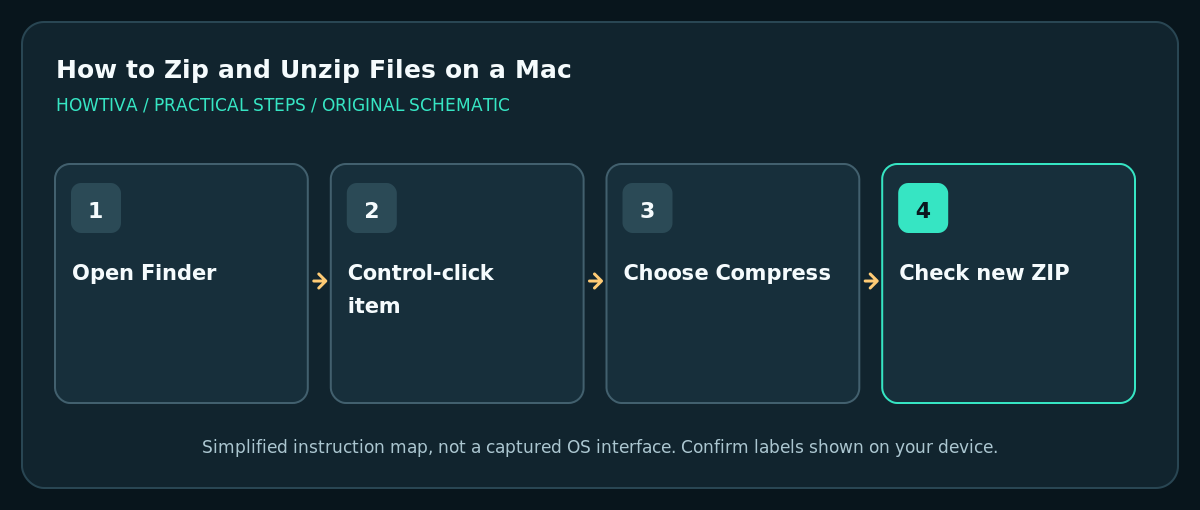
To create a ZIP, select a file or folder in Finder, Control-click, then choose Compress. To unpack a ZIP, double-click the.zip file.
Quick answer: To create a ZIP, select a file or folder in Finder, Control-click, then choose Compress. To unpack a ZIP, double-click the .zip file. Finder normally puts extracted content in the same folder as the archive; check that the files are complete before removing the original.
macOS has built-in compression and expansion support, so you generally do not need an extra utility for a normal ZIP archive. A ZIP is useful when sending several files together, but it is not automatically encrypted. These Finder instructions apply to current macOS releases, while menu presentation may differ on older versions and alternative file-management apps.
Create a ZIP from one file or folder
- Open Finder and browse to the folder containing the item. Before compressing, confirm that the source opens normally and is available locally rather than only as an iCloud download placeholder.
- Select the file or folder. Control-click it (or right-click using a mouse or two-finger trackpad click). Finder should display a shortcut menu.
- Choose Compress followed by the selected item’s name, or the equivalent Compress command shown in your version. macOS creates a new
.zipfile in that location. - Rename the ZIP to something meaningful while leaving the
.zipextension intact. For example,Client-Handoff-2026.zipis clearer than an unexplainedArchive.zip. - Double-click or use the Finder preview to inspect what you can, and for important transfers extract a test copy in a separate folder. Confirm the filenames and folders you meant to include.
Compress several items together
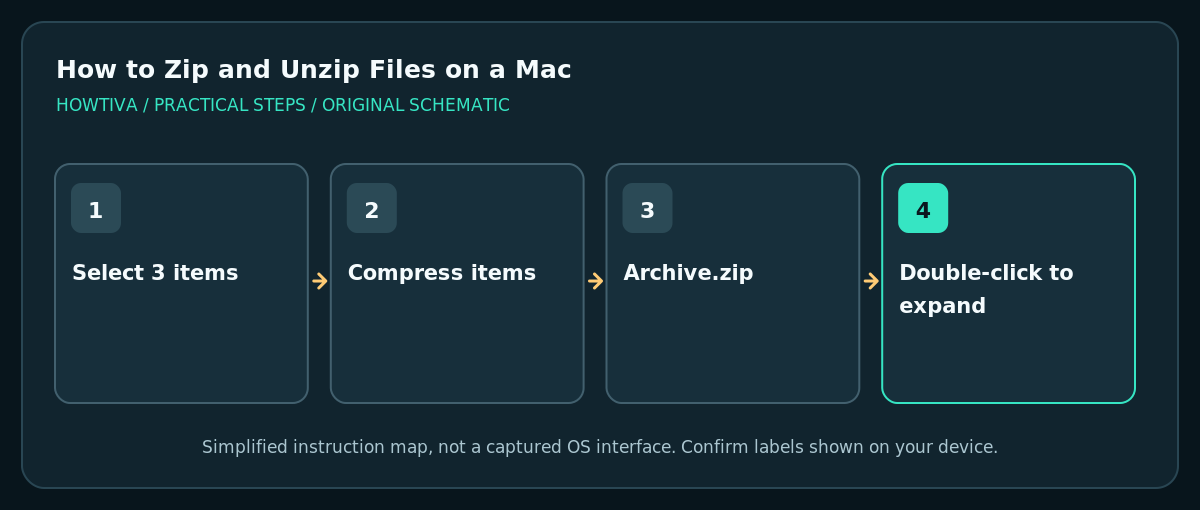
- In Finder, hold Command while clicking separate files and folders, or use Shift to select a range. Avoid accidentally selecting an unrelated item, especially one containing personal information.
- Control-click the selection and choose Compress [number] Items or similar wording. Apple documents that a multi-item ZIP is typically created with the name
Archive.zip. - Rename it before sending, and verify that it includes each intended item. Compressing several loose files does not guarantee a neatly named top-level folder; if that matters, put them in one parent folder first and compress the folder.
- Keep originals where they are until the receiver confirms the ZIP worked. A compressed archive is not a versioned backup system and can be deleted accidentally like any other file.
Unzip with Finder
Find the .zip in Finder and double-click it. macOS expands the contents into the same folder by default. The extracted item may have the same base name without .zip. Compare its contents with what you expected, and move the extracted folder to your intended destination. If a similarly named folder already exists, review both rather than deleting one without checking.
Differences and security limits
- Compression does not protect files with a password by default. Finder’s ordinary Compress action is not a substitute for encrypted storage or secure transfer.
- ZIP file size can remain close to the originals for JPEG photos, movies and other previously compressed data. Packaging convenience does not imply major space savings.
- The built-in Archive Utility and Finder are suitable for typical ZIPs, but password-protected, damaged or unusual archives can require format-specific tools. Obtain the correct tool from its official distributor only.
- Files inside an unfamiliar archive can still be unsafe. Do not launch unexpected apps, installers or scripts without verifying where they came from.
Troubleshooting
Double-clicking ZIP does not unpack it
Make sure it is actually a .zip, not a differently formatted file that was renamed. Check available disk space; Apple says insufficient space can prevent expansion. Copy it to a normal local folder and try again. If the ZIP came from a sender, ask for a fresh archive if the file appears corrupt.
Archive.zip already exists
Finder may offer a different name or request resolution. Do not overwrite a previous archive without identifying it. Move the older file into an appropriately named folder or rename it first, then create the new ZIP and verify both.
The compressed ZIP is almost the same size
That is common with already compressed material. Use ZIP to combine the files, not as proof that substantial storage has been saved. For large transfers, compare the archive with any service attachment-size limits.
An extracted file won’t open
It might rely on another part of the archive, be damaged or require software that is not installed. Preserve the complete extracted folder. Check the file extension and the legitimate file creator before installing anything.
Frequently asked questions
Where does the unzipped folder go?
Normally beside the ZIP in Finder. If you cannot find it, sort the directory by Date Added or search for the archive’s base name; avoid assuming the file was erased.
Can I compress an entire folder structure?
Yes. Select the parent folder and choose Compress. Keeping the parent folder makes it easier for recipients to unpack one organized project tree.
Should I delete the ZIP after extraction?
Only when you have verified the extracted files and know you no longer need the archive. Deleting the ZIP does not normally delete copies that were successfully extracted.
Sources & Further Reading
- Apple — Zip and unzip files and folders on Mac — Finder Compress and double-click extraction, naming of Archive.zip, space and corrupt-file cautions.
- Apple — Change settings in Finder on Mac — Finder interface context; secondary reference.
Use the checklists as you go, and confirm the result before moving on to a more involved repair.