How to Stop Unwanted Notifications on Android
Open Settings > Notifications > App notifications, select the noisy app and turn its notifications off. If the app offers categories, disable only the unwanted category rather than silencing messages you actually need.
Quick answer: Open Settings > Notifications > App notifications, select the noisy app and turn its notifications off. If the app offers categories, disable only the unwanted category rather than silencing messages you actually need. You can also touch and hold an existing notification and tap its settings shortcut.
Android manufacturers reorganise these menus. Google’s help gives the common path, but Samsung, Pixel and other brands may label a section Notifications, Manage notifications or Notification categories.
Stop one app’s alerts from Settings
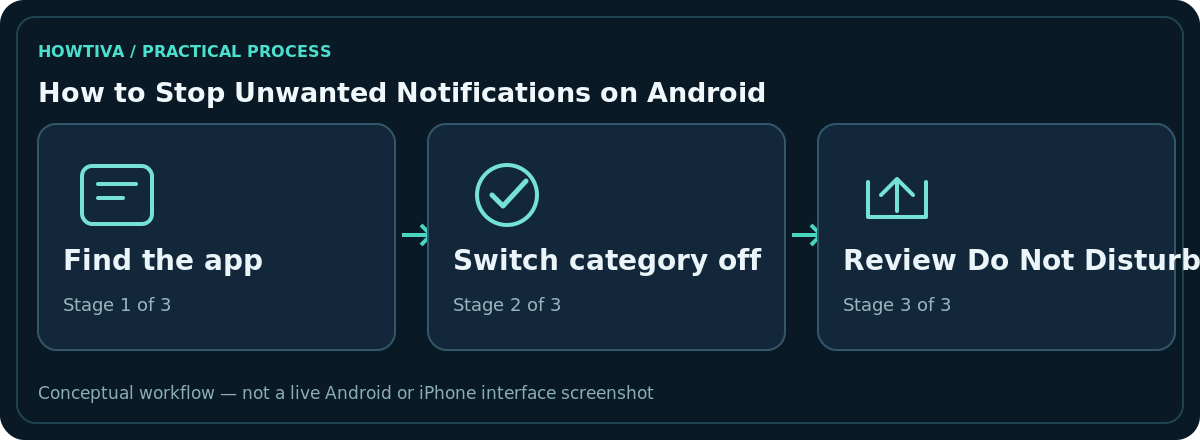
- Open Settings, then Notifications.
- Choose App notifications. Use the recent-app list or switch to All apps where offered.
- Tap the offending app. Turn off its main notifications switch if you want silence from that entire app.
- If categories are shown, leave the overall switch on and disable only promotional, social or other unneeded types.
- Return to your normal screen and check whether the unwanted alert type stops appearing.
Do not disable every app without reviewing critical services. Calendar reminders, security notices, calls and accessibility notifications can be important and may come from multiple apps.
Use the notification itself as a shortcut
Swipe down from the top of the phone to show notifications. Touch and hold the unwanted notification, then tap Settings or its notification-management control. On phones that display several categories, this method can open the correct category directly. Check the name and icon before switching it off; some advertisements arrive from a browser rather than the app they mention.
If the notification no longer exists, open the app’s settings manually or wait for another example. Avoid granting additional ‘notification manager’ permissions to an unknown cleaning app just to access these built-in controls.
Prefer category-level changes when possible
Many apps separate direct messages, marketing, downloads, reminders and service notices. Turn off marketing first while keeping account security and expected delivery updates. Android may offer Silent, sound, vibration, badge or Lock Screen display options for a category. Choosing Silent is often better than fully blocking an app whose messages you still want to see later.
Not all apps implement meaningful categories. If categories are missing, check the application’s own notification preferences for newsletters and marketing choices. On some Galaxy releases, notification-category visibility depends on Samsung’s notification settings; do not invent a universal switch name.
Control interruptions temporarily with Do Not Disturb
If you want quiet at night, during meetings or while studying, Android’s Do Not Disturb can be a better fit than turning app notifications off permanently. Open Settings and search for Do Not Disturb or Modes; then review your selected people, alarms and app exceptions. Exact scheduling controls depend on Android version and manufacturer.
Do Not Disturb reduces interruptions but it may not suppress every alarm or urgent function. Test essential contact exceptions with a trusted person before relying on the schedule. Never assume a silent phone is blocking callers or stopping messages entirely.
Track down a stubborn notification
Look at the small source label and open App info from the notification when available. If it comes from Chrome or another browser, examine that browser’s website notification permissions. If an app sends notifications under a different name after reinstalling or updating, repeat the settings review. Restarting is reasonable for a stuck alert but does not replace correcting permissions.
If notifications come from a suspicious app you do not recognise, inspect recently installed apps, remove untrusted software safely and review permissions. Do not click links inside suspicious alerts while investigating.
Distinguish the sound from the message
A notification can be delivered silently or appear on the Lock Screen without sound, depending on the app category and Android release. If the message is useful but the buzzing is distracting, set its category to Silent or disable vibration and sound rather than turning the entire application off. The notification can still be available for later review. This is useful for order updates, forums and passive status information.
If a work profile is enabled, check whether the alert originates from a work copy of the app. Work and personal apps can use the same icon but have separate rules. A work administrator may also restrict your available settings; do not attempt to disable essential security warnings by installing a third-party notification utility.
Investigate alerts from browsers
If a random shopping or prize promotion pops up, the origin may be a website previously allowed to send notifications through Chrome, Samsung Internet or another browser. Muting an unrelated retail app will not stop it. Open the browser’s own Site settings > Notifications or equivalent documented menu and revoke the site’s permission. Do not tap a suspicious notification to ‘unsubscribe’ if it links to an untrusted page; use Settings instead.
Frequently asked questions
Will blocking notifications uninstall the app?
No. The application stays installed; its notification permission or category delivery is changed.
Can I mute marketing but still receive chat messages?
Yes, if the app exposes separate categories or its own granular settings.
Why does a website send notifications even after I mute its app?
Browser website notifications may be managed by Chrome or another browser, not by the site’s native app.
Do notification settings sync across all my phones?
Do not rely on that. Check each device and profile where you receive the alerts.
Sources & Further Reading
- Control notifications on Android — Android Help; checked 2026-10-27.
Use the checklists as you go, and confirm the result before moving on to a more involved repair.