How to Schedule Do Not Disturb on Android
On many recent Pixel phones, open Settings > Modes and configure Do Not Disturb or Bedtime scheduling. On Samsung Galaxy phones, use Settings > Notifications > Do not disturb > Add schedule. Menu names differ across Android releases.
Quick answer: On many recent Pixel phones, open Settings > Modes and configure Do Not Disturb or Bedtime scheduling. On Samsung Galaxy phones, use Settings > Notifications > Do not disturb > Add schedule. Menu names differ across Android releases.
Google documents some Modes screens for Android 14+, while Samsung uses its own One UI settings. Always confirm the scheduled days, start/end times and emergency contact exceptions.
Set a repeating schedule on Samsung Galaxy
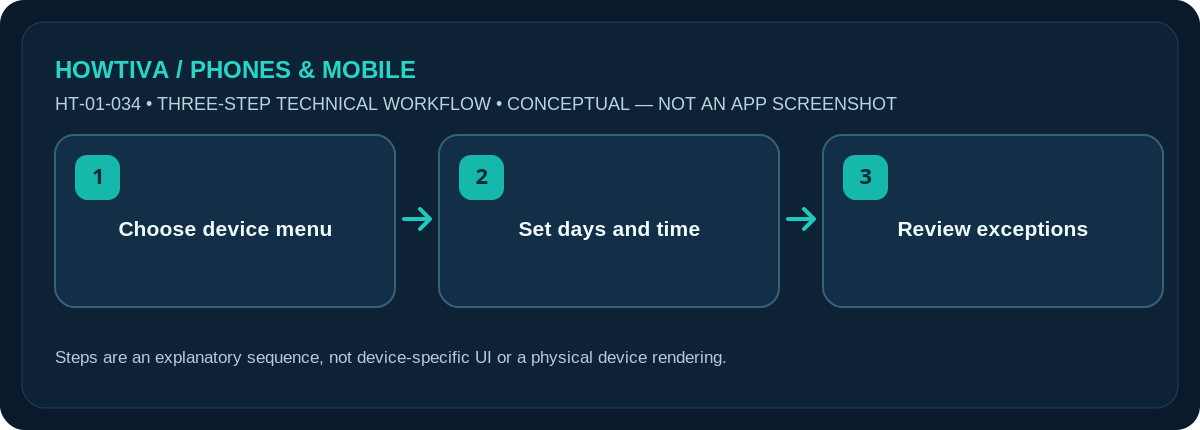
- Open Settings > Notifications > Do not disturb on a supported Galaxy phone.
- Tap Add schedule. On older Samsung releases, choose Turn on as scheduled and then add a schedule instead.
- Give the rule a recognisable name, such as Work nights. Select the days, start time and end time. Review AM/PM carefully if your phone uses a 12-hour clock.
- Save it and verify the schedule appears enabled. Check Allowed during Do not disturb for calls, messages, alarms and selected apps before relying on it.
Pixel and other Android phones
On current Pixel software, Settings > Modes includes Do Not Disturb and Bedtime. For a nightly routine, open Bedtime > Set up Bedtime, choose a schedule, and decide whether it should also activate during charging. Google also documents custom modes with optional time ranges on supported versions. Some devices still expose Settings > Sound & vibration > Do Not Disturb > Schedules or similarly named controls. These are alternatives, not a single universal Android path.
A schedule is only useful when its exceptions fit your needs. Look through the People/Calls, Apps, Alarms and other allowed-interruptions controls. Many phones support repeat-caller exceptions; these differ by manufacturer and should not be assumed enabled. Consider calls from healthcare providers or family if missing an urgent call would matter.
Check that the rule fires on the right day
Use a near-future, low-risk test schedule: enable it for a short period when you do not need to be reachable, wait for activation, then verify the Do Not Disturb indicator. Restore your intended schedule afterward. Check the phone’s clock, time zone and daylight-saving settings if a schedule activates an hour late after travel. Bedtime and a separate Do Not Disturb rule can overlap; understand which one supplies the active notification filters.
Example: an overnight schedule with a changing shift
Suppose you want quiet hours from 23:00 to 07:00 only on weekdays. Select the days carefully and confirm the phone interprets the end time on the following morning. A Monday-night rule may affect early Tuesday as well, but implementations differ. If you work rotating shifts, a rigid seven-day schedule may be counterproductive; consider a manual mode or a calendar-aware routine only if your specific phone supports it.
Avoid silencing safety-relevant notifications by mistake
Do Not Disturb lets you adjust which contacts, apps and alarms interrupt you. Check these before activating a bedtime or work rule. Repeated-call exceptions may allow a persistent caller to reach you, and an app’s high-priority notifications can still appear under some configurations. This is a feature of exception rules rather than proof the schedule failed. Keep a visible checklist of the mode’s expected behaviour for the first few days after setup. After a time-zone change, inspect the next automatic activation instead of trusting an old schedule blindly.
Troubleshooting and alternatives
- No Add schedule: try Settings search for Do Not Disturb, Modes or Bedtime. One UI and Pixel are not identical.
- Calls get through: review exceptions and repeated-call settings; DND is not a call-blocking service.
- Nothing happens at the scheduled hour: check day selection, time format, rule toggle and time zone; briefly test a manual DND activation.
- Different device, different controls: use the manufacturer’s online manual rather than a guessed menu path.
- Only want sleep protection: consider Bedtime mode; it may combine screen options with notification filters.
Frequently asked questions
Can a schedule cross midnight?
Many devices support an evening start and morning end. Verify day selections and run a test, especially for overnight shift routines.
Does DND turn off wireless emergency alerts?
Do not assume that it does. Emergency alerts and alarms can follow separate system-level rules.
Can I make more than one schedule?
Samsung explicitly supports multiple schedules; supported Android Modes behaviour varies by version.
Sources & Further Reading
- Android Help: Limit interruptions with Modes & Do Not Disturb on Android (checked 2026-10-27)
- Samsung Support: Use Do not disturb mode on your Galaxy phone (checked 2026-10-27)
Use the checklists as you go, and confirm the result before moving on to a more involved repair.