How to Set Up Emergency Contacts on Android
On many Android phones open Settings > Safety & emergency > Emergency contacts. On a Pixel, the Personal Safety/Safety app also lets you edit emergency contacts and choose whether emergency information is available from the Lock Screen.
Quick answer: On many Android phones open Settings > Safety & emergency > Emergency contacts. On a Pixel, the Personal Safety/Safety app also lets you edit emergency contacts and choose whether emergency information is available from the Lock Screen. Samsung Galaxy uses Settings > Safety and emergency > Emergency contacts.
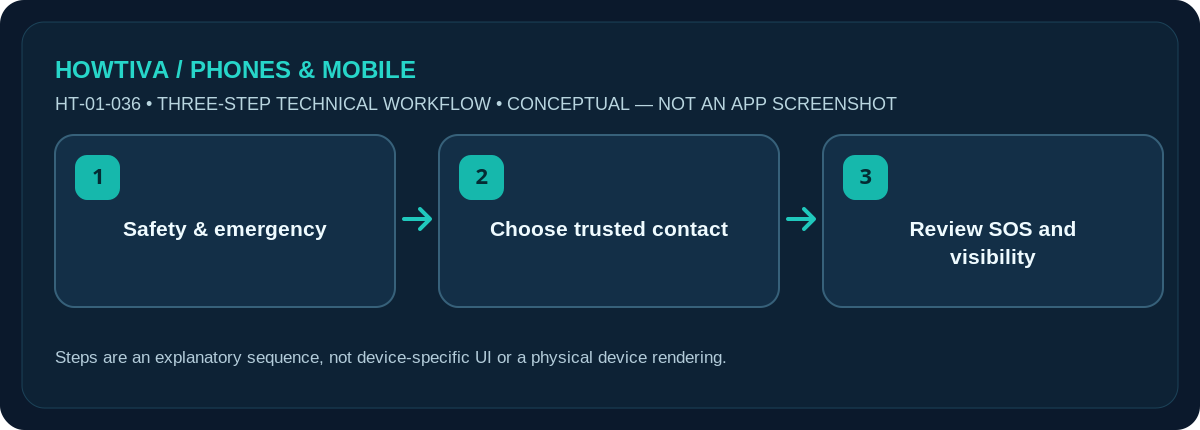
Android emergency features depend on phone maker, version and country. Adding a contact does not necessarily configure Emergency SOS, location sharing or automatic messages.
Set contacts on a Google Pixel or supported Android phone
- Open the Safety or Personal Safety app, if available. Google’s current help describes Safety > Your info > Emergency contacts > Add contact on supported phones.
- Choose a trusted person from your existing Contacts list. Add a number you know can receive a call or message in your country.
- Decide whether to enable Emergency info access / Show when locked. This exposes selected emergency information to somebody who can reach the emergency screen even when the phone is locked.
- Check any Medical information fields separately. Save and review them after a medication or allergy change.
- If your phone has no Safety app, search Settings for Safety & emergency or Emergency information; do not assume a Pixel menu applies to your brand.
Samsung Galaxy instructions
Samsung documents Settings > Safety and emergency > Emergency contacts > Add emergency contact on supported Galaxy devices. Select contacts and finish with Done. You can manage separate Medical info fields on the same Safety and emergency screen. Some releases provide a Show on Lock screen option. Look at the actual text before turning it on, because it changes who can view the information without unlocking your device.
If you cannot locate the menu, check your manufacturer’s support site using your phone model and software version. A managed work phone may have administrator restrictions. Adding contacts to your normal address book without placing them in the emergency-information list is not equivalent.
Decide whether to configure Emergency SOS too
Google’s Emergency SOS setup on supported Android 12+ phones can include emergency calling, selected-contact notifications and location sharing. It is a separate workflow under Settings > Safety & emergency > Emergency SOS and its availability varies. Select the correct regional emergency number; do not copy a number from an unrelated country’s guide. Some emergency-sharing functions require an internet connection, and Google warns certain SOS actions do not work in Airplane mode or Battery Saver.
Explain the arrangement to the people listed. Tell them how to identify a genuine alert and whether they should try calling you or emergency services. Do not stage an emergency call to test the feature. You can review the lock-screen information and the setup screen without triggering it.
What another person can actually see
On supported phones, an Emergency information option may appear on the locked device’s emergency dialler. It is intended to give responders a way to contact someone or read vital information without a passcode. The appearance differs across Pixel, Galaxy and other brands. Review the displayed screen without making a call, then decide whether your listed information is appropriate for public lock-screen access.
If you use both a work profile and personal profile, confirm you selected contacts reachable outside your work organisation. A colleague whose number is accessible only through a corporate address book may not be useful in a genuine emergency. Keep important numbers current after changing SIM, phone or country, and tell your listed contacts if you configure automatic location updates. Emergency notification delivery should never be your only plan for reaching local emergency services.
Troubleshooting and alternatives
- Safety app absent: use Settings search or the device maker’s documentation; installing an unrelated app is not required.
- Contact not available: save their telephone number properly in the Contacts app first.
- No information on Lock Screen: recheck visibility and test the normal Emergency information view without placing a call.
- Location not shared: permissions, internet access, app support and region matter; emergency information is not live location sharing.
- Incorrect region or number: review the SOS configuration and local emergency-service guidance.
Frequently asked questions
Can I add emergency contacts without a SIM?
You may be able to store and display emergency details without a SIM, but calling selected contacts generally needs available communications service.
Will my friends get a message immediately when I add them?
No. Merely listing a contact does not ordinarily send them an alert. SOS sharing is configured separately.
Is lock-screen access secure?
It deliberately permits limited emergency information to be seen without unlocking. You decide what details are worth exposing.
Sources & Further Reading
- Android Help: Get help during an emergency with your Android phone (checked 2026-10-27)
- Samsung Support: Use your Galaxy phone or tablet in emergency situations (checked 2026-10-27)
Use the checklists as you go, and confirm the result before moving on to a more involved repair.