How to Check Battery Health on iPhone
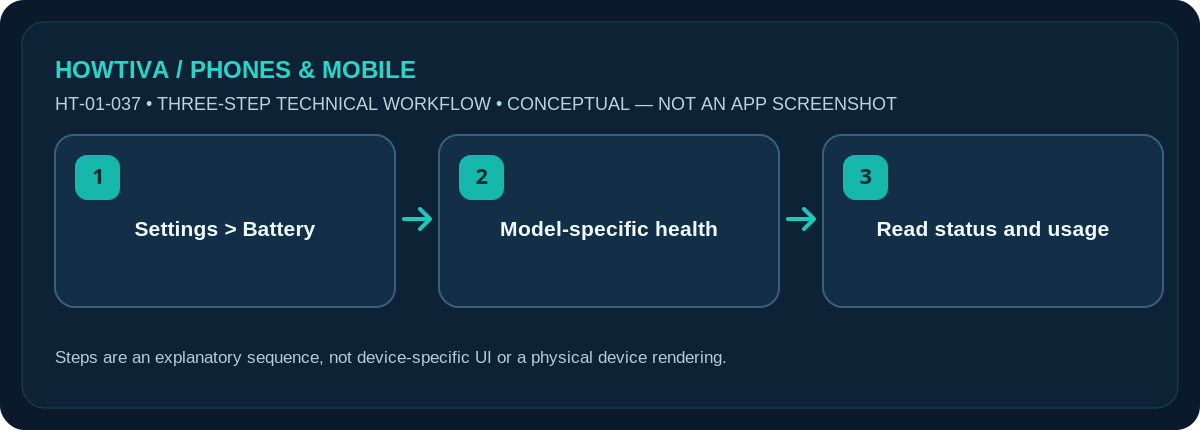
Open Settings > Battery. On iPhone 15 and newer, tap Battery Health; on iPhone 14 and earlier supported models, tap Battery Health & Charging.
Quick answer: Open Settings > Battery. On iPhone 15 and newer, tap Battery Health; on iPhone 14 and earlier supported models, tap Battery Health & Charging. Read Maximum Capacity and any service recommendation rather than judging the battery only from today’s charge percentage.
Apple exposes different diagnostics by device and iOS version. Cycle-count/manufacture-date details are documented for iPhone 15+ on iOS 17.4+, not for every older iPhone.
Find the correct battery-health screen
- Open Settings, scroll to Battery, and look at the available battery information.
- If you have an iPhone 15 or later, open Battery Health. Apple documents maximum capacity, cycle count and relevant battery information on supported newer models, subject to software version.
- For an iPhone 11–14 or older supported battery-health model, choose Battery Health & Charging where available. You may see Maximum Capacity, performance messages or service guidance, but not the same cycle-count panel.
- Read the capacity value and status text together. Battery health is not the same as the current charge shown as a percentage in the status bar.
- If Apple recommends service or reports an important battery message, consider an authorised service assessment; don’t open the phone or attempt to replace a glued-in battery without appropriate training.
What Maximum Capacity and cycle count mean
Maximum Capacity is an estimate of how much charge the battery holds relative to its capacity when new under Apple’s measurements. All rechargeable batteries wear with age, heat and use. A value below 100% is not by itself a diagnosis of a fault, and the percentage does not predict exactly how many hours your particular phone will run. Screen brightness, signal strength, temperature and demanding apps can drastically change day-to-day endurance.
A cycle count measures cumulative battery usage equivalent to a full battery’s capacity, not simply the number of times you plugged in a charger. Apple’s cycle-count display is not universally available on older hardware. Do not install an unknown diagnostic app solely to force an extra metric; it may provide misleading estimates.
Check whether the real problem is daily battery drain
On Settings > Battery, examine the battery-usage graph and the apps or activities using power. A high-use app may be legitimate if you had navigation or a long video call running. Compare similar days before deciding the battery is defective. Poor cellular reception, a new software update and prolonged charging at high temperatures can affect how a phone feels even when the health status is normal.
Charge Limits and Optimized Battery Charging on supported models are designed to reduce long-term wear, and they can cause a charging percentage to stop short of 100% intentionally. Review those settings before interpreting an 80% stopping point as battery failure.
How to read an unexpected Battery Health result
If your iPhone recently had a battery replacement, diagnostics may show service or parts-related information that depends on the repair and model. Use Apple’s displayed status and repair records rather than assuming a specific capacity percentage means the repair was bad. A change of a few percentage points over time can also reflect how a measured estimate is updated, not an instantaneous loss of that exact amount of usable runtime.
When comparing phones, account for different battery sizes, screen technologies and usage patterns. A newer iPhone at 95% capacity is not automatically worse than an older phone at 100%: the reference point is each battery’s own original capacity. Track whether the phone shuts down unexpectedly, whether charging behaves normally, and whether Apple recommends service. Back up the device before arranging a repair.
Troubleshooting and next steps
- No Battery Health menu: check your exact model, iOS version and whether the battery/repair configuration permits the diagnostic display.
- Health says service: back up important data and consult Apple or an authorised service provider; ask about warranty and applicable consumer rights.
- Battery drains quickly despite good health: inspect per-app usage, cellular signal, temperature and recent updates.
- Charge stops at 80%: check a configured Charge Limit or temperature/optimised-charging behaviour first.
- Phone is swelling, extremely hot or damaged: stop using and charging it and seek qualified assistance rather than experimenting with settings.
Frequently asked questions
Is 80% always the point where a battery must be replaced?
No. Capacity is only one measurement. Apple’s service recommendation, performance symptoms and professional inspection matter.
Can an iPhone show battery cycles?
Yes on supported newer models; Apple documents cycle-count information for iPhone 15 and later running iOS 17.4 or newer.
Does Low Power Mode improve battery health percentage?
Low Power Mode reduces current energy demand; it cannot reverse chemical ageing already reflected in maximum capacity.
Sources & Further Reading
- Apple iPhone User Guide: Understand your iPhone battery usage and health (checked 2026-10-27)
- Apple Support: About the battery and performance of iPhone 11 and later (checked 2026-10-27)
Use the checklists as you go, and confirm the result before moving on to a more involved repair.