How to Set Up Voice Typing on Android
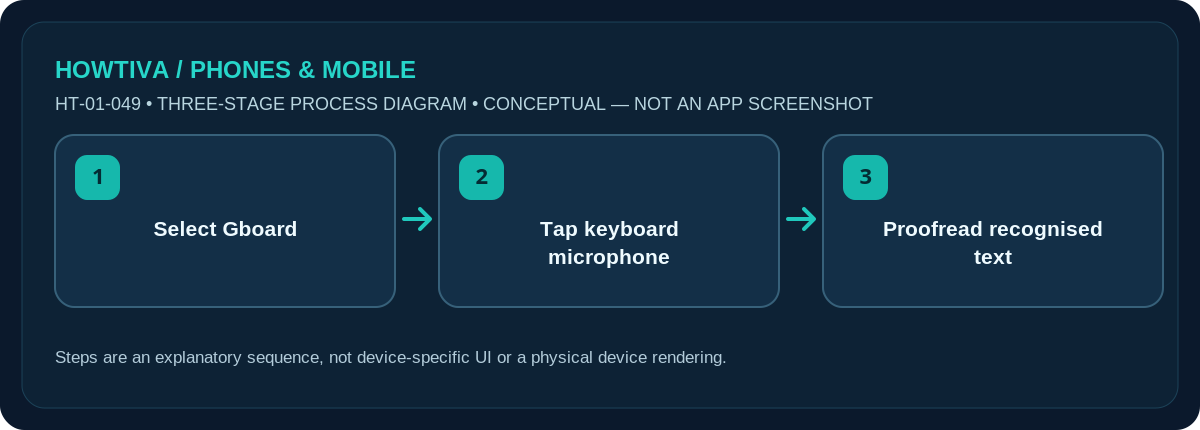
Install or select Gboard, open an app where you can type, tap the text field, then tap the microphone at the top of the keyboard. When prompted to speak, dictate your message and check the result.
Quick answer: Install or select Gboard, open an app where you can type, tap the text field, then tap the microphone at the top of the keyboard. When prompted to speak, dictate your message and check the result.
Google documents standard Gboard voice typing on Android 7+ for supported features, though some languages and devices are excluded. Pixel advanced voice typing and Samsung Keyboard use different controls.
Type a message using your voice
- Select a supported keyboard. If you use Gboard, install or update it from the legitimate Play Store listing and select it under your device’s keyboard settings.
- Open Notes, Messages or another editable field. Tap where you want the text to appear. Make sure the on-screen keyboard is actually Gboard.
- Tap the microphone at the top of Gboard. Grant any requested microphone permission only after verifying the app and its purpose. Wait until the keyboard displays the prompt to speak.
- Speak a clear sentence. Add punctuation by saying period, comma or new paragraph if supported in your chosen language.
- Review and edit the text before sending. The microphone may turn off when you stop speaking or tap it again, depending on the keyboard version.
If your phone uses Samsung Keyboard
Samsung devices often ship with Samsung Keyboard instead of Gboard. Look for that keyboard’s own microphone, dictation or voice-input setting. A microphone key may appear in a toolbar or another location. Do not follow a Pixel-only menu on a Galaxy device; either use the manufacturer’s manual or deliberately select Gboard if you want its documented steps.
Standard versus advanced Pixel voice typing
Some Pixel models support Advanced voice typing and additional editing commands. That is not the same as regular Gboard speech entry and should not be promised on an ordinary Android phone. Requirements can include specific languages, keyboard/OS versions and downloaded components. If your device lacks advanced features, standard microphone dictation may still work.
Microphone access and language selection
If the microphone is missing or does nothing, verify the active keyboard, its microphone permission and the chosen keyboard languages. Gboard does not offer speech-to-text for every language. Check that the phone microphone functions in an ordinary recorder or call without creating a private test recording that you plan to share. Do not grant microphone access to unrelated third-party apps as a troubleshooting shortcut.
Accuracy, data and sensitive content
Say punctuation where supported and pause briefly between clauses. Do not assume software recognises proper names, account numbers or unfamiliar accents correctly. Correct critical addresses, quantities and medical terms manually. Speech processing and connectivity needs can vary by language, settings and device; read Google’s current feature and privacy explanations for the option you are using.
Troubleshooting and alternatives
- No microphone on Gboard: Confirm the active keyboard, supported language and microphone permission.
- Wrong words: Use a quieter room and proofread names and numbers.
- Samsung layout differs: Use Samsung Keyboard guidance or select Gboard intentionally.
- Advanced voice typing missing: It is available only on supported Pixel software.
Frequently asked questions
Where is the Gboard microphone?
Normally near the top of the keyboard. It may be hidden by toolbar customisation or an unsupported keyboard/language.
Does voice typing work in every language?
No. Check Gboard language support and the selected speech input language.
Does tapping the microphone send my message automatically?
No. It enters text into the field. You must separately confirm or send in the app.
Sources & Further Reading
- Gboard Help: Type with your voice (checked 2026-10-27)
- Gboard Help: Type in a different language (checked 2026-10-27)
Use the checklists as you go, and confirm the result before moving on to a more involved repair.