How to Change Your Phone’s Keyboard Language
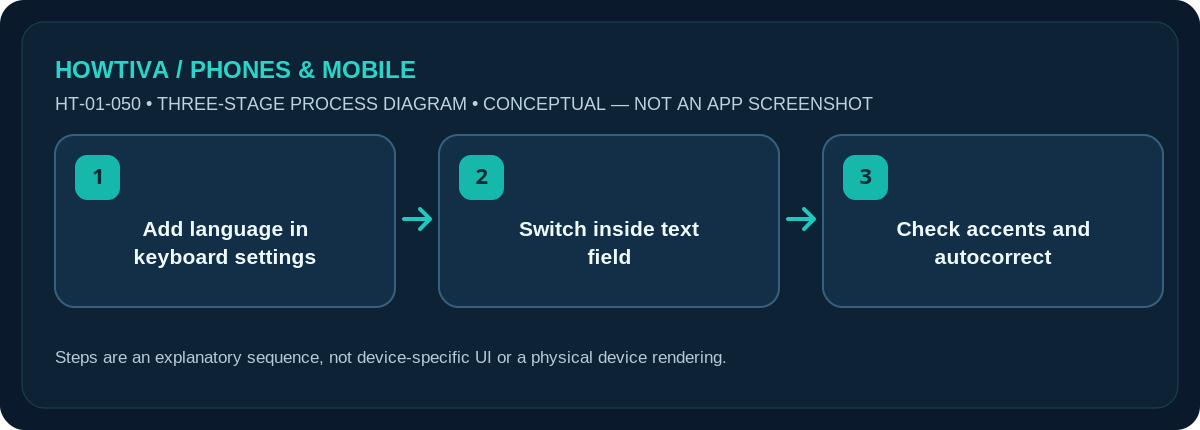
On iPhone, go to Settings > General > Keyboard > Keyboards > Add New Keyboard. On an Android phone using Gboard, open the keyboard’s Settings > Languages > Add keyboard, select a language and layout, then switch languages while typing.
Quick answer: On iPhone, go to Settings > General > Keyboard > Keyboards > Add New Keyboard. On an Android phone using Gboard, open the keyboard’s Settings > Languages > Add keyboard, select a language and layout, then switch languages while typing.
This changes the keyboard used for typing, not necessarily the whole phone’s display language. iOS 27 supports some bilingual keyboards; Gboard paths can vary on non-Pixel Android and Samsung Keyboard.
Add a keyboard language on iPhone or Android
- iPhone: Open Settings > General > Keyboard > Keyboards and tap Add New Keyboard. Choose a language and available layout.
- Switch while typing on iPhone: Touch and hold the globe/emoji keyboard-switch key in a text field, then choose the keyboard. Some supported bilingual keyboards switch automatically.
- Android with Gboard: Open any typing app, show Gboard, open its Settings, tap Languages > Add keyboard, then choose language and layout and tap Done.
- Switch languages in Gboard: Touch and hold the spacebar and select the desired layout. You may optionally turn on a dedicated globe key in Gboard Preferences.
- Verify the new keyboard by typing a sentence, checking accents and punctuation, and confirming that autocorrect is using the expected language.
Keyboard language versus system language
Adding a new typing keyboard should not be confused with changing your device’s interface language. Google explicitly notes that changing Gboard languages does not change the Android system language. On iPhone, adding a keyboard may add its language to the preferred-language list, but the displayed interface changes are handled separately under Language & Region. Avoid rearranging system language preferences if you only want a different keyboard layout.
Layouts and bilingual typing
An English keyboard can have alternative regional layouts; selecting the wrong layout may move symbols or punctuation. iPhone supports certain bilingual pairs without manually switching, but not every language combination. Gboard lets you choose an appropriate layout during setup. When you frequently mix languages, examine keyboard autocorrect predictions carefully before sending text.
Samsung Galaxy and alternative keyboards
If your Android phone uses Samsung Keyboard, its language management menu differs from Gboard. Search Settings for Samsung Keyboard settings or Languages and types, then consult the phone’s official model guide. Do not install an unfamiliar keyboard solely to access one language: keyboards can receive everything you type, so use trusted, reputable software and carefully review its privacy permissions.
Removing an unused layout safely
On iPhone, return to the Keyboards list and remove the unused language with the provided edit/delete control. In Gboard, revisit Languages to disable a keyboard layout you do not use. Keep at least one layout that lets you enter your passcode and normal messages. If a field behaves strangely after a switch, hold the globe or spacebar again to reselect the expected keyboard.
Troubleshooting and alternatives
- Wrong accents: Choose the correct regional keyboard layout.
- Language option missing: Verify your keyboard app supports it.
- Autocorrect switches language: Manually select the intended keyboard before writing.
- Cannot find globe key: Hold the spacebar in Gboard or check the iPhone keyboard switch key.
Frequently asked questions
Will my apps change language too?
Not necessarily. Keyboard language and the device or app interface language are separate settings.
Why did my symbols move?
You may have selected a regional layout; open keyboard settings and choose the layout you recognise.
Can I keep two languages active?
Yes, when offered. iPhone supports some bilingual combinations and Gboard supports multiple configured keyboard languages.
Sources & Further Reading
- Apple iPhone User Guide: Add or change keyboards on iPhone (checked 2026-10-27)
- Gboard Help: Type in a different language (checked 2026-10-27)
Use the checklists as you go, and confirm the result before moving on to a more involved repair.